Workflow Actions
Move a submittal through its review cycle with the actions of three actor groups — the Creator, the Assignee (coordinating reviewer), and optional Third-Party Approvers: Approve (A/B), Reject (C), For Info (D), Issue To, the three Reassign variants, Cancel, Resubmit, Resubmit & Supersede, Take Creator / Take Approver, and Edit / Delete on drafts.
Open a submittal to see your available actions on the bottom action bar; the More menu lists every action grouped by your roles:
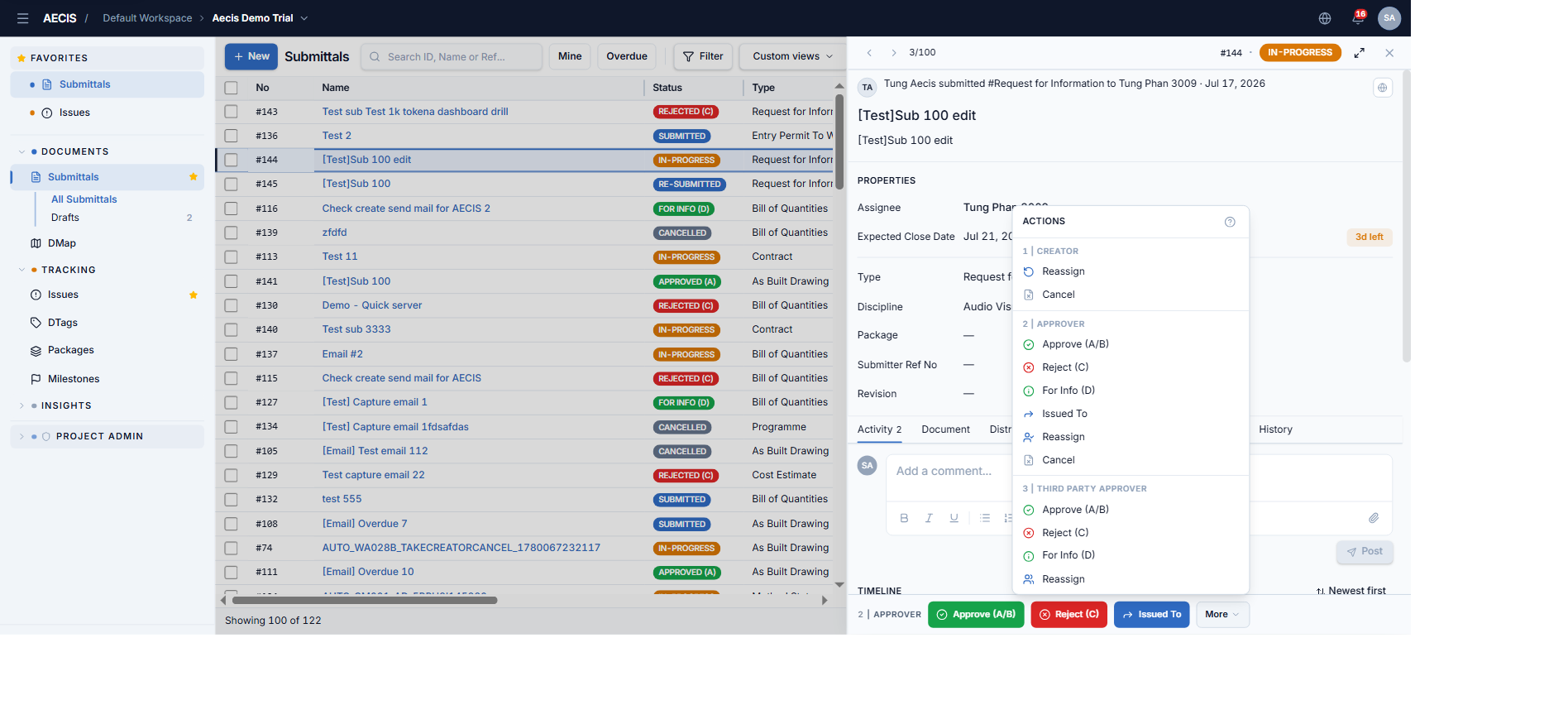
Who can do what
| Status | Creator group | Assignee group | Third-Party group |
|---|---|---|---|
| Draft | Edit, Delete | — | — |
| Submitted / Re-Submitted | Edit, Transfer Ownership, Cancel | Approve, Reject, For Info, Issue To, Reassign Coordinator, Cancel | — |
| In-Progress | Transfer Ownership, Cancel | Approve, Reject, For Info, Issue To, Reassign Coordinator, Cancel | TP Approve, TP Reject, TP For Info, Delegate Review |
| Rejected (C) | Resubmit, Transfer Ownership, Cancel | (same as In-Progress) | (same as In-Progress) |
| Approved (A/B) / For Info (D) | Resubmit & Supersede, Transfer Ownership, Cancel | (same as In-Progress) | (same as In-Progress) |
| Cancelled / Superseded | none | none | none |
Administrators can act as any group. Users in no group see only Take Creator / Take Approver.
Approve (Assignee)
-
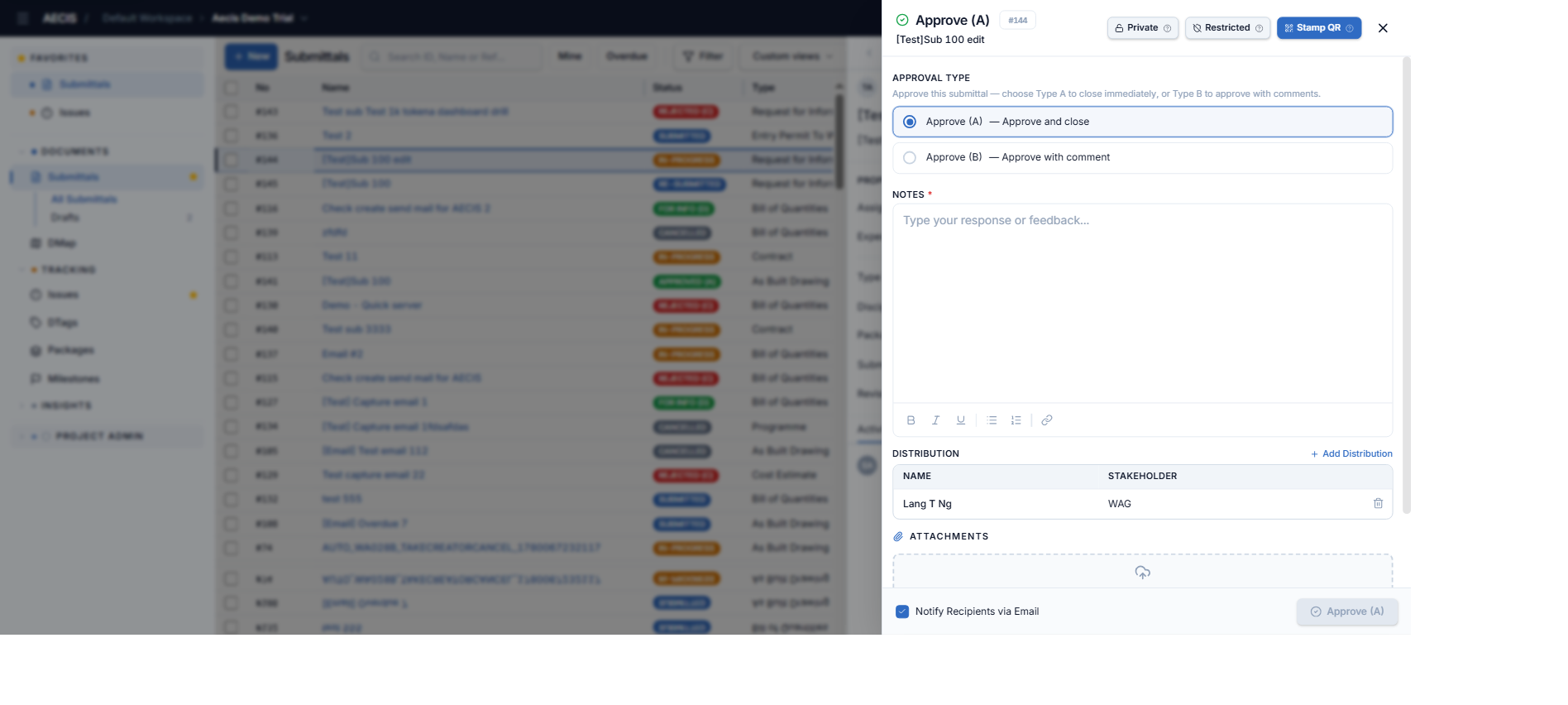
Open the submittal and click Approve (A/B) on the action bar.
-
Choose the Approval Type:
- Approve (A) — approve and close.
- Approve (B) — approve with comments.
-
Enter Notes (required), review the Distribution list, attach files if needed.
-
(Optional) Enable Stamp QR to apply a QR-code review stamp to the PDF documents.
-
Confirm. The status moves to Approved (A) or Approved (B).
Reject (Assignee)
-
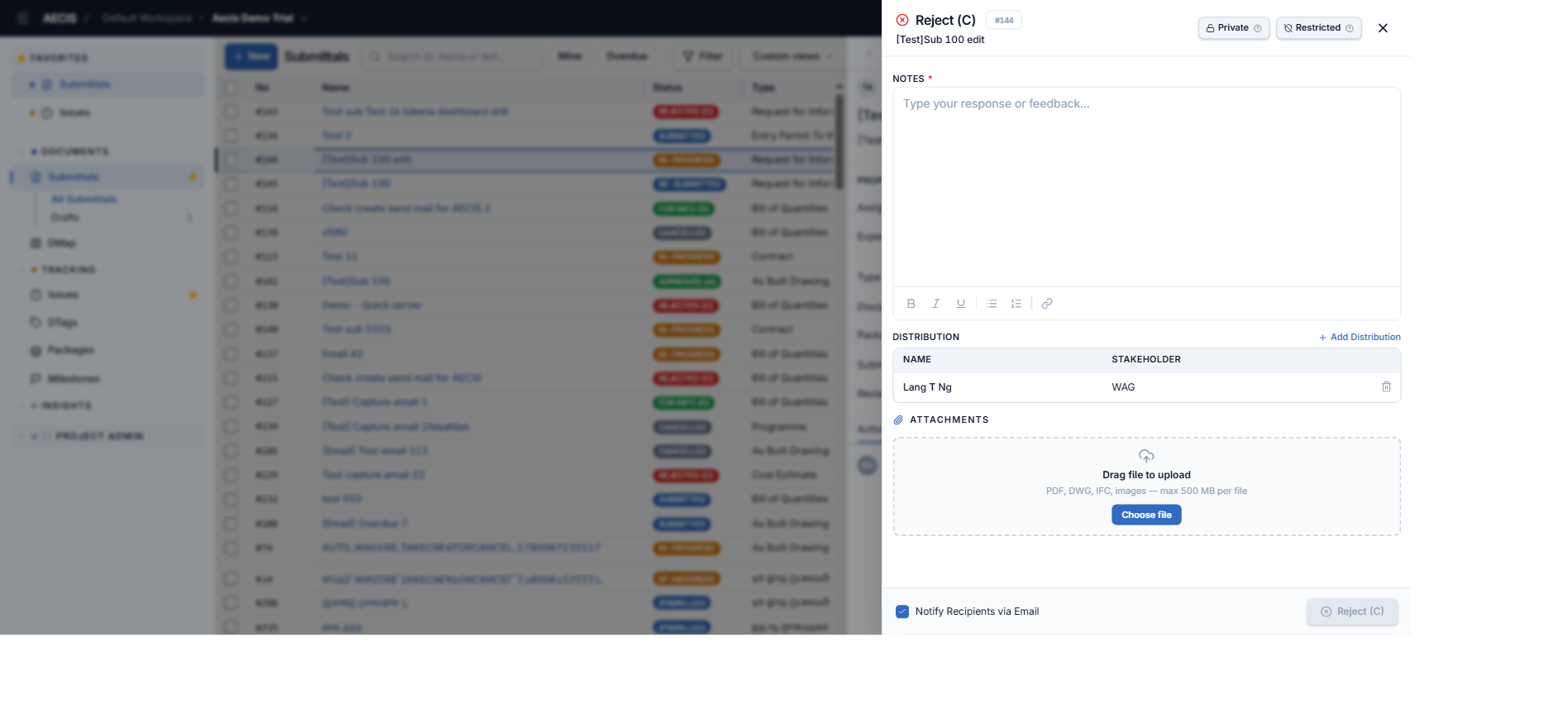
Click Reject (C) on the action bar.
-
Enter Notes (required) explaining what must be corrected, and confirm.
-
The status moves to Rejected (C) — the Creator can now Resubmit.
For Info (Assignee)
Choose For Info (D) from the More menu, enter Notes, optionally apply a Stamp QR, and confirm. The status moves to For Info (D).
Issue To (Assignee)
Route the submittal to third-party reviewers:
-
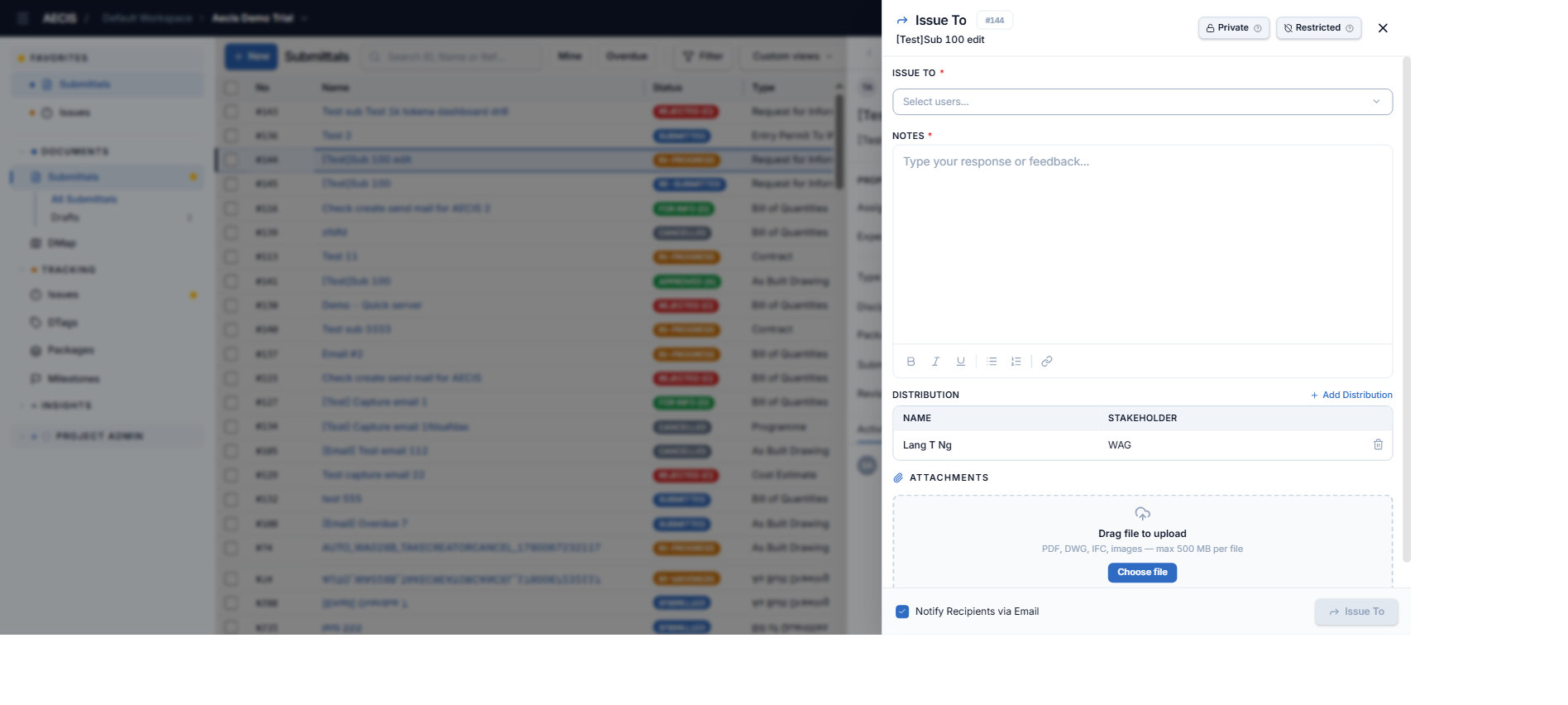
Click Issued To on the action bar.
-
Select one or more reviewers (required), enter Notes (required), and confirm.
-
The selected people join the Third-Party group and can record advisory Approve / Reject / For Info opinions — these never change the submittal's status. Only the Assignee's disposition does.
Reassign variants
Three different "reassign" actions exist, one per role:
- Transfer Ownership (Creator) — hand the submittal to a new creator.
- Reassign Coordinator (Assignee) — hand the review to a new assignee.
- Delegate Review (Third-Party) — add another reviewer to the Issue-To list.
Cancel
Either the Creator or the Assignee can Cancel a submittal that is not yet closed. A cancel reason is required. Cancelled is a terminal status.
Resubmit (Creator)
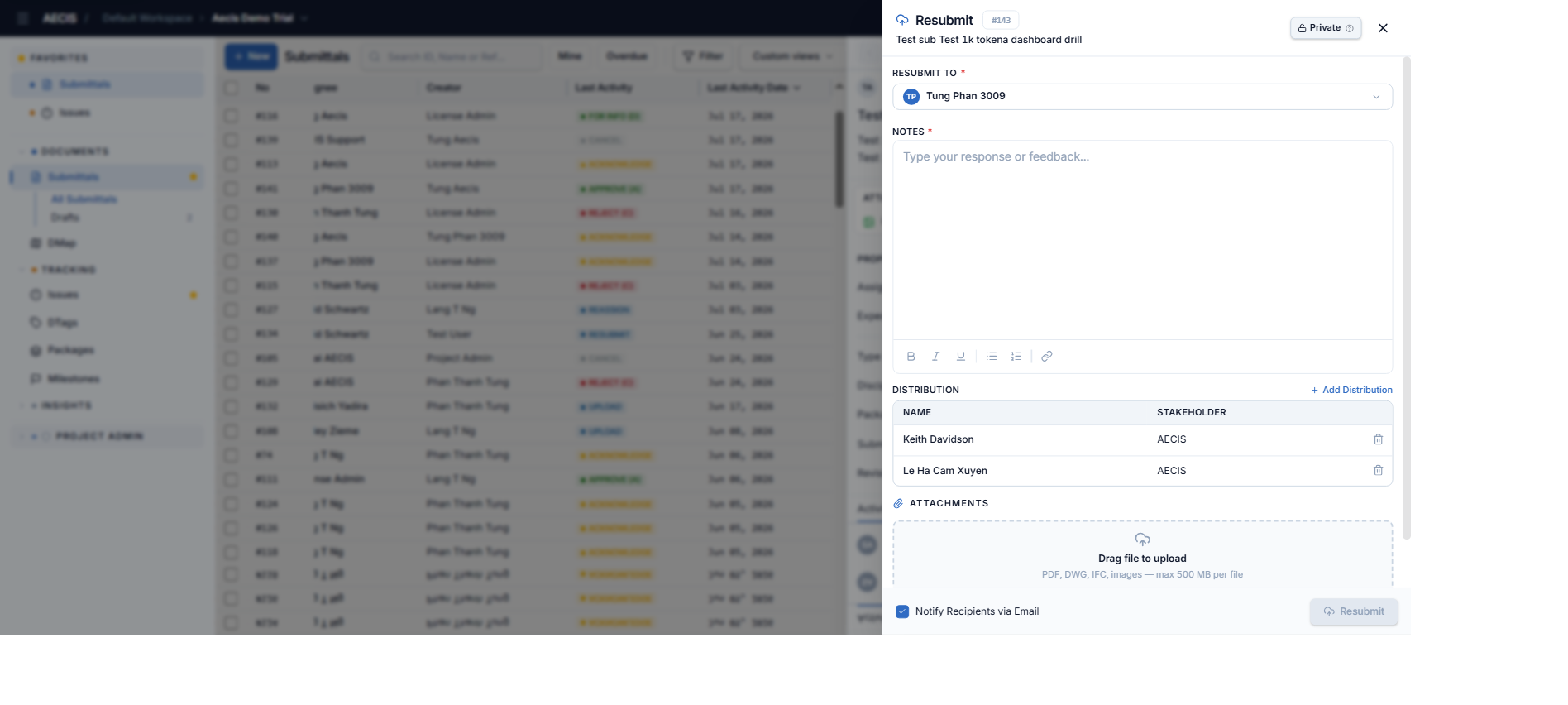
When a submittal is Rejected (C), the Creator corrects the documents and resubmits the same record:
-
Open the rejected submittal and click Resubmit (action bar or More menu).
-
Confirm or change the Resubmit To assignee (required, pre-filled with the current assignee).
-
Enter Notes (required), attach the corrected documents, review the distribution.
-
Confirm. The status moves to Re-Submitted, and the documents' major version steps up — for example
0.0 → 1.0, or1.0 → 2.0.
Resubmit & Supersede (Creator)
When a submittal is Approved (A/B) or For Info (D) but needs to be replaced (e.g. a design change):
- Open the approved item and choose Resubmit & Supersede.
- A full create-style form opens, pre-filled from the original — Name, Description, Type, Discipline, and Assignee are required.
- Confirm. The system creates a new linked submittal and marks the original Superseded.
Key behaviors:
- The new submittal's document version restarts from
0.0— it begins its own version history. - The two records stay linked in the revision chain, navigable from the detail panel's header popover (
Rev 00 / 01 / 02…). - Only unstamped documents move to the new record — stamped/approved documents remain on the old one as the historical record.
- The moment Supersede fires, the old record is blocked from further actions.
| Situation | Action | Result |
|---|---|---|
| Rejected (C) | Resubmit | Same record → Re-Submitted |
| Approved (A/B) or For Info (D) | Resubmit & Supersede | New record created; original → Superseded |
Take Creator / Take Approver
If you are not involved in a submittal at all, these actions let you claim the Creator or Assignee role (subject to your project permissions). "Take Approver" on a Submitted/Re-Submitted item also triggers the automatic move to In-Progress.
Edit & Delete (Creator, drafts and early statuses)
- Edit — available while the submittal is Draft, Submitted, or Re-Submitted; opens the create form in edit mode.
- Delete — available on Drafts only; removes the draft immediately.