The Submittal List
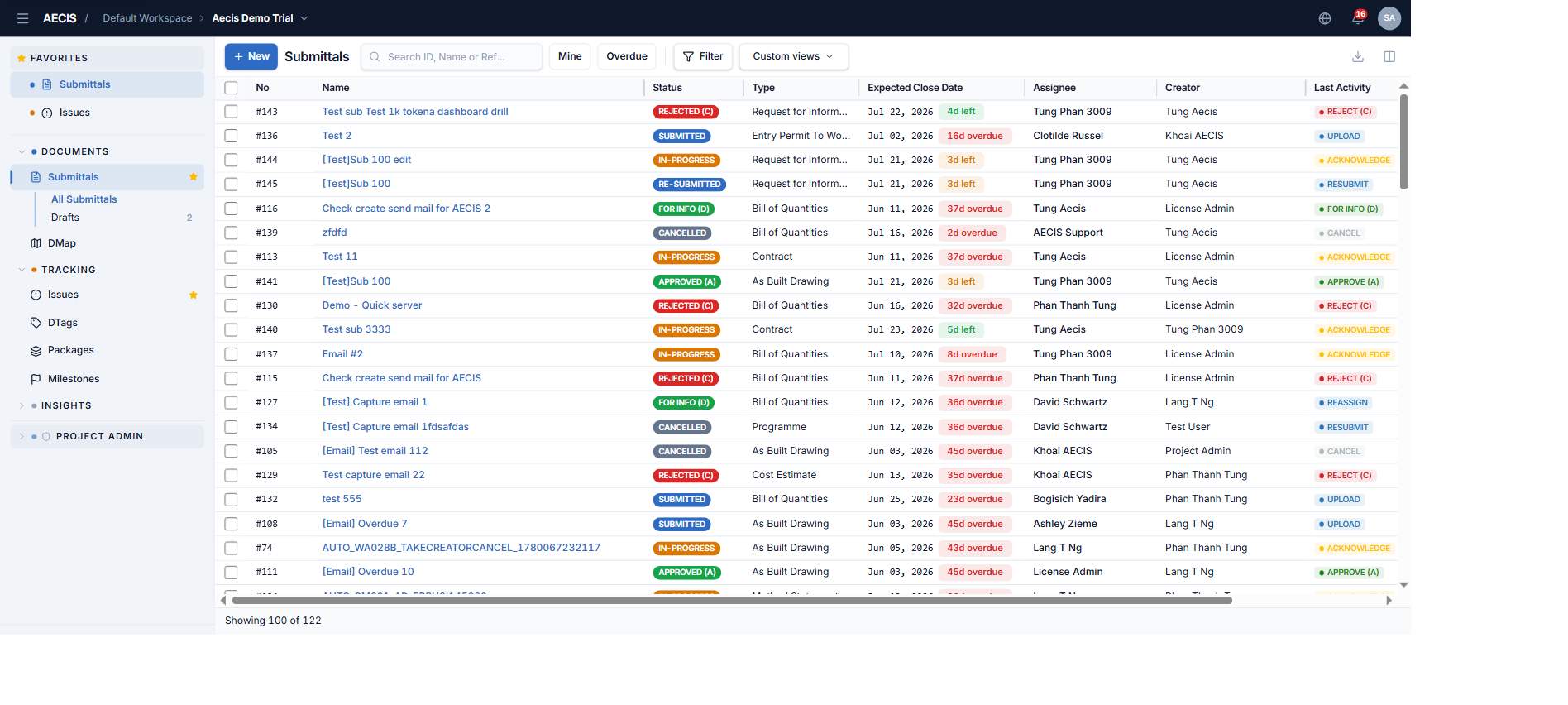
The list screen shows the project's submittals in a compact, high-density table with the checkbox and No. columns permanently pinned.
Toolbar
| Control | What it does |
|---|---|
| + New | Opens the Create Submittal panel |
| Search box | Search by ID, name, or reference number |
| Mine | Only submittals where you are directly involved |
| Overdue | Only overdue submittals (past their Expected Close Date and still in an open status) |
| Filter | Advanced filter panel — status, type, discipline, creator, assignee, Issue-To users, and date ranges (created / last activity / expected close) |
| Custom views | Saved filters combining conditions with AND / OR |
| Export | Export the current filtered list |
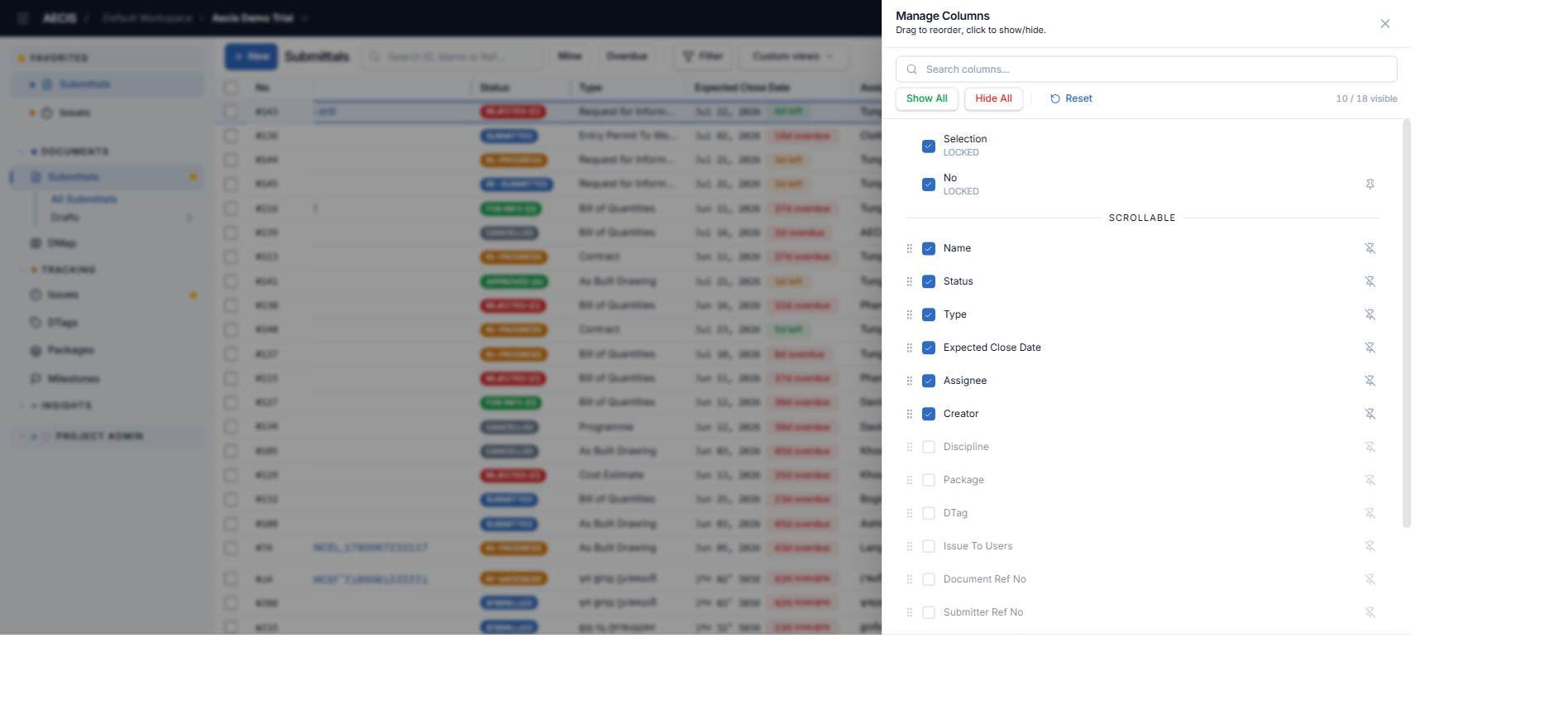
| Manage Columns | Show/hide and reorder columns |
Columns
Default-visible columns: No., Name, Status, Last Activity (an action chip such as Acknowledge, Approve (A), Reject (C), Upload), Type, Expected Close Date (with overdue/Nd left badge), Assignee, Creator, and Last Activity Date. More columns (Discipline, Package, DTag, Issue To Users, Document Ref No, Submitter Ref No, …) can be enabled via Manage Columns.
You can:
-
Sort by clicking a column header.
-
Reorder / pin / hide columns via Manage Columns or the column menu:
-
Select multiple rows with the checkboxes for bulk actions.
-
Click a row to open the detail panel.
Reading the table
- Status badges use fixed colors: Draft light slate, Submitted/Re-Submitted blue, In-Progress amber, Approved (A/B) and For Info (D) green, Rejected (C) red, Cancelled/Superseded dark slate.
- Expected Close Date shows an overdue indicator (e.g.
16d overdue, red) or the remaining time (e.g.3d left, green). - Last Activity shows the most recent workflow action as a chip (e.g. Acknowledge, Approve (A), Reject (C), Upload).
- The footer shows the total number of submittals matching the current filter.
Default sorting
By default the table sorts by last activity date, descending — the most recently active submittals come first. Click any column header to sort differently.
Export to PDF
- Apply the filters and sorting you want — the export respects them.
- Click the Export button (download icon, top-right).
- Choose the report template.
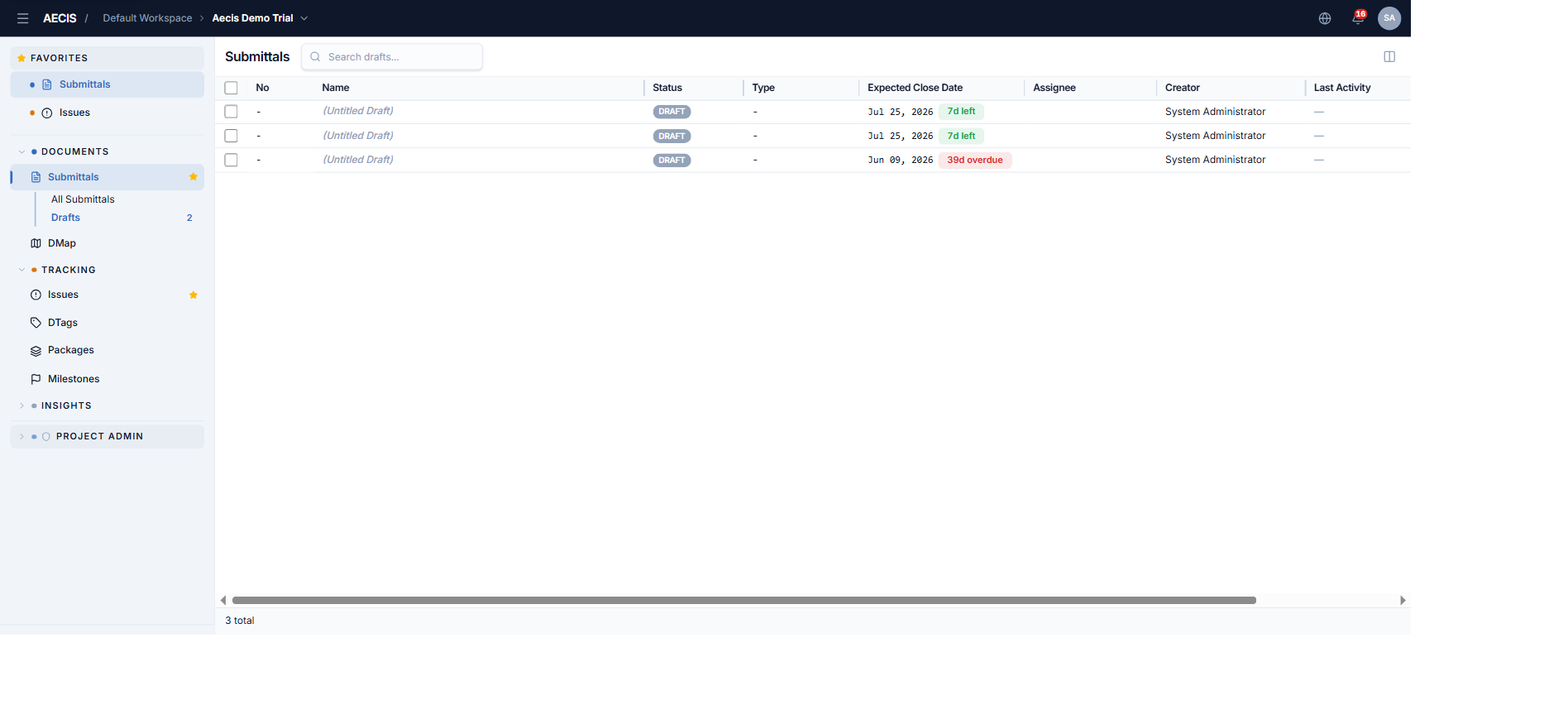
The Drafts view
Drafts in the sidebar lists your unsubmitted drafts. It differs from the main list:
- Its own search box, no Create button.
- Deleting a draft (trash icon) happens immediately, without a confirmation dialog — a toast is the only feedback. This is by design; be careful.