The Detail Panel
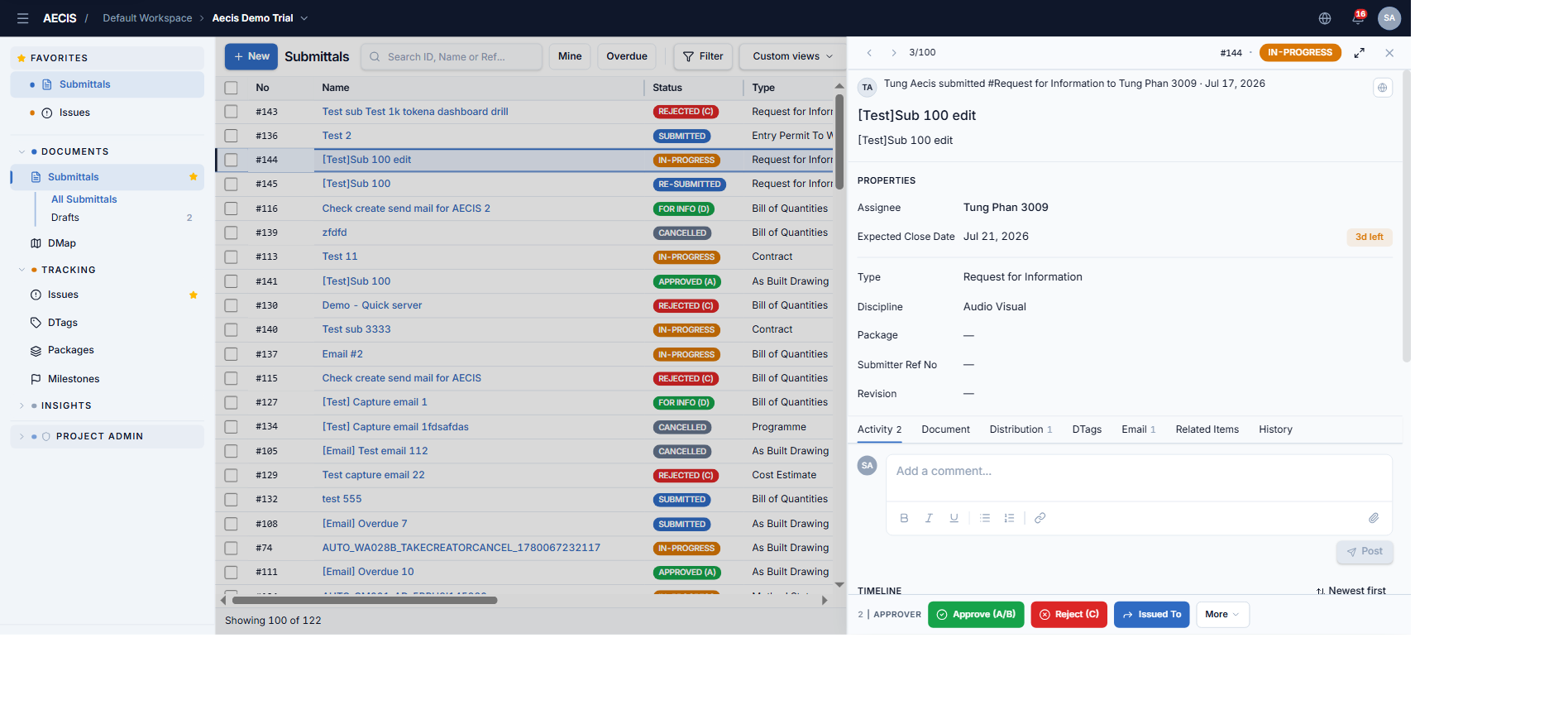
Click any row to open the detail panel on the right (expandable to full screen).
Layout
- Top bar — previous/next navigation with your position in the filtered list, the submittal number, status badge, expand and close buttons.
- Social card — who submitted what to whom and when, plus the privacy control.
- Title & Description — editable inline when your role and the status allow it.
- Properties grid — Assignee, Expected Close Date (with time-left/overdue badge), Type, Discipline, Package, Submitter Ref No, Revision.
- Content tabs — Activity, Document, Distribution, DTags, Email, Related Items, History; each shows its item count.
- Bottom action bar — your available actions with a role indicator (e.g.
2 | APPROVER), and the More menu grouped by role.
Revision navigation
For items that are part of a revision chain (resubmitted or superseded), the panel header popover shows the chain — Rev 00 / 01 / 02… — and lets you jump between revisions. This popover is the single revision-navigation surface; there is no separate Revision tab.
Auto-transition on first open
Opening a Submitted or Re-Submitted item as its Assignee automatically moves it to In-Progress and records an Acknowledge entry in the Activity timeline.
Tabs
Activity
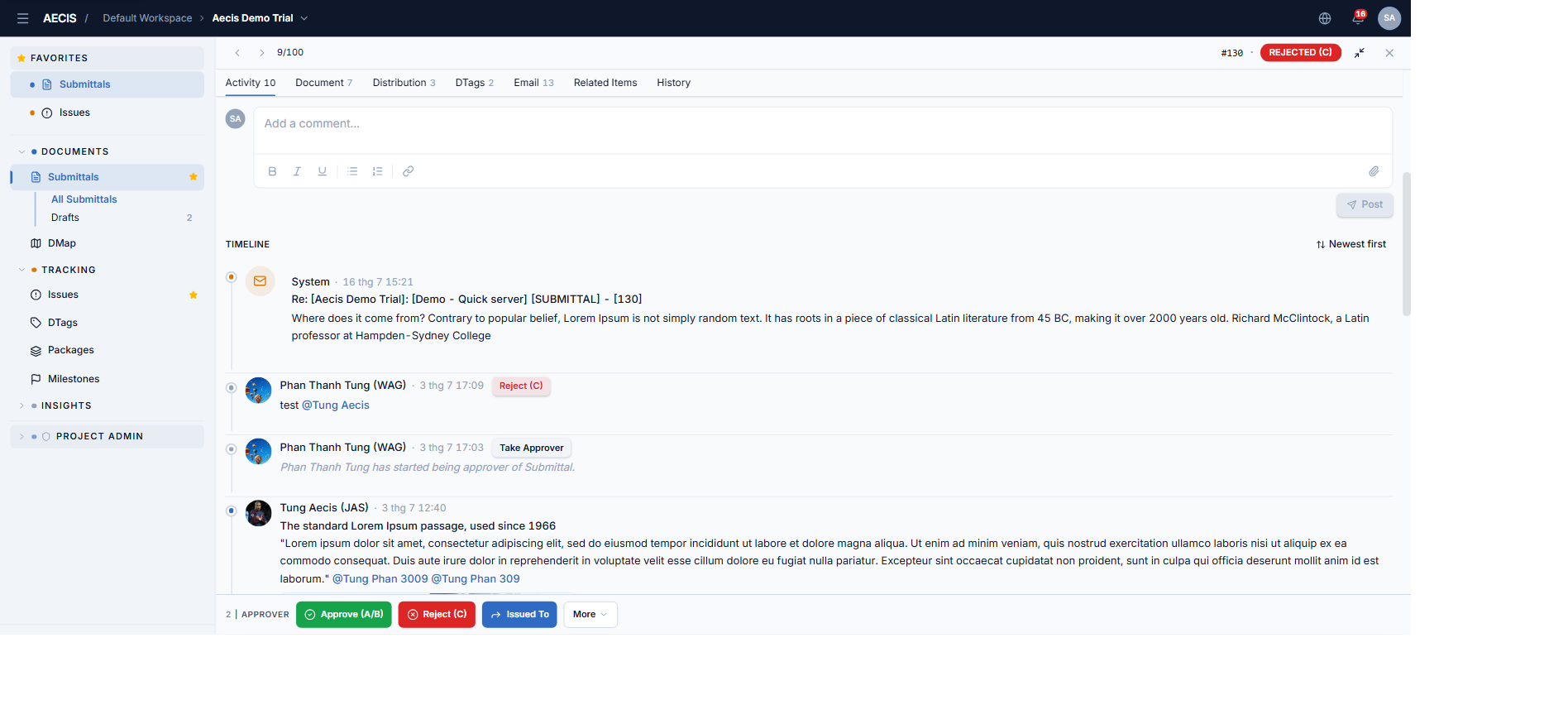
The full timeline of the submittal: user comments, workflow action records, and notification emails, sortable newest/oldest first.
- Post a comment — a rich-text editor with
@mentions (suggested from the user directory) and file attachments. - Workflow entries carry an action chip (e.g. Reject (C), Take Approver) so you can follow the review at a glance.
- Email entries open the email viewer when clicked.
Document
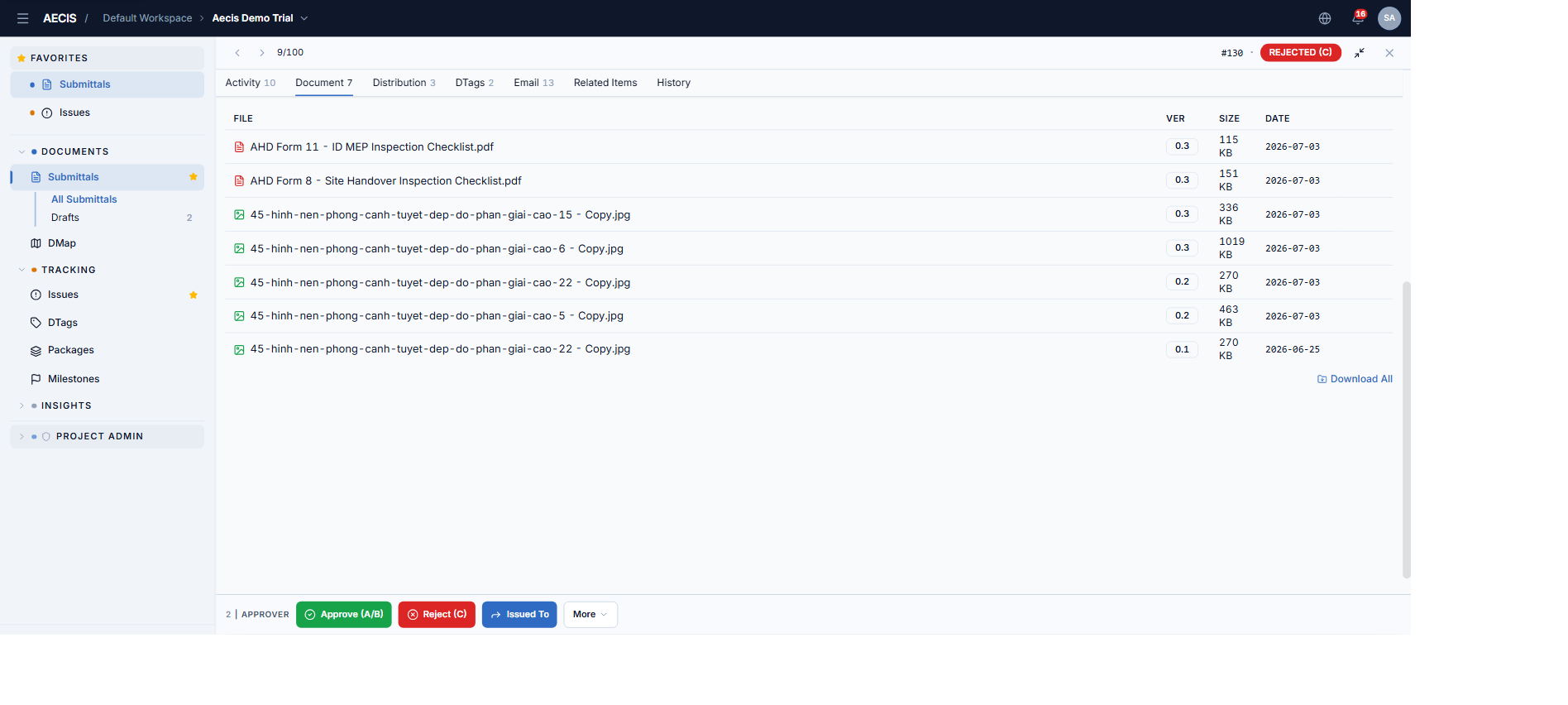
The attached document set, versioned — each file shows its version (0.1, 0.2, …), size, and upload date.
- Click a row to open the full-screen viewer — zoom, rotate, markup, and annotation.
- Download a single file, or use Download All for the whole set.
- Documents stamped during Approve / For Info carry the QR review stamp.
Distribution
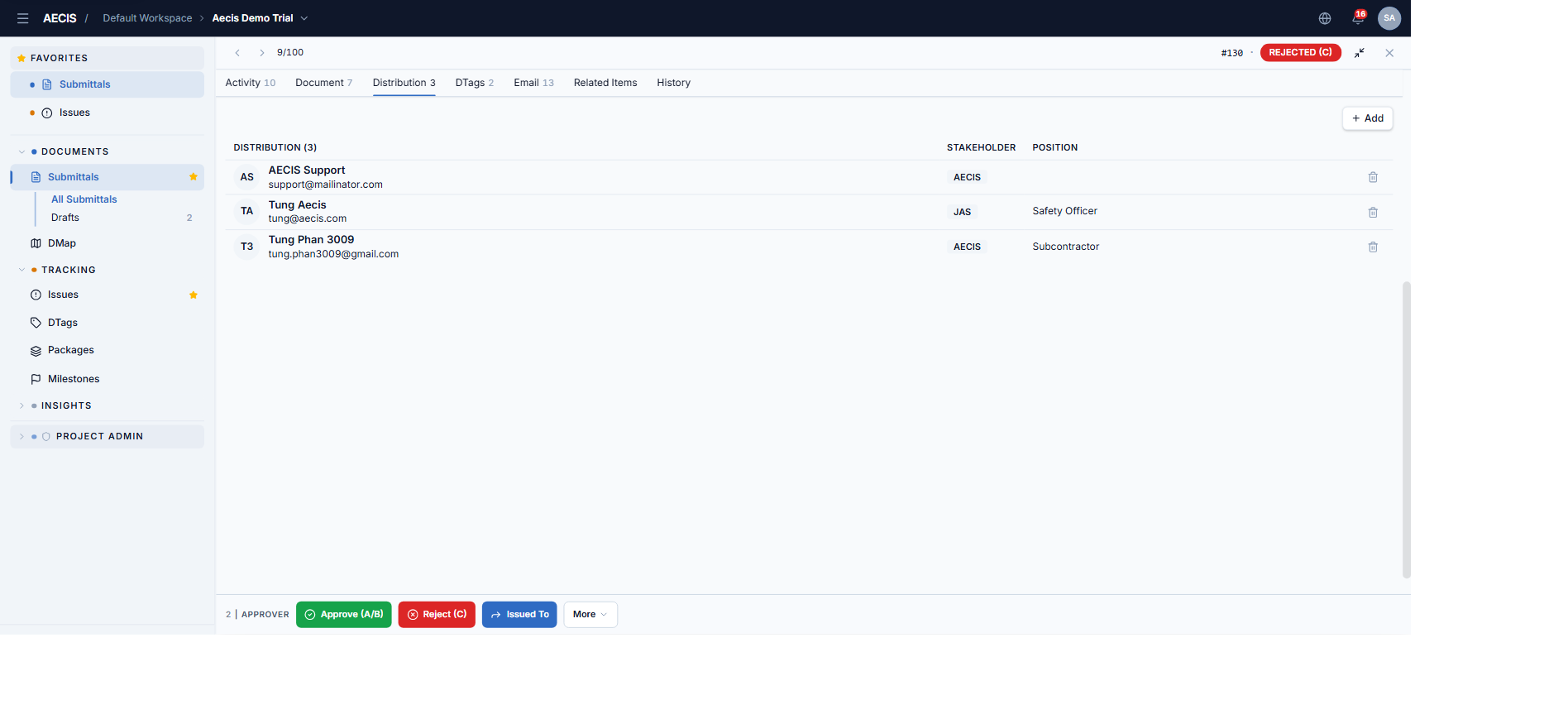
The notification recipients. Each row shows avatar, name, email, stakeholder, and position.
- + Add — opens a sub-panel to search by name / email / position and select multiple people at once.
- Remove — each row has a delete button.
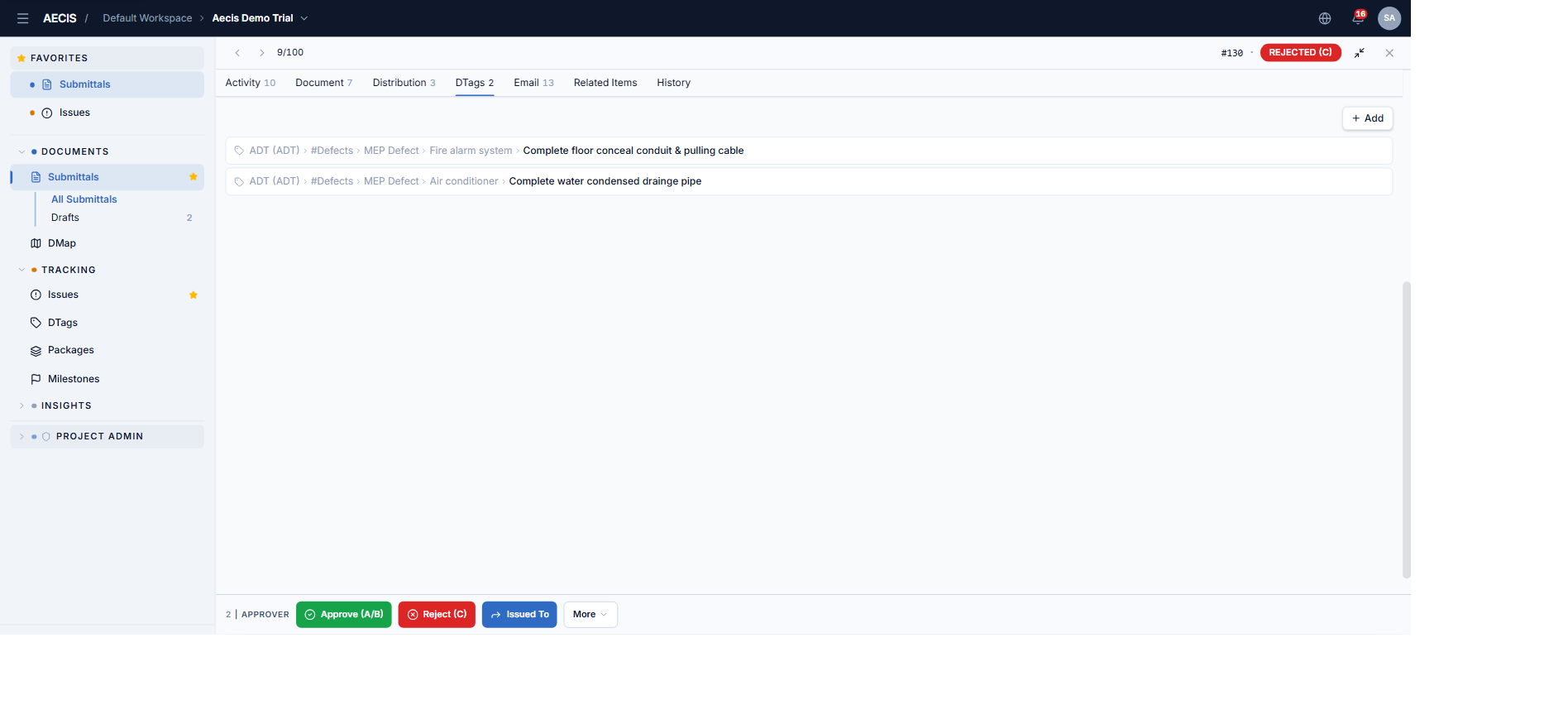
DTags
The location tags attached to the submittal, each shown as a hierarchical path (e.g. ADT › #Defects › MEP Defect › Fire alarm system).
- + Add — opens the DTag tree picker; check/uncheck to add or remove.
- Remove — per-row delete button.
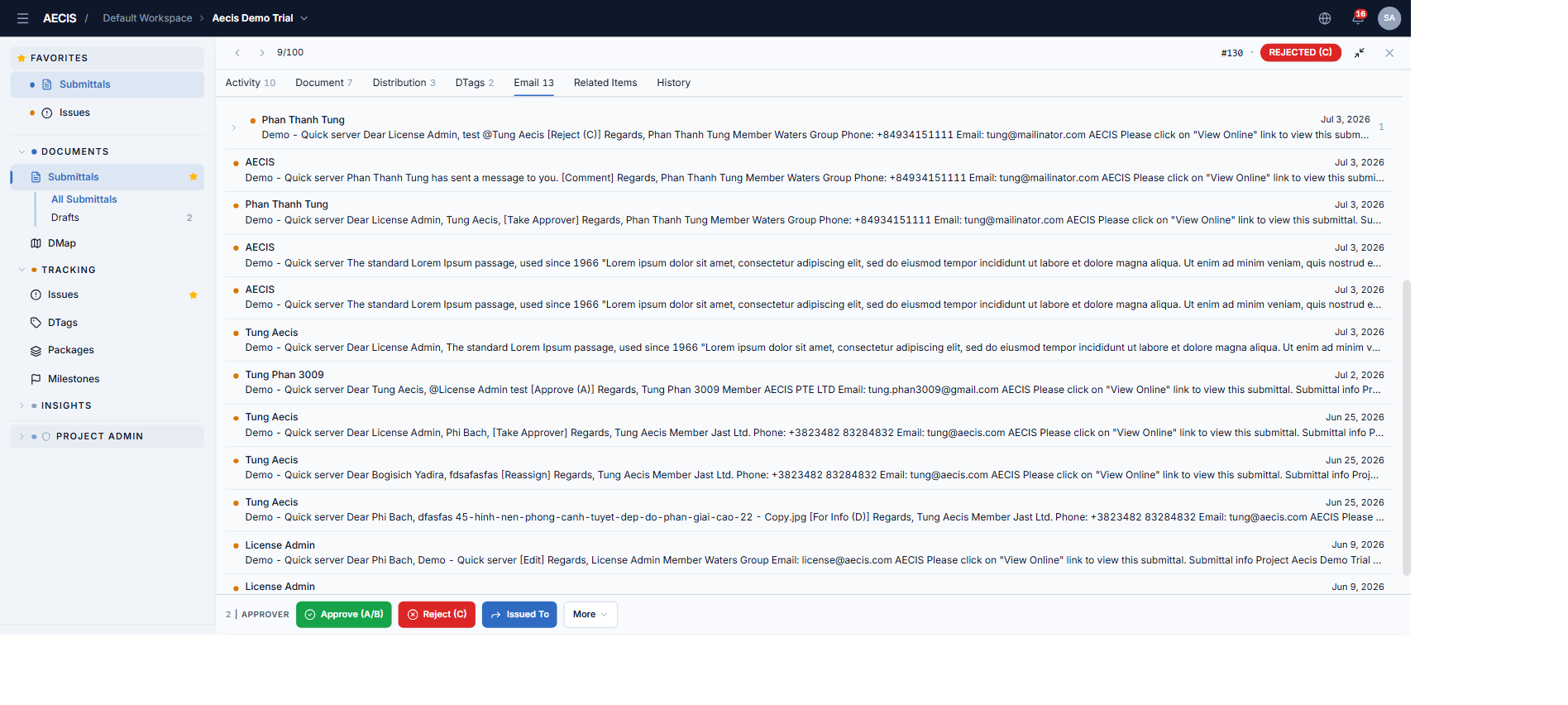
Email
The notification emails generated from the submittal, with sender, subject preview, and date.
- Click a row to open the email viewer with the full sender, recipients, and content.
- Reply All — compose a reply (with attachments); it is written back to the Activity timeline.
Related Items
Link the submittal to other objects in the project — Submittals and Issues. Each row shows the number, title, status badge, and last-modified date, with per-row unlink.
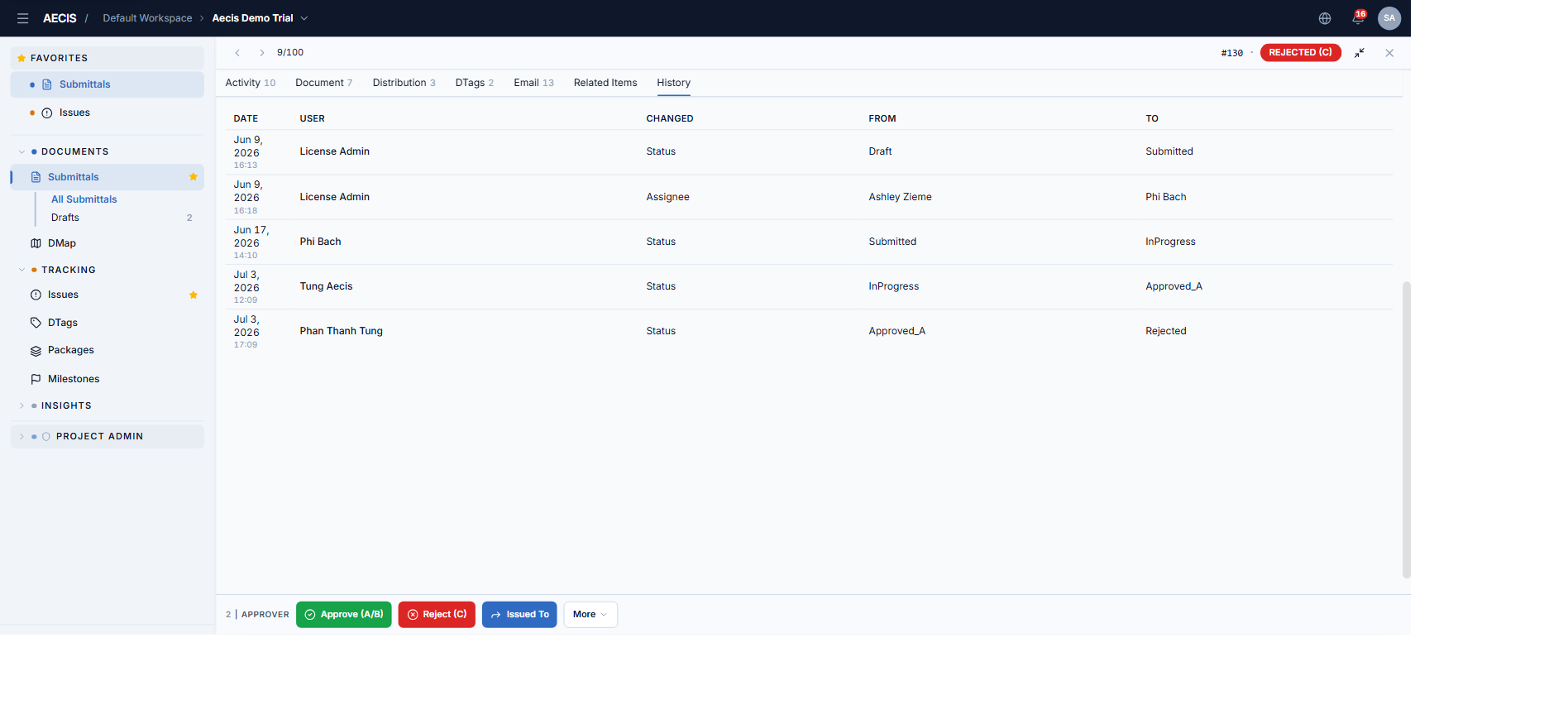
History
A read-only, field-level audit trail: the date, the user, what changed, and the from → to values (e.g. Status: InProgress → Approved_A, Assignee: Ashley Zieme → Phi Bach).
Inline editing
Title, Description, and properties-grid fields can be edited inline when your role and the status allow — see Edit a Submittal (Inline Editing) for the full rules.