Create a Submittal
Submit a document set — a shop drawing, spec, method statement, or similar — for formal review.
Prerequisites: a project role with Submittal write access; the Submittal Type catalog configured for the project.
Steps
-
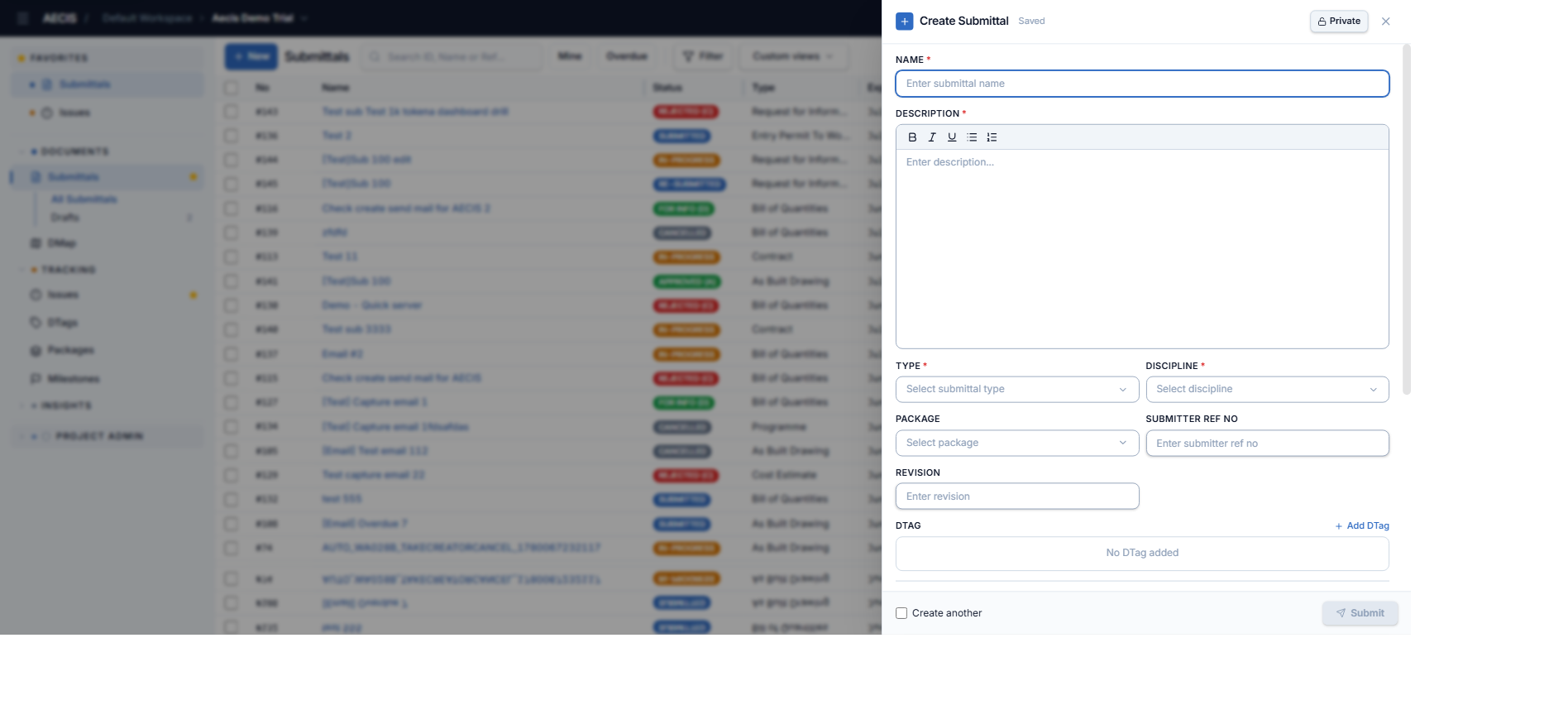
In the Submittals list, click + New. The Create Submittal panel slides in from the right.
-
Fill in the general information:
- Name (required).
- Description (required, rich text).
- Type (required) — from the project's Submittal Type catalog.
- Discipline (required).
- Package (optional) and Submitter Ref No (optional — your own document number).
- Revision (optional) — a user-entered revision label.
- DTag (optional) — attach the submittal to locations in the project structure.
-
Scroll to Submission & Workflow:
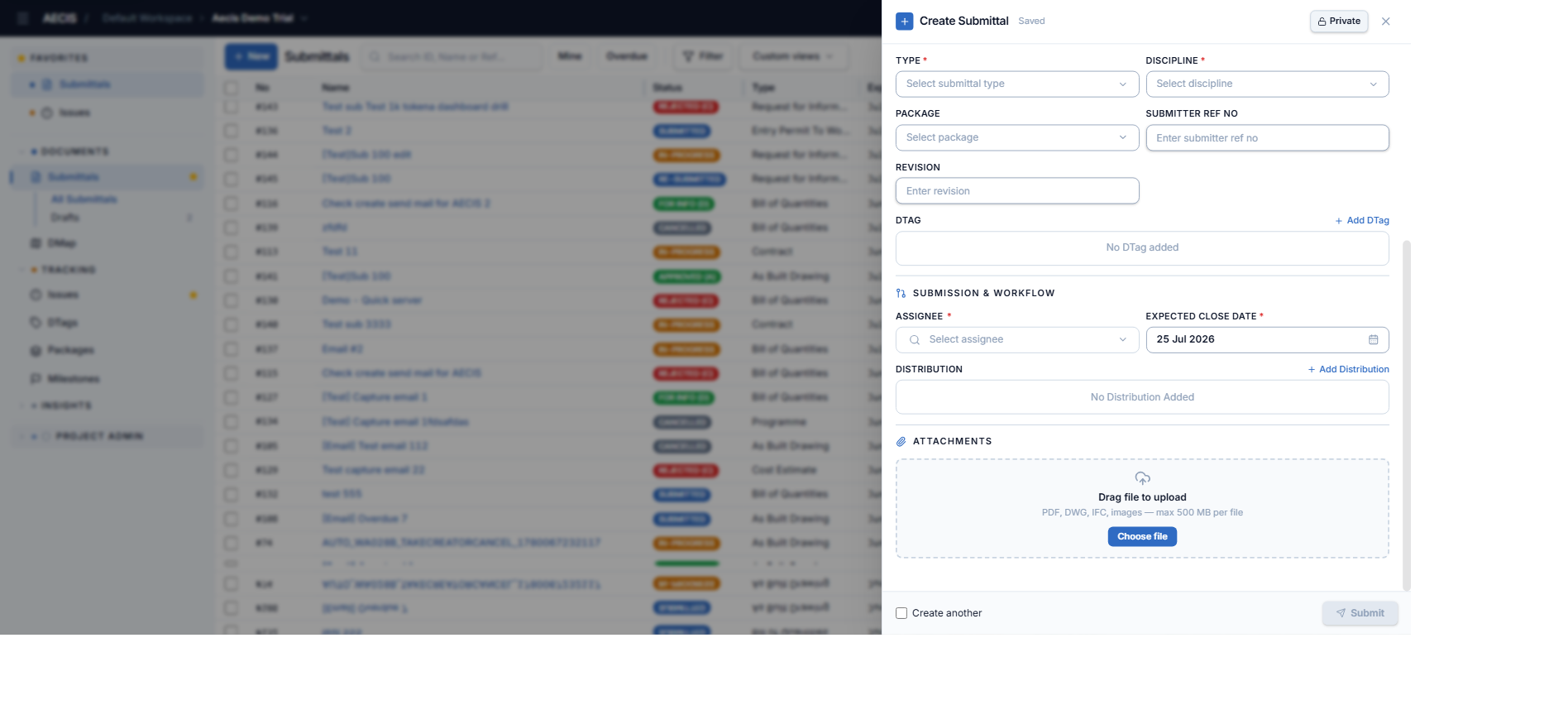
- Assignee (required) — the coordinating reviewer who will record the disposition.
- Expected Close Date — the system suggests a date 7 days from today; change it if you want.
- Distribution — the people who will receive email notifications about this submittal. Click + Add Distribution to add or remove people.
-
(Optional) Add attachments (PDF, DWG, IFC, images — max 500 MB per file).
-
(Optional) Toggle Private at the top of the panel — see Privacy.
-
Click Submit.
:::tip Create several submittals in a row Tick Create another before submitting. After saving, the panel stays open and keeps your Type / Discipline / Package / Assignee / Distribution selections, clearing only Name, Description, and attachments — so you can enter the next submittal faster. :::
:::tip Drafts are saved automatically If you close the panel without submitting, your input is kept as a Draft — find it under Drafts in the sidebar. Drafts can be edited or deleted at any time, and only you (the Creator) can see actions on them. :::
What happens next
- The submittal is created with status Submitted and a system-generated Document Ref. No.
- The creation email is sent immediately to the assignee and distribution list.
- When the assignee first opens it, the status automatically moves to In-Progress (an "Acknowledge" entry appears in the Activity timeline).