Bulk Actions
Apply the same action to many submittals at once.
Steps
-
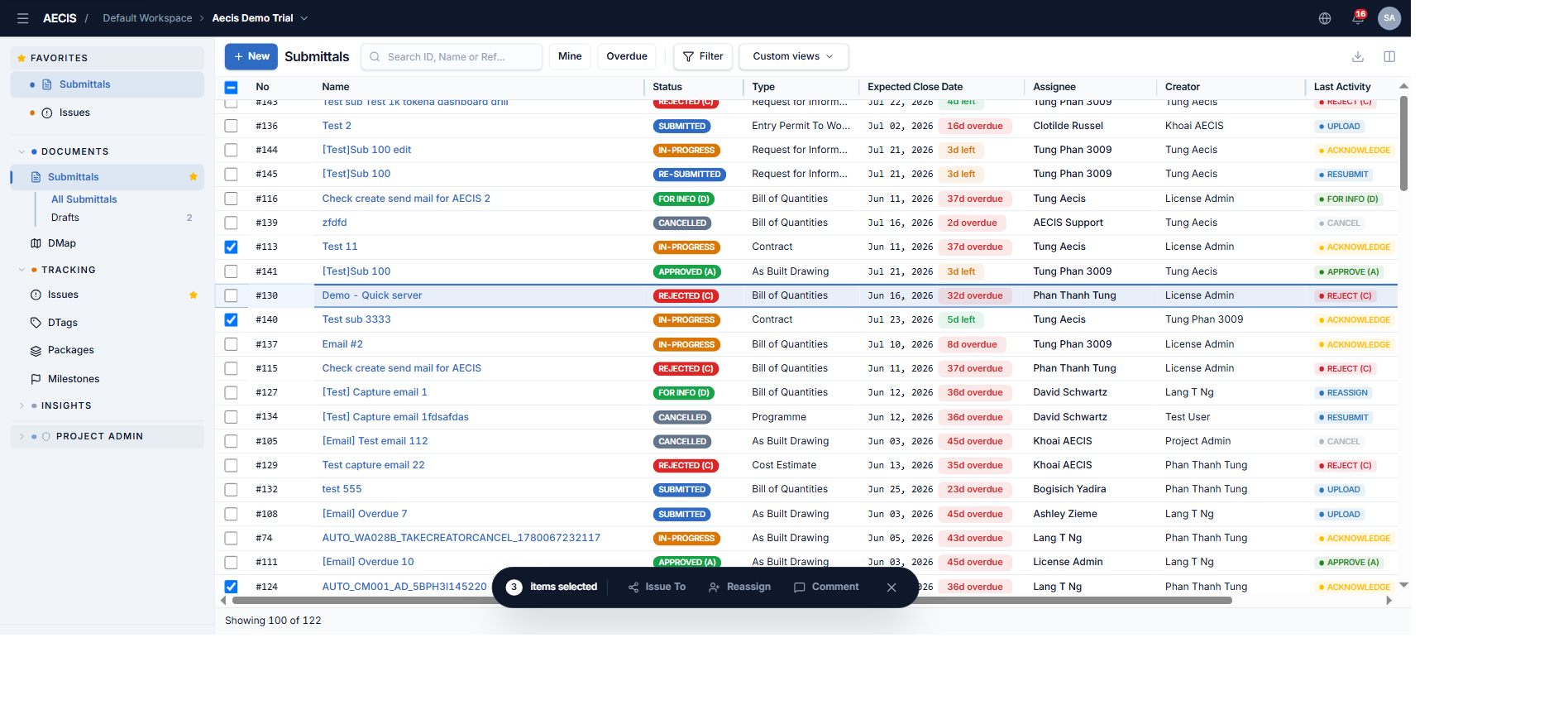
In the submittal list, tick the checkboxes of the submittals you want to act on.
-
A bulk-action bar floats up at the bottom-center of the screen, showing the selected count and the applicable actions.
-
Choose an action — a panel slides in from the right, similar to the single-item dialog, with the header stating the number of items selected.
-
Fill the required fields and confirm. The system processes up to 50 items per batch and reports the result per item — rows that could not be processed are listed with the reason, and notification emails are sent per successful item.
Which actions are available
An action appears on the bar only when every selected submittal is eligible:
| Action | Every selected submittal must… |
|---|---|
| Reassign | have you as its Assignee, and be In-Progress, Rejected (C), Approved (A/B), or For Info (D) |
| Issue To | same conditions as Reassign |
| Comment | (always allowed) |
:::note Not available in bulk Approve, Reject, and Download are not available as bulk actions. Approvals and rejections are deliberate, per-item decisions — open each submittal to record its disposition. :::
Bulk Reassign
Hand the review of all selected submittals to a new assignee:
-
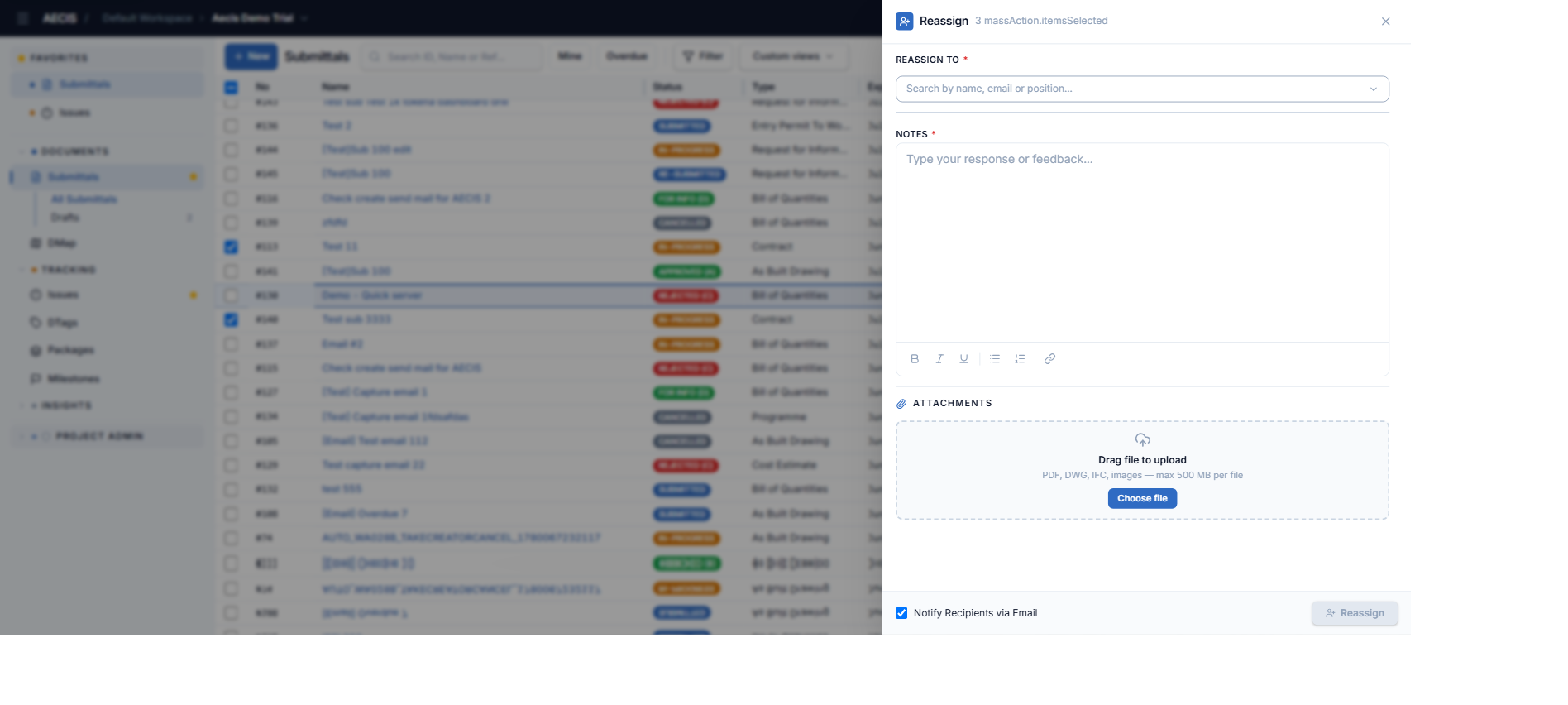
Choose Reassign on the bulk bar.
-
Select the new assignee (required — search by name, email, or position).
-
Enter Notes (required), optionally attach files, choose whether to notify recipients by email.
-
Confirm. Every eligible submittal moves to the new assignee.
Bulk Issue To
Route all selected submittals to third-party reviewers:
- Choose Issue To on the bulk bar.
- Select one or more reviewers (required), enter Notes (required), optionally attach files.
- Confirm. The selected reviewers join each submittal's Third-Party group and can record their advisory opinions.
Bulk Comment
Add the same comment to all selected submittals:
- Choose Comment on the bulk bar.
- Enter the comment (required), optionally attach files.
- Confirm. The comment appears in each submittal's Activity timeline. Always available regardless of status.
Bulk Delete on the Drafts screen
The Drafts view supports deleting drafts directly (including several at once). Deletion is immediate, with no confirmation dialog — a toast is the only feedback. Double-check your selection before clicking the trash icon.