Managing Packages
Packages come from a shared catalog: you add existing packages to the project, or create a new package and add it.
Add packages to the project
-
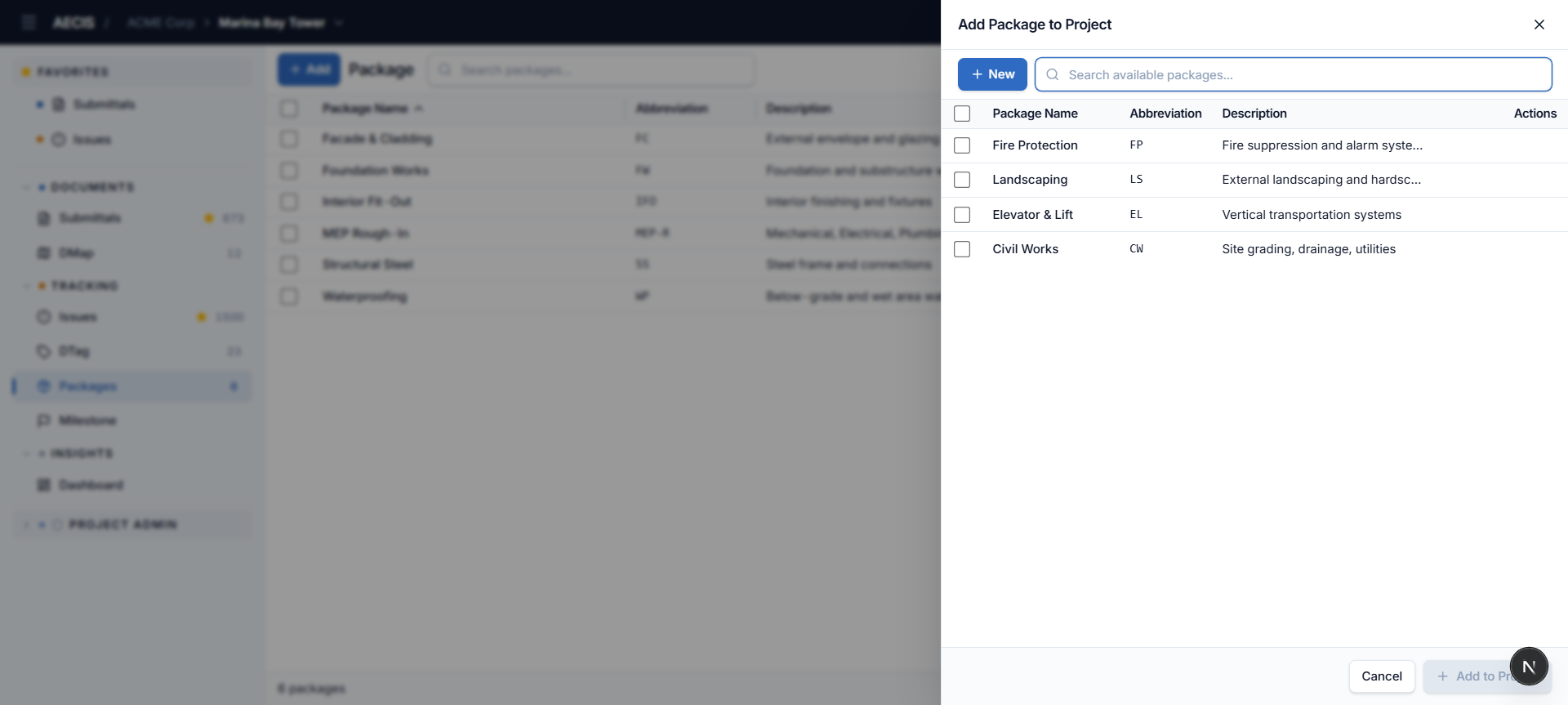
Click + Add in the toolbar. The Add Package to Project panel slides in:
-
The list shows the catalog packages not yet on this project. Use the search box to find one.
-
Tick the checkboxes of the packages you want.
-
Click Add to Project. The selected packages appear in the project's list.
Create a new package
-
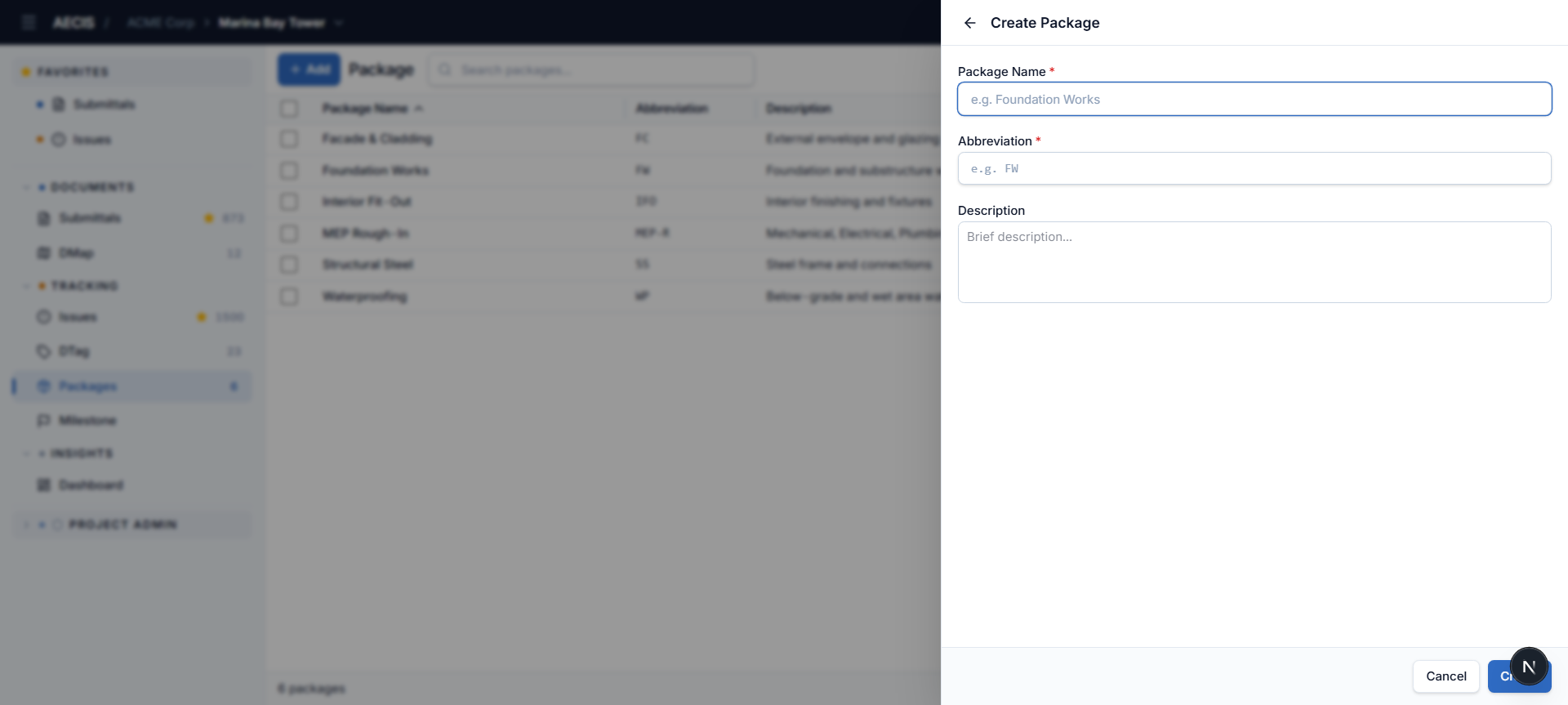
In the Add Package to Project panel, click + New:
-
Fill in:
- Package Name (required) — e.g. Foundation Works.
- Abbreviation (required) — the short code, e.g.
FW. - Description (optional) — a brief scope description.
-
Click Create. The new package is created and can be added to the project.
Remove a package from the project
Hover the package's row in the list and click Remove. This removes the package from the project — records already assigned to it keep their history, but the package is no longer offered for new records.