Workflow Actions
Six actions move an issue through its lifecycle on mobile: Complete, Close, Cancel, Reassign, Update, and Reopen. (Open is recorded automatically at creation and is never performed by hand.)
The workflow is identical to the web version — same actions, same rules, same results. Only the presentation differs: full-screen forms instead of side panels.
Open the ⋯ menu in the title bar of the detail screen to reach the actions. The menu only appears when you have edit rights on that issue.
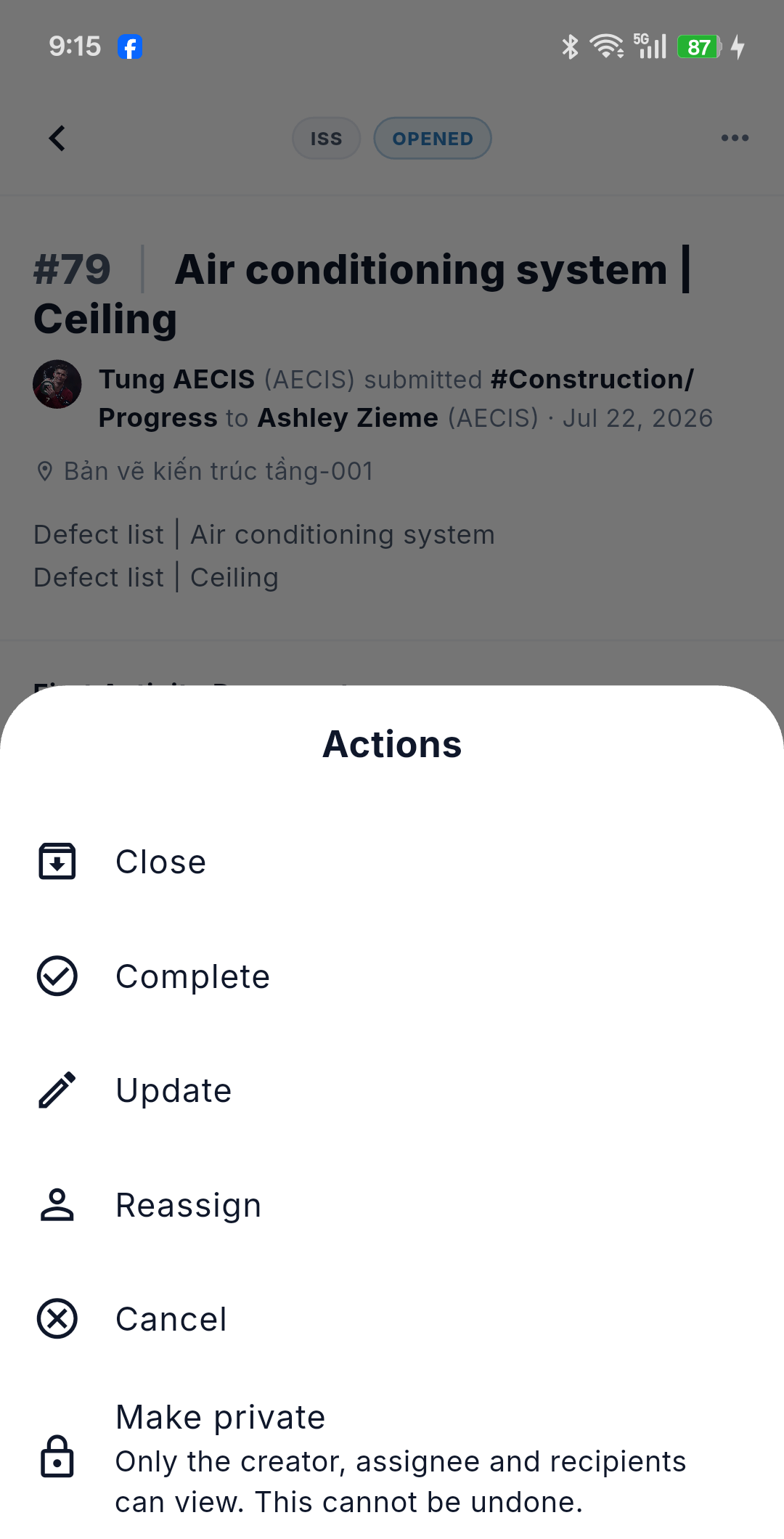
| Action | Result |
|---|---|
| 🟠 Complete | → Done; the resolver is recorded as the person who taps the action, not the assignee |
| 🟢 Close | → Closed; the closed date is recorded |
| 🔴 Cancel | → Cancelled — terminal, cannot be undone |
| 🔵 Reassign | Changes the assignee, and automatically keeps the previous assignee in the distribution list so they keep receiving notifications |
| 🔵 Update | Records progress without changing the status; an optional sub-status and confirmed date can be set |
| 🔵 Reopen | → Reopened; the assignee can optionally be changed |
Who can do what
The set of actions you may perform is decided by the system from your role and the issue's status. When you are online, the app shows exactly what the system returns — meaning permissions on mobile are enforced exactly as on the web.
When you are offline, the system's list is unavailable, so the app falls back to a provisional, status-based table:
| Status | Provisional actions shown offline |
|---|---|
| Opened / Reopened | Complete, Update, Reassign, Close, Cancel |
| Done | Close, Reopen |
| Closed / Cancelled | Reopen |
:::caution The offline list is provisional The fallback table lists the broadest possible set and does not distinguish role. An action you see offline may still be rejected once the system confirms your permissions on sync. :::
The action form
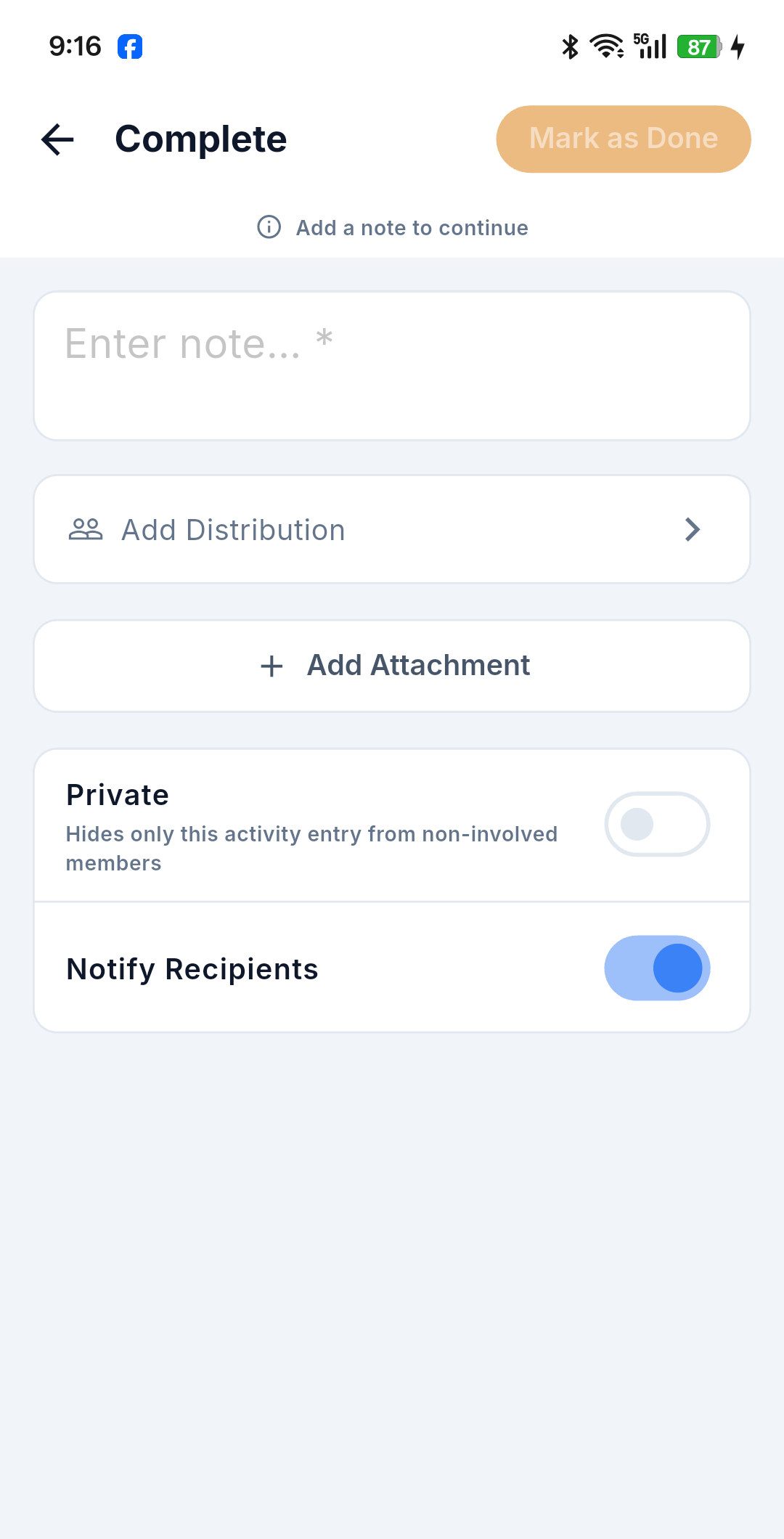
Every action opens a full-screen form with the same layout, mirroring the web action panels:
Warning banner (if any) → action-specific fields → Note / Reason → Distribution → Attachments → Private toggle → Notify toggle → confirm button.
Shared blocks:
-
Note — formatted text with @mentions. Relabelled Cancellation Reason for Cancel.
-
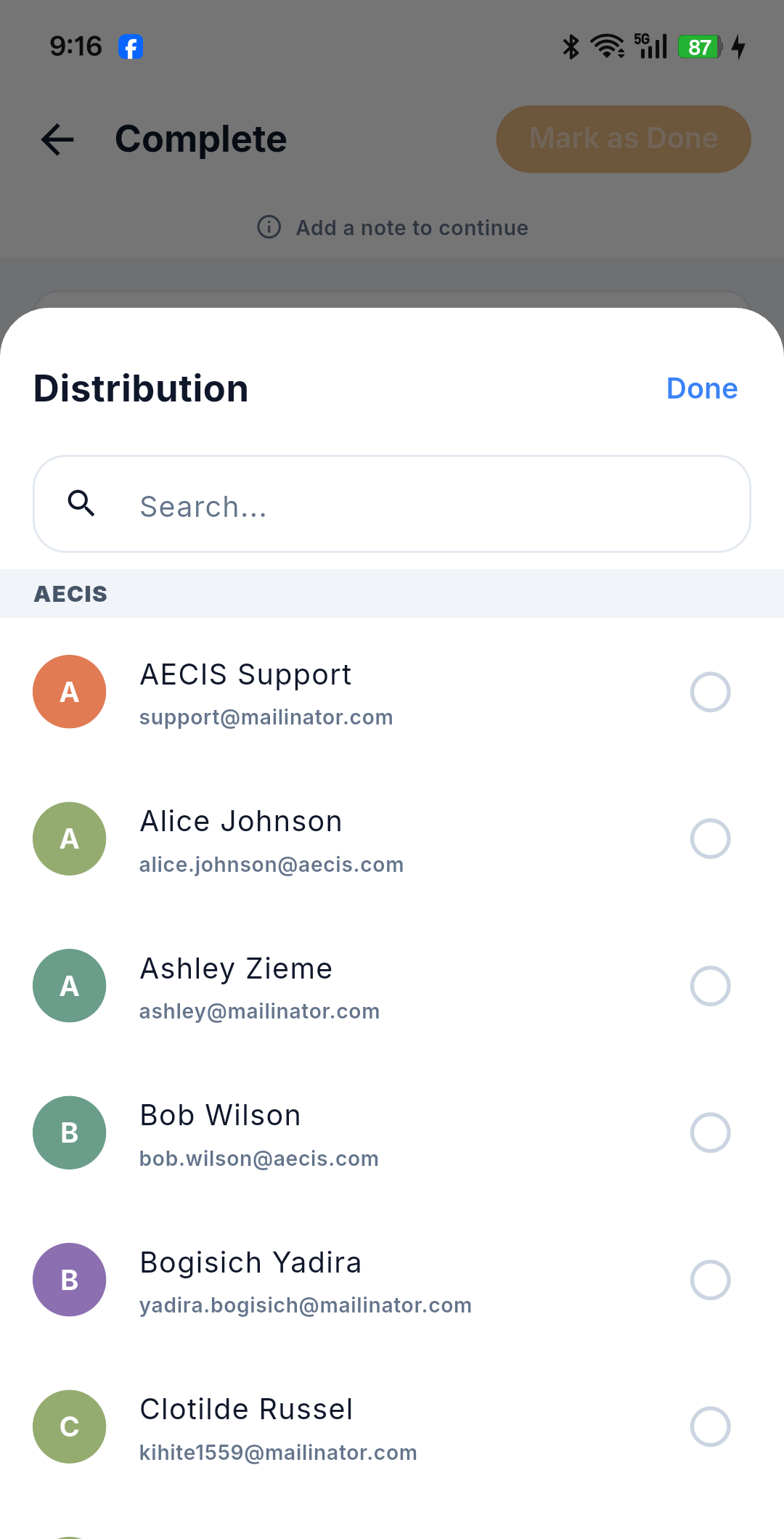
Distribution — multi-select, pre-loaded from the issue's list. Clearing every recipient is recorded and persists.
-
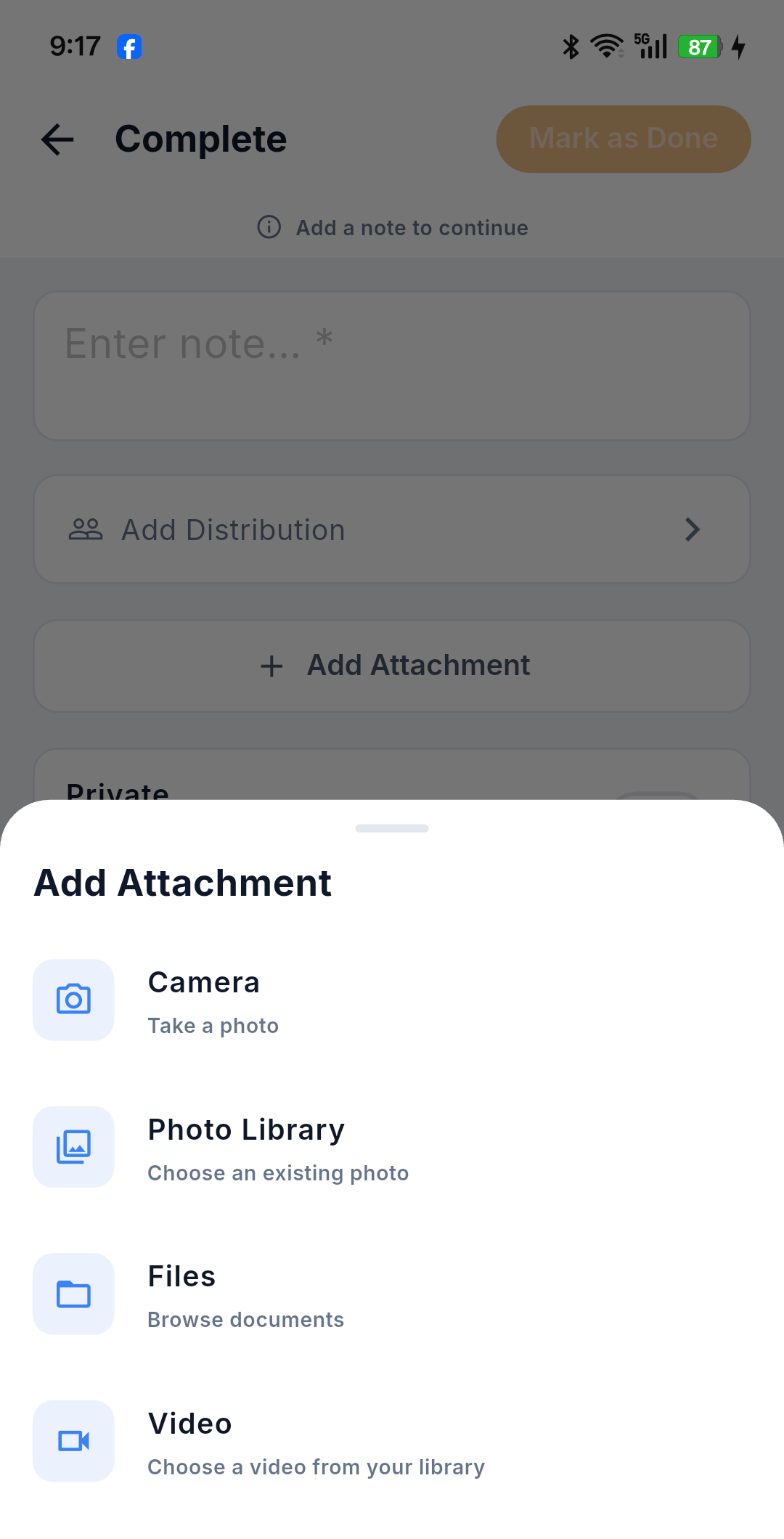
Attachments — camera, gallery, video, files. See Attachments & Media. Selecting an existing project document is web-only.
-
🔒 Private toggle — one-way: it can be turned on, never off. See Privacy.
-
📧 Notify Recipients toggle — controls whether this action emails the distribution list.
Action reference
| Action | Button / color | Required | Action-specific fields | Private toggle |
|---|---|---|---|---|
| 🟠 Complete | Mark as Done / amber | Note | — | Shown |
| 🟢 Close | Close Issue / green | Note | — | Shown |
| 🔴 Cancel | Cancel Issue / red | Reason | Red warning banner — "cannot be undone" | Hidden |
| 🔵 Reassign | Reassign / blue | New assignee + Note | Assignee picker — no "Assign to Me" | Shown |
| 🔵 Reopen | Reopen / blue | Note | Assignee (optional, pre-filled with the current one) + Assign to Me | Shown |
| 🔵 Update | Save Update / blue | Note | Sub-status (In-Progress / Pending) and Confirmed Date, both optional | Shown |
Notes:
- 🔴 Cancel is the only action that hides the Private toggle and shows the red warning banner. It still has Distribution, Attachments and the Notify toggle, exactly as on web.
- 🔵 Reassign cannot be submitted without a valid new assignee, and it does not have the "Assign to Me" button — you must pick the person from the directory. Assign to Me exists only on the 🔵 Reopen form.
:::info Resolver The Resolver is whoever actually taps 🟠 Complete (or a direct 🟢 Close) — which may be the assignee, a colleague in the assignee's organization, the creator, or an administrator. It is never defaulted to the assignee. :::
🟠 Complete an issue
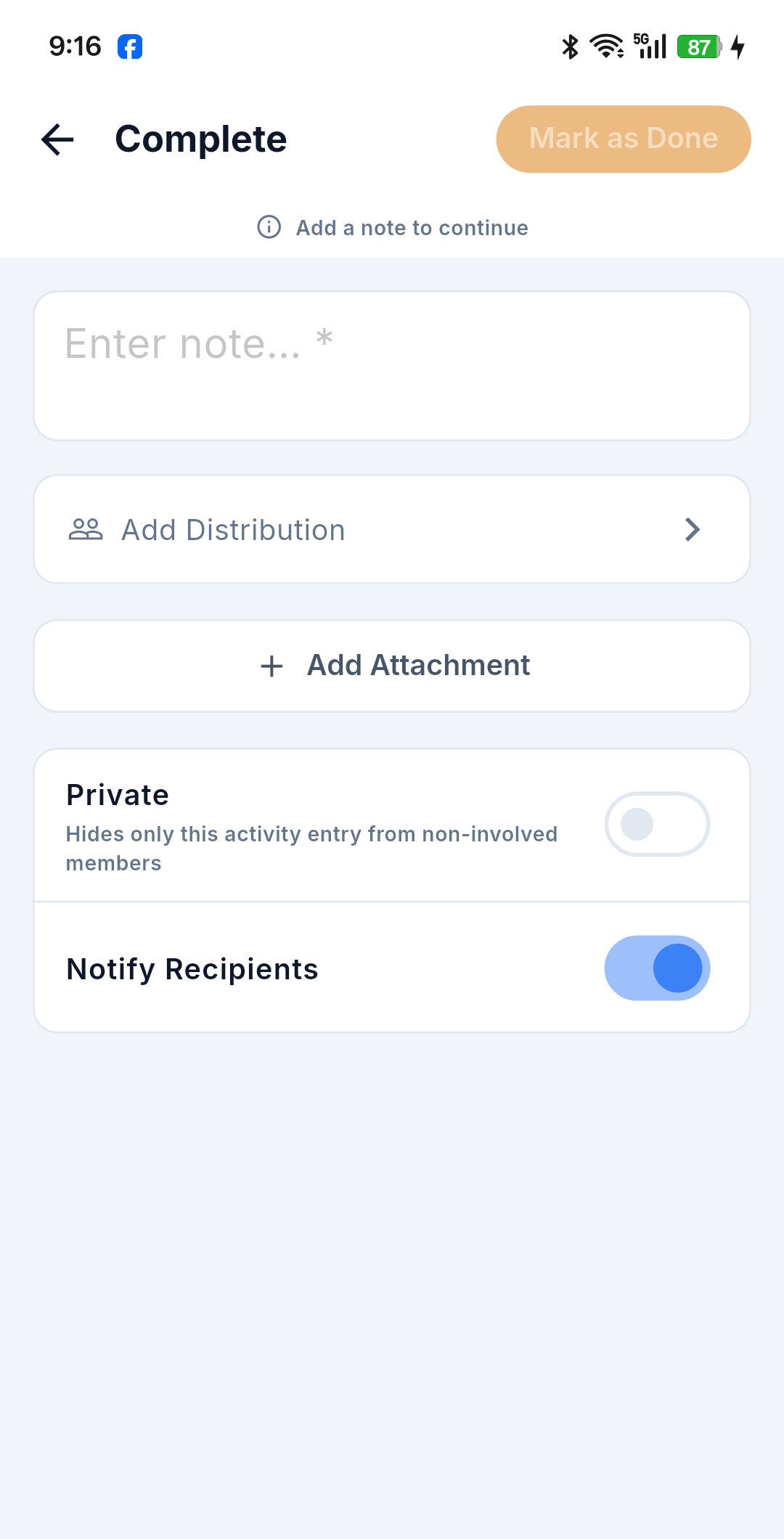
- Open the issue, open the ⋯ menu and choose Complete.
- Enter the Note (required) describing the work done.
- (Optional) Adjust the distribution list, attach photos or files, set the Private or Notify toggles.
- Tap Mark as Done. The status moves to Done and you are recorded as the resolver.
🟢 Close an issue
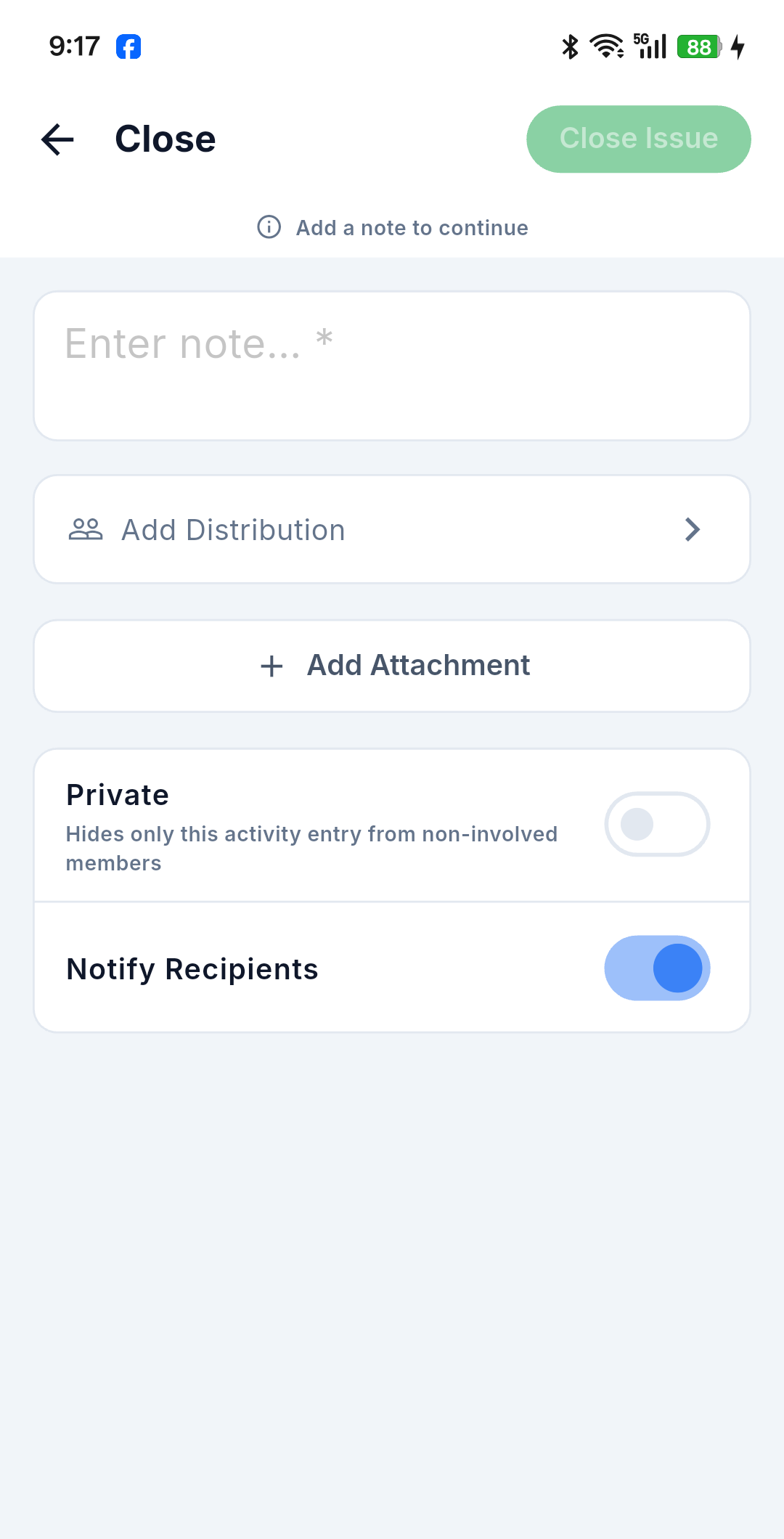
- Open the issue, open the ⋯ menu and choose Close.
- Enter the Note (required) and confirm with Close Issue.
- The status moves to Closed and the closed date is recorded.
🔴 Cancel an issue
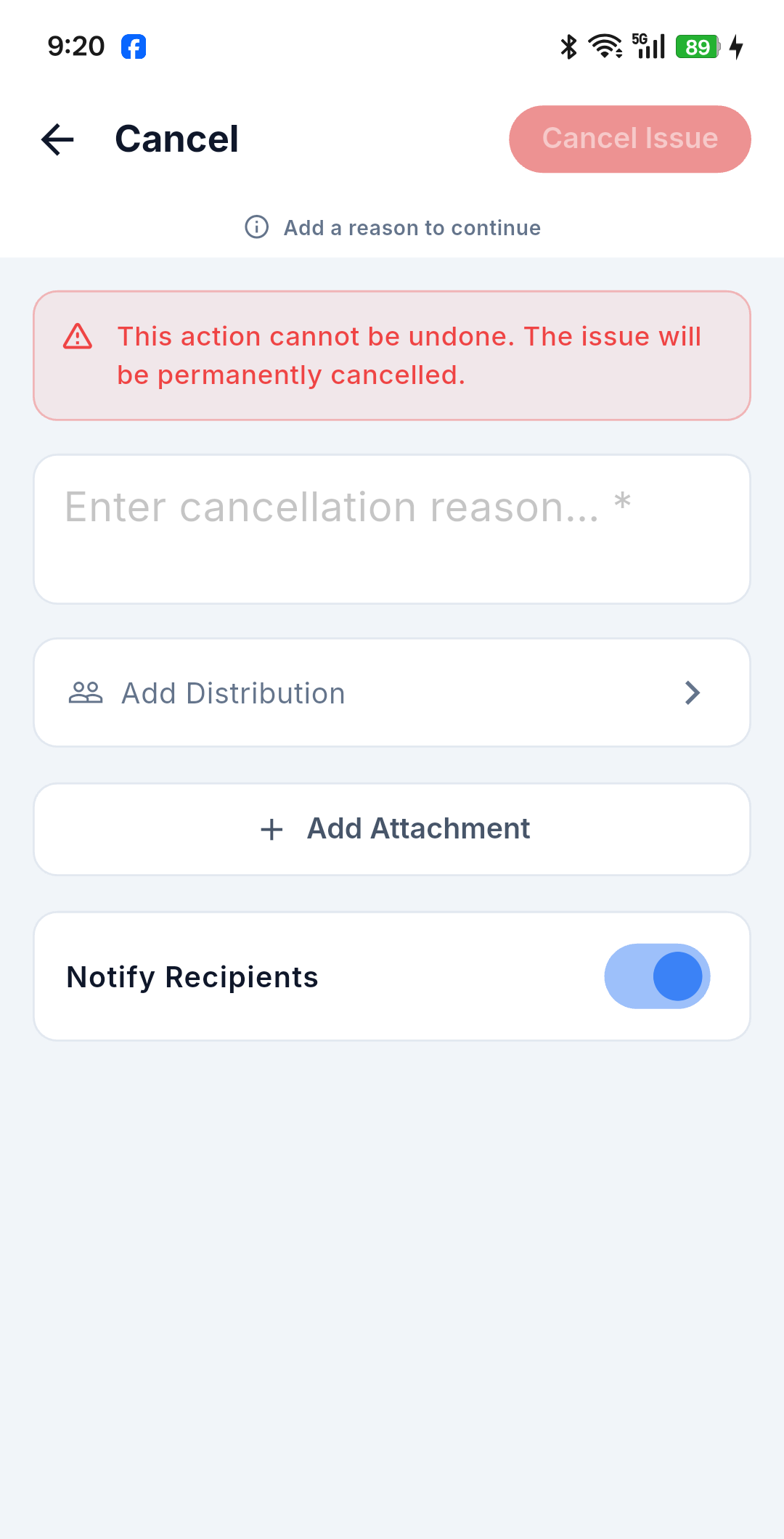
- Open the issue, open the ⋯ menu and choose Cancel.
- A red warning banner reminds you this cannot be undone.
- Enter the Cancellation Reason (required) and confirm with Cancel Issue.
- The status moves to Cancelled — terminal. The only way out is Reopen.
🔵 Reassign an issue
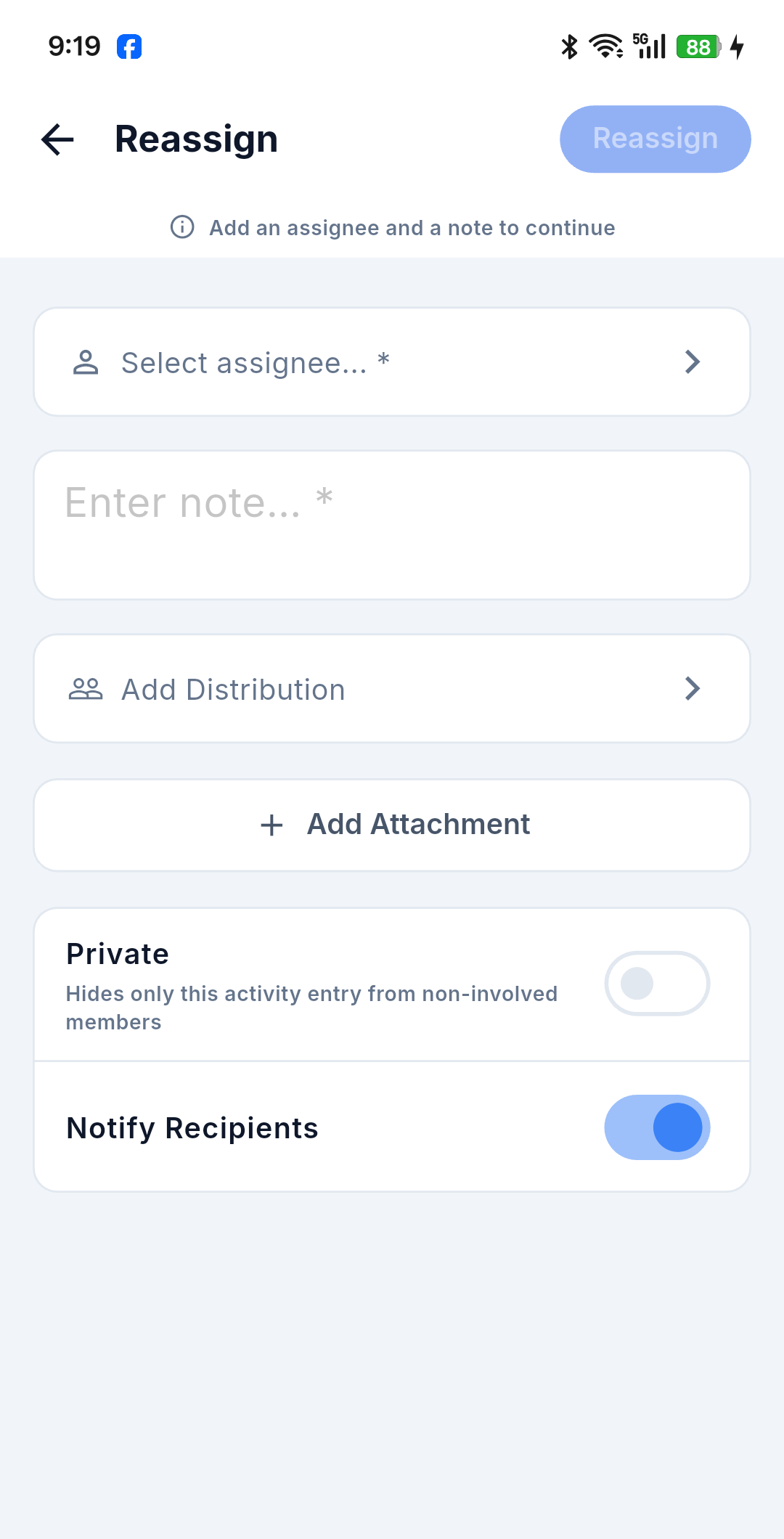
-
Open the issue, open the ⋯ menu and choose Reassign.
-
Select the new assignee (required) from the user directory — search by name, or scroll the list grouped by stakeholder. There is no "Assign to Me" shortcut on this form.
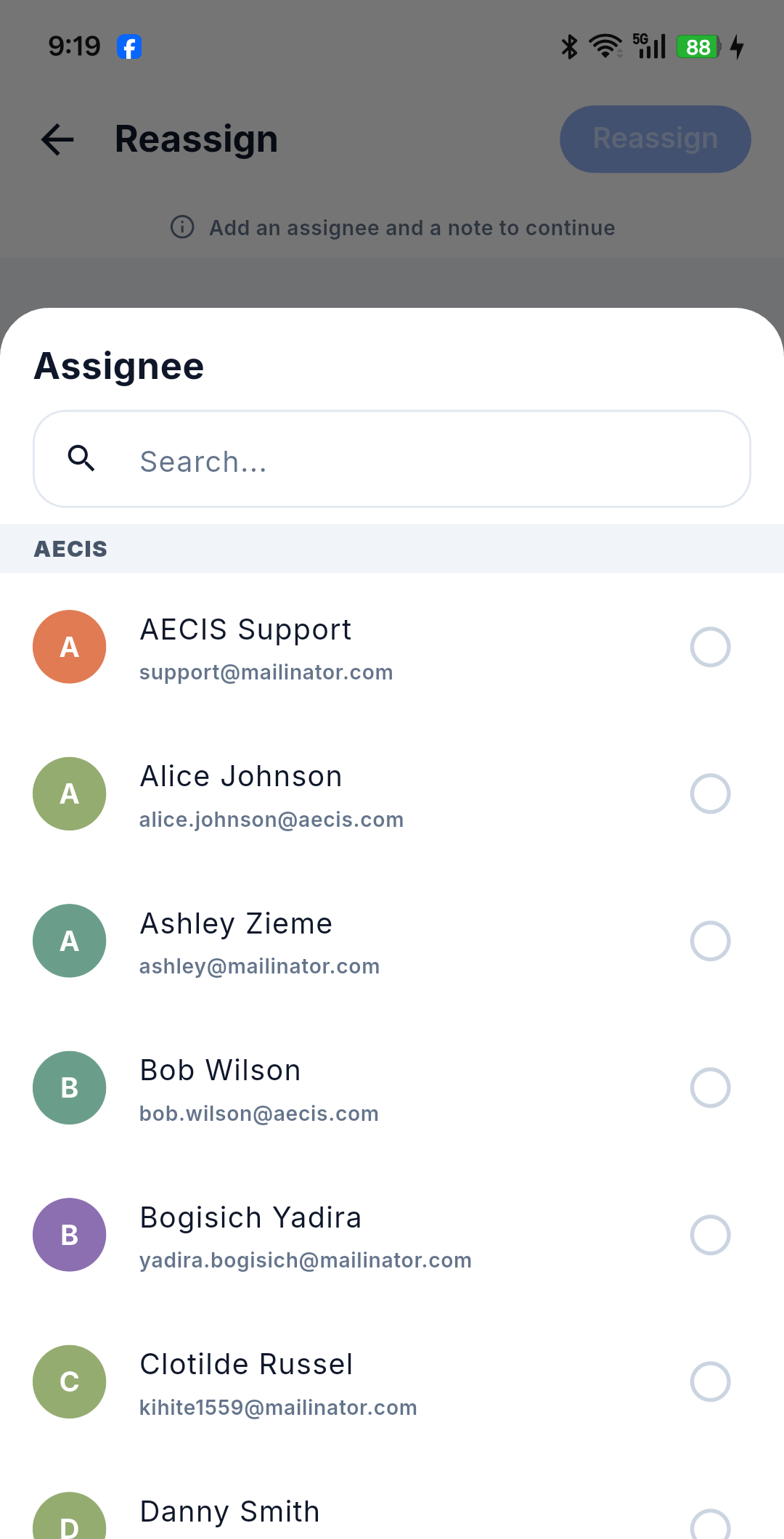
Until both are set, the header shows "Add an assignee and a note to continue" and the confirm button stays disabled.
-
Enter the Note (required) and confirm with Reassign.
-
The assignee changes, and the previous assignee is kept in the distribution list automatically so they keep receiving notifications.
🔵 Update progress
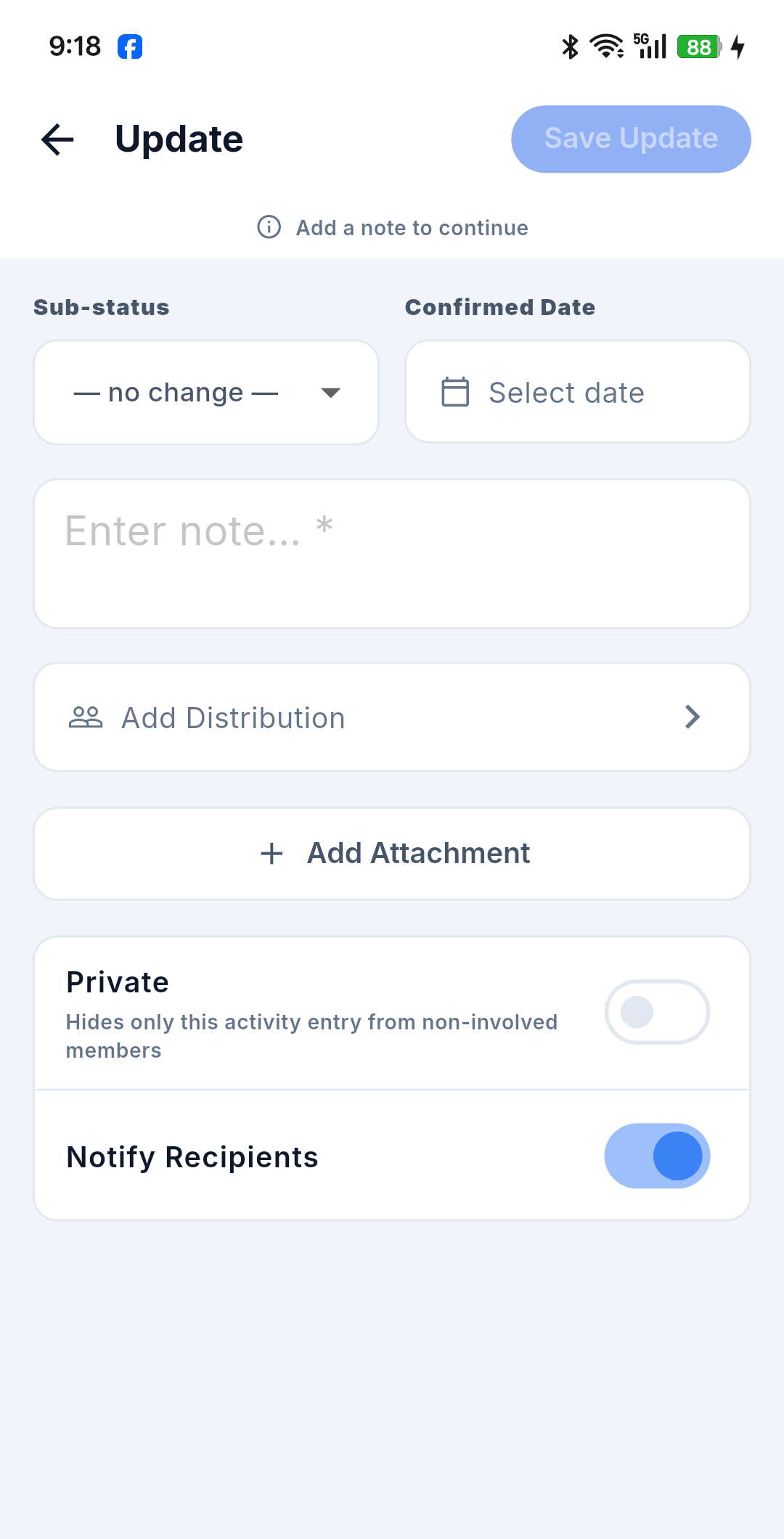
- Open the issue, open the ⋯ menu and choose Update.
- (Optional) Set a Sub-status (In-Progress / Pending) and/or a Confirmed Date.
- Enter the Note (required) and confirm with Save Update.
- The main status is unchanged; the progress is recorded in the timeline.
🔵 Reopen an issue
- On a Done, Closed or Cancelled issue, open the ⋯ menu and choose Reopen.
- The assignee selector is pre-filled with the current assignee — keep it, pick someone else, or tap Assign to Me.
- Enter the Note (required) and confirm with Reopen.
- The status moves to Reopened.
Actioning offline
Actions taken with no signal are queued, not applied. The issue's status on your device does not change immediately; instead the action appears as a read-only line on the timeline with a Queued label, plus a status banner at the top of the detail screen.
While an action is queued for an issue, opening the Actions sheet shows "An action is waiting to sync. Retry or discard it before starting another." and the workflow actions are greyed out — this prevents you from stacking a second action on top of a status the system has not confirmed yet. (Make private stays available.)
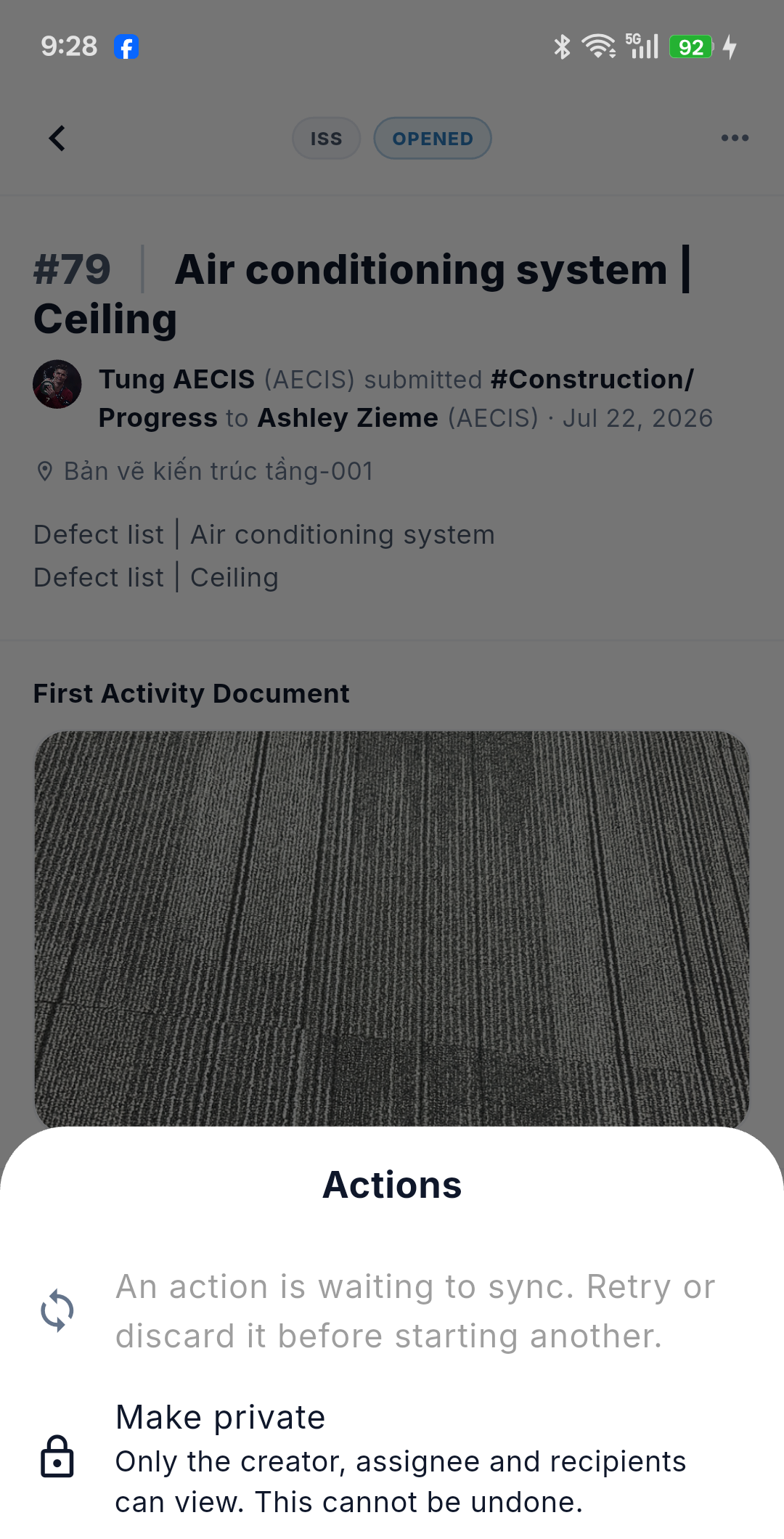
The full behaviour, including failed and conflict states, is described in Working Offline & Sync.
No bulk actions on mobile
Every action applies to a single issue. Multi-issue selection and bulk actions are web-only — see Web ↔ Mobile differences.