Offline Mode & Sync Management
The app goes offline by itself when the signal drops. It also lets you turn offline on deliberately, and gives you a set of screens to watch and control everything waiting to be sent.
Manual Offline Mode
More → Preferences → Offline Mode.
The More tab holds your profile, the Offline Storage screen, notification settings, and the Preferences block.
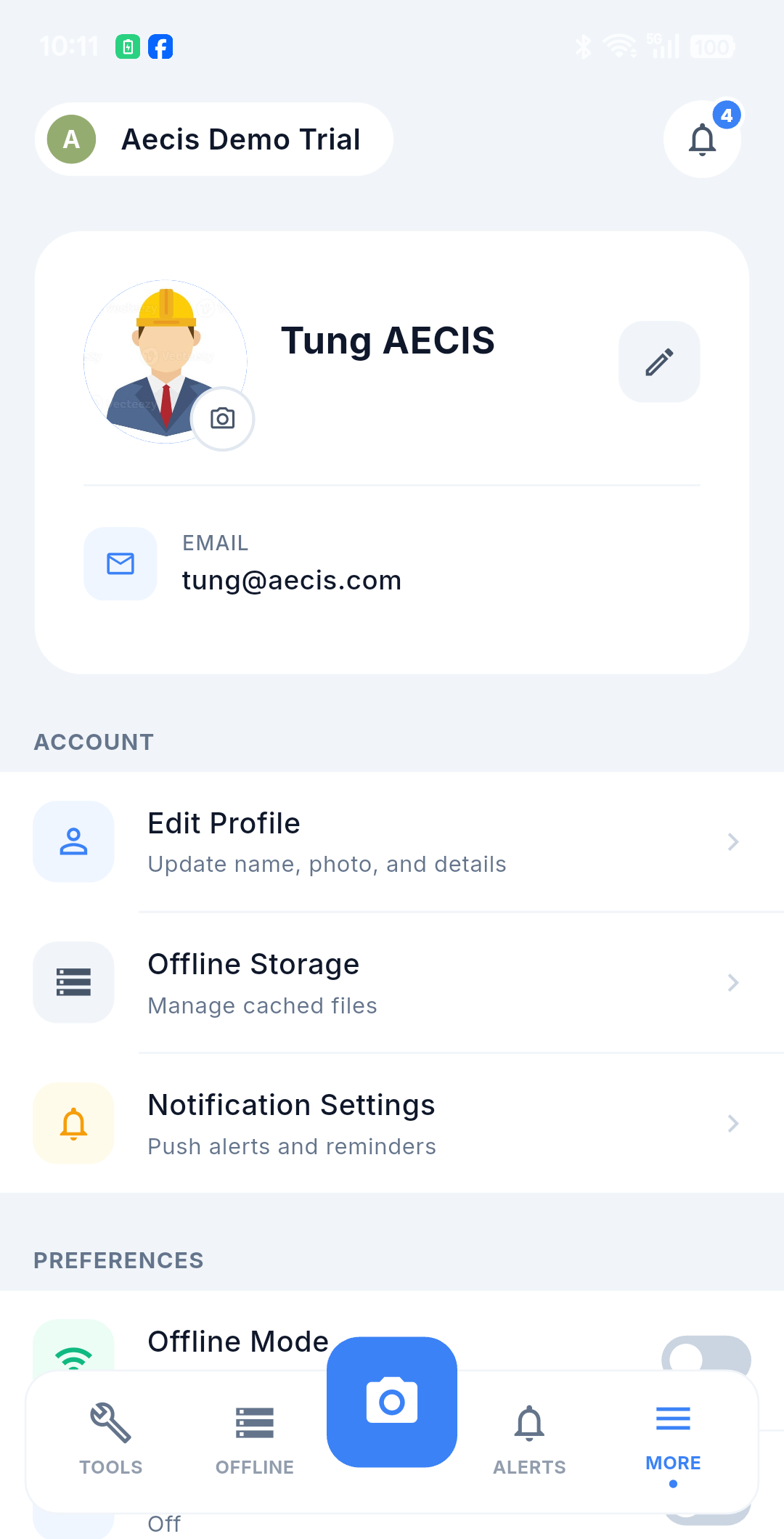
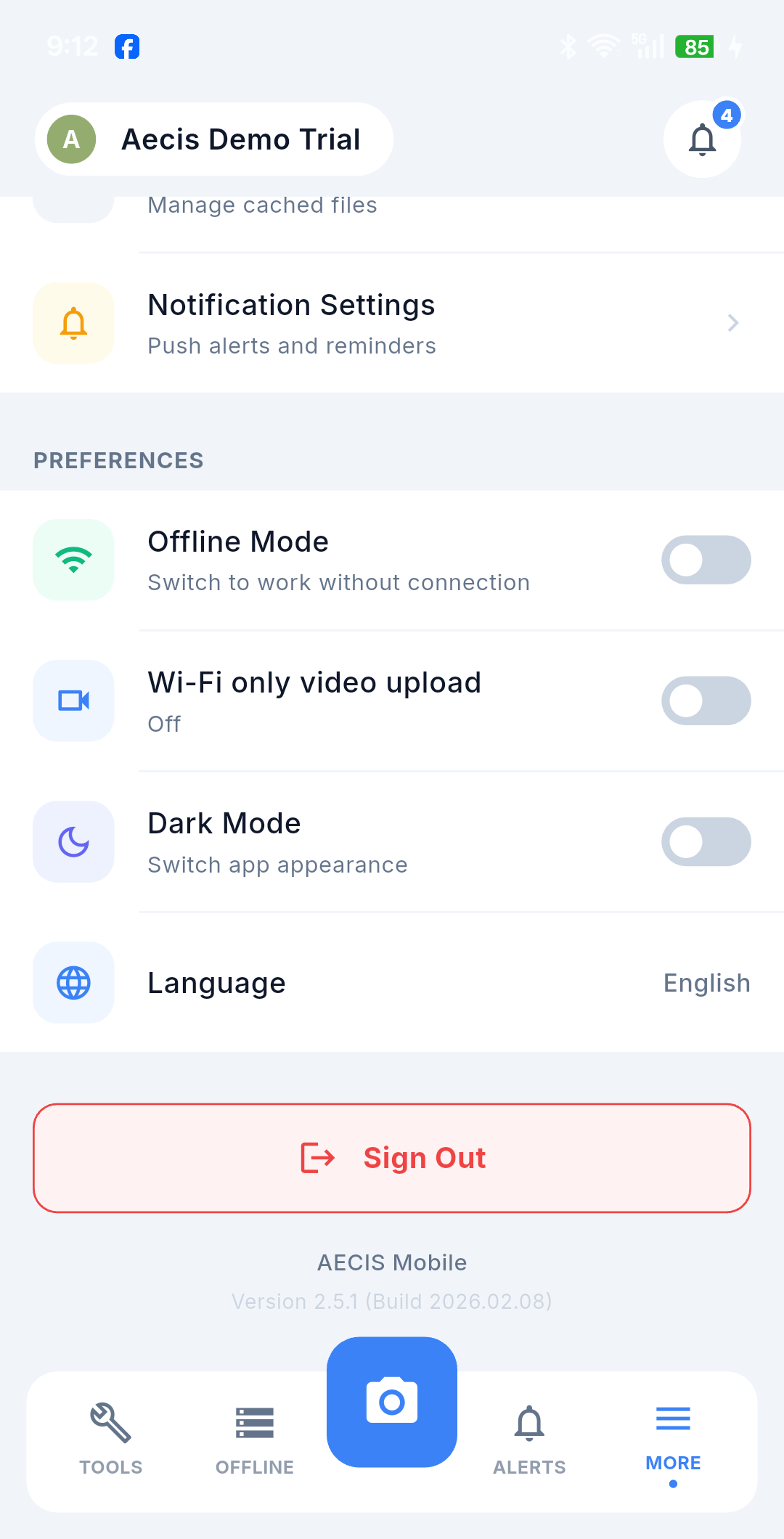
Turn it on and the app behaves exactly as if there were no signal, even when the device is perfectly connected: it reads only cached data, and every operation you perform goes into the queue.
Why you would want that:
- Save mobile data and battery on a long day in the field.
- Work stably where the signal flickers — a connection that keeps dropping in and out is often worse than no connection at all, because each attempt stalls.
How it behaves:
| Aspect | Behaviour |
|---|---|
| What decides "offline" | The device's real connection and your Offline Mode switch. If either says offline, the app is offline |
| Remembered | The switch survives closing and reopening the app — it stays on until you turn it off |
| Single source of truth | The sync scheduler, the send queue and the offline banner all follow this one setting |
| Turning it off | With a real connection available, switching it off immediately starts draining the queue |
| Always reachable | The switch stays visible and usable even if the profile page fails to load — so you can never get stuck in forced-offline |
With it on, the row reads "Working offline" and a yellow "No internet connection" banner sits under the header on every screen.
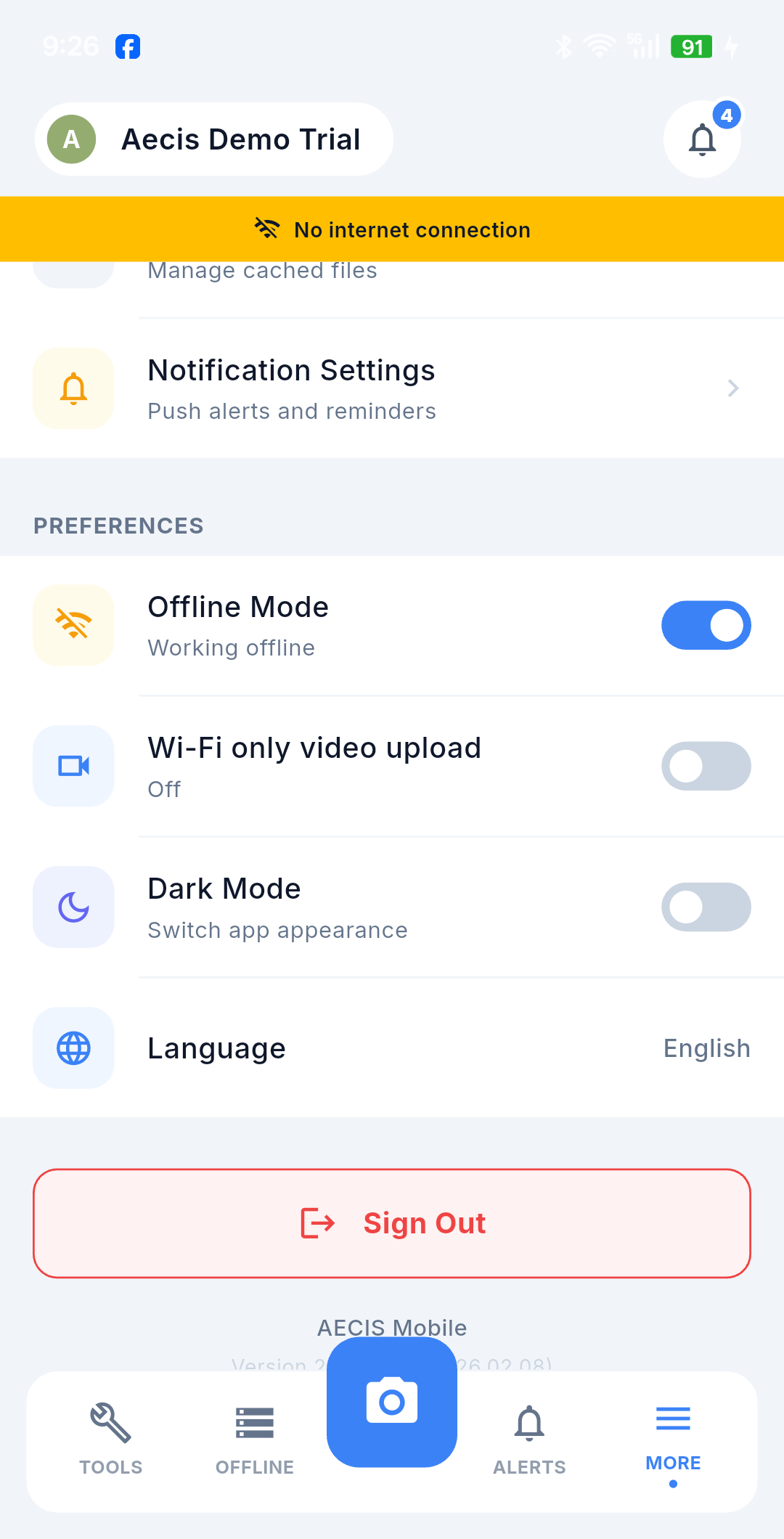
:::tip Related switch The More screen also has "Only upload video over Wi-Fi", which uses the same connectivity mechanism. It does not stop you attaching videos — it decides when they upload. :::
Network & Sync
The Network & Sync sheet is the control panel for everything pending. Reach it from the Offline tab in the bottom bar.
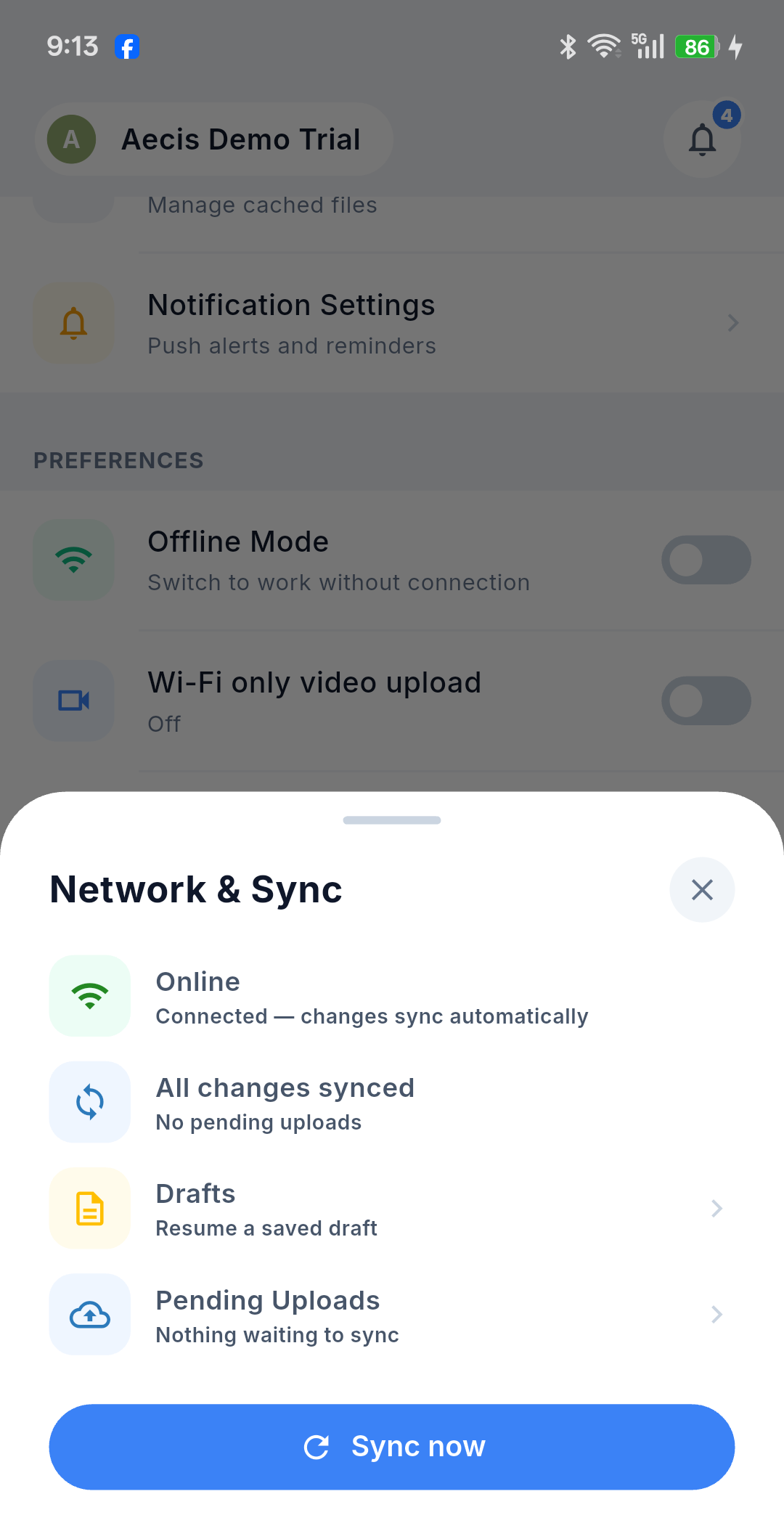
It shows:
- Connection status — Online / Offline, plus the current sync status.
- Drafts — how many unsent drafts you have in this project. Tap to open the Drafts screen.
- Pending Uploads — how many items are waiting to sync in this project. Tap to open the Pending Uploads screen.
- Sync Now — pushes the queue immediately instead of waiting for the scheduler.
:::note Sync Now is always safe Tapping it while offline — whether the signal is genuinely gone or you turned Offline Mode on yourself — simply does nothing. Your items stay safely queued; nothing is lost or duplicated. :::
Drafts
Every draft you saved, listed by time — Issue, Task, RFS and Submittal drafts together.
- Tap a draft to reopen it and carry on editing where you left off.
- Swipe to delete. Deleting removes the draft's attachments and the corresponding draft pin on the DMap as well.
Pending Uploads
The offline queue itself: every operation you submitted while offline, waiting to be sent.
Operations that can appear here:
| Operation | Comes from |
|---|---|
| Create Issue | The create form |
| Edit Issue | Changes made to an existing issue |
| Comment (create / edit / delete) | The comment composer on the detail screen |
| Issue Action | Complete, Close, Cancel, Reassign, Update, Reopen |
| Map Pin | The pin placed on the DMap |
| Attachment (file) | Photos and documents |
| Video | Videos attached to an issue |
Each row shows the operation type and its sync status, with Retry for an item that failed or hit a conflict, and Cancel to drop it from the queue.

Videos are grouped by the issue they belong to, because one issue can carry several large uploads. A group can be paused and resumed, retried as a whole, or cancelled entirely — handy when you are on a slow connection and want the small items through first.
Storage
More → Offline Storage manages how much space the app's local cache is using.
- A quota bar — 10 GB by default, with a warning around 70% and a critical alert around 90%.
- A breakdown by category — photos, issues, daily reports, drawings and so on — so you can see what is actually filling the device.
Actions available:
| Action | What it does |
|---|---|
| Sync Uploads | Sends what is still pending, so it can then be cleared safely |
| Clear Synced | Frees space by removing only what the system already has |
| Export pending items | Packages unsent work into a zip file — your safety net for recovering anything that has not reached the system |
| Delete by item or category | Removes cached data selectively |
:::caution Deleting unsynced work Every delete asks for confirmation, and the app warns you explicitly when the item has not been synced yet. Read that warning — deleting unsynced work means losing it. If in doubt, run Sync Uploads first, or Export pending items before deleting. :::