The Detail Screen
Tapping a card opens the issue full screen — mobile has no side panel.
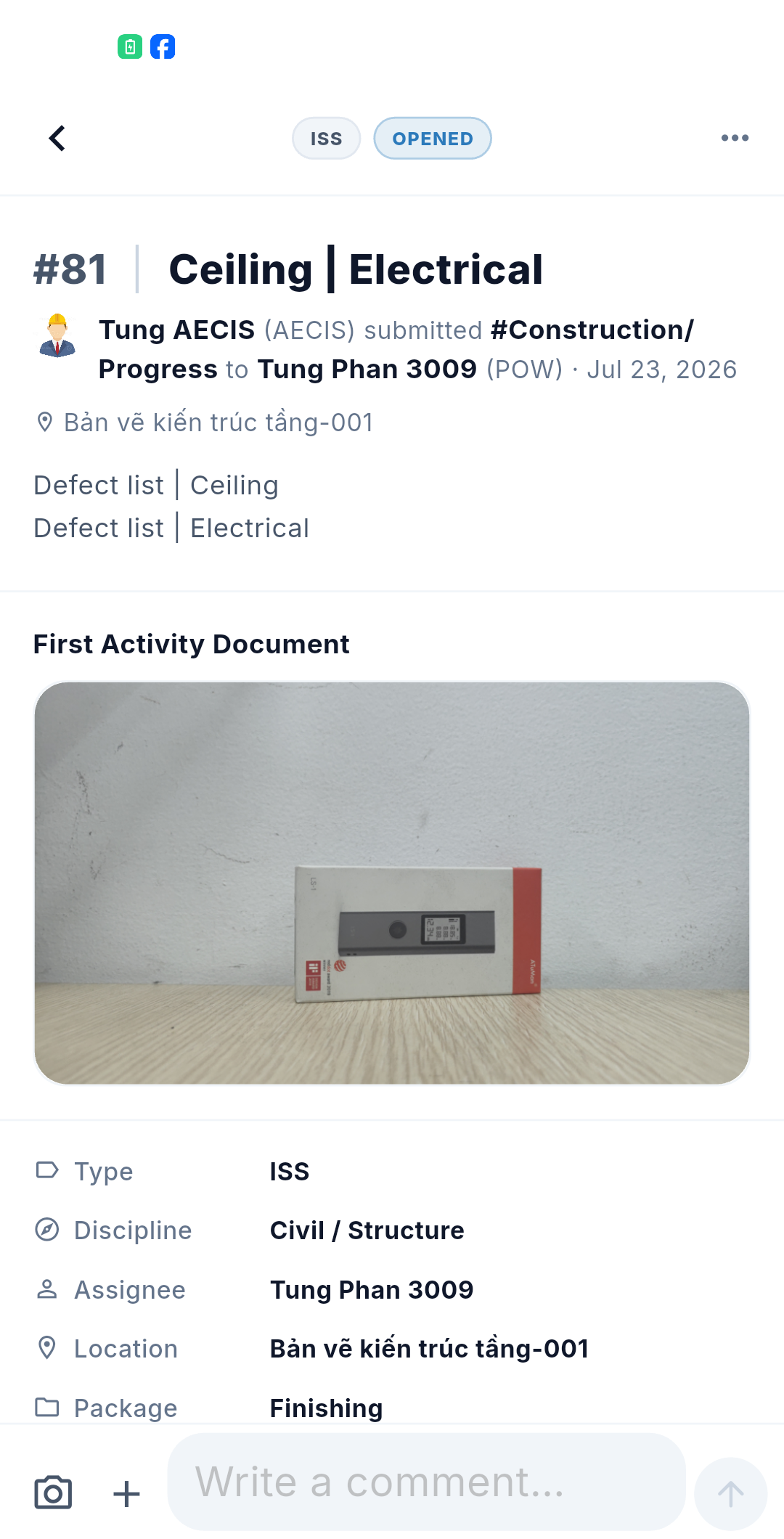
Layout
- Fixed title bar — a Back button and a ⋯ menu. The ⋯ menu only appears when you have edit rights on that issue. A lock icon here indicates the issue is private.
- Summary card — one line covering who recorded the issue, of which type, assigned to whom, on what date.
- Title & Description.
- Initial attachment strip — the attachments added when the issue was opened.
- Video area — synced videos; the block hides itself when there are none.
- Properties table — the issue's fields.
- DTag chips — read-only reference display.
- Pending-action banner — appears only when an action of yours is queued. See Working Offline & Sync.
- Merged timeline — Activity + Comments (+ Email) in a single stream, with pending actions inserted as read-only lines.
- Fixed comment composer pinned to the bottom of the screen.
:::note What the web has as separate tabs The web detail panel has Document, Distribution, DTag, Email, Related and History tabs. On mobile:
- Activity, Comment and Email are merged into one stream — email content is condensed into the activity note.
- Documents appear only in the initial attachment strip.
- Distribution, Related Items and History have no dedicated block. Distribution can still be edited inside each action form.
There is also no previous/next issue navigation and no "3/120" position indicator in the title bar. :::
Comments & activity
The composer at the bottom is a formatted-text editor — bold, italic, underline, lists — with:
- @mentions from the user directory.
- File, photo and video attachments.
- Reply to any comment for a threaded conversation. You can reply even to a comment that has not synced yet.
- Edit / delete your own comments.
Comments appear instantly. A new comment shows up in the stream immediately with a Queued label and syncs in the background — so a weak signal never blocks you mid-conversation. The system emails the distribution list for comments.
No inline editing on mobile
The detail screen is read-only. Unlike the web, you cannot tap a field to edit the title, description, assignee, due date, type, discipline, package or DTag in place.
Every such change goes through the Update action (or the relevant workflow action) — see Workflow Actions. The one direct change available from the detail screen is Make Private, described in Privacy.
This keeps every change on mobile recorded in the activity history with a note attached.
The self-correcting screen
The detail screen watches for local changes and refreshes the timeline on its own: as your queue is sent, the Queued labels, the pending-action line, and the list of actions available to you update themselves without you reloading the screen.