Email Notifications
How it works
When an issue has an action, the system emails the issue's distribution list. Every action form carries its own Notify Recipients toggle, so you decide per action whether an email goes out.
Comments also generate notification emails to the distribution list.
Managing the distribution list
The mobile detail screen has no dedicated Distribution block. The list is edited inside each action form, where it is pre-loaded from the issue's current recipients:
- Add recipients with the multi-select picker.
- Remove recipients you do not need.
- Clearing the list entirely is recorded and persists — an empty distribution is a real state, not an oversight the system re-fills.
On Reassign, the previous assignee is kept in the distribution list automatically, so they keep receiving notifications on the issue they handed over.
In-app alerts
Email is not the only channel. The Alerts tab in the bottom bar collects the same events as in-app notifications, with an unread count on the bell.
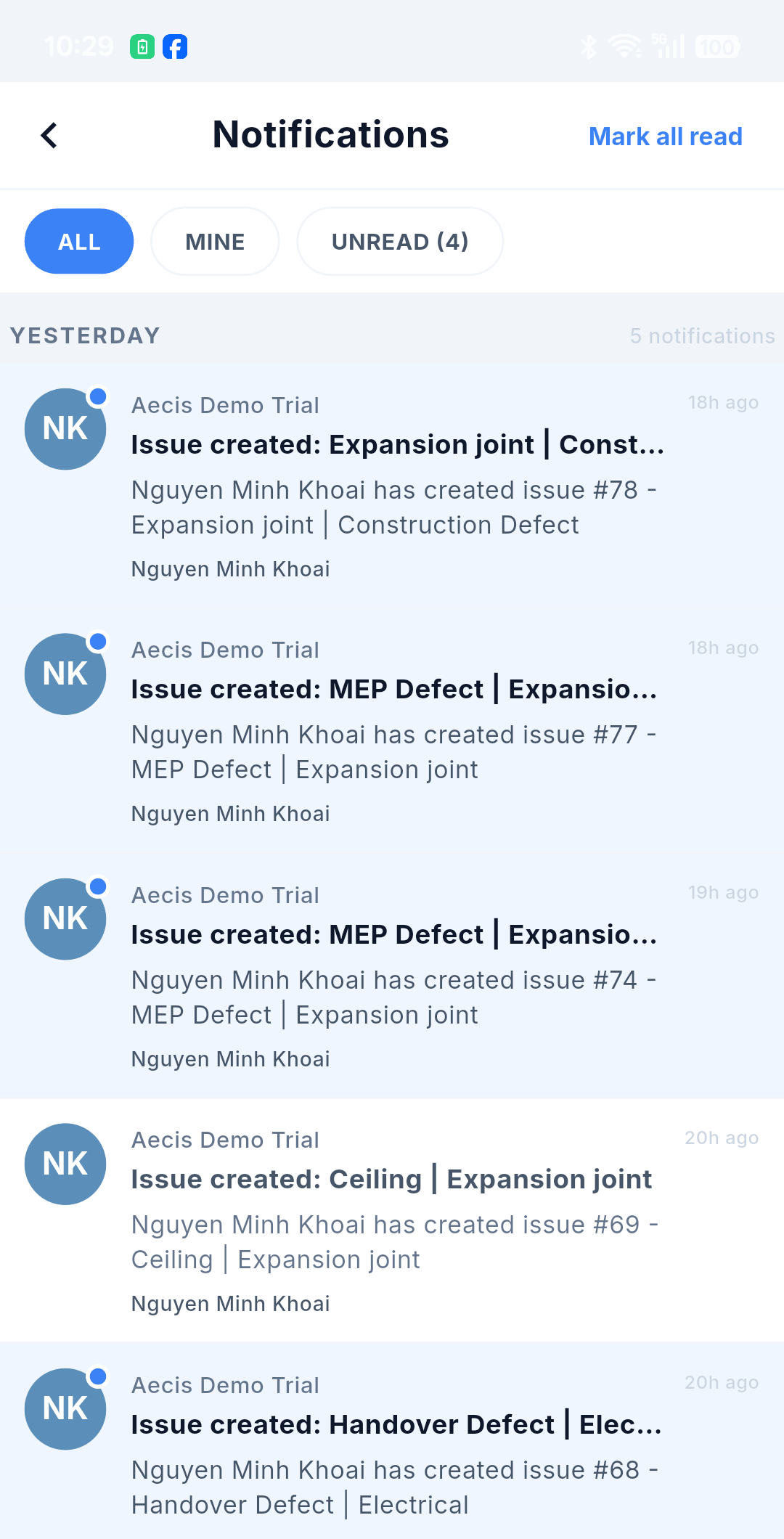
- All / Mine / Unread tabs — Mine narrows the list to issues you created or are assigned, the same rule as the Mine tab on the issue list.
- Entries are grouped by day and say what happened and who did it — for example "Nguyen Minh Khoai has created issue #78 — Expansion joint | Construction Defect".
- Mark all read clears the badge in one tap; tapping an entry opens the issue.
Emails in the timeline
Mobile has no separate Email tab. Notification emails are condensed into the activity note and appear inline in the merged timeline on the detail screen, alongside comments and workflow records. To read the full email or use Reply All, open the issue on the web app.
End-of-day summarized email (COB)
The create form carries a 📧 COB — Summarized Email Notification switch, off by default, exactly as on the web create panel.
With COB on, the system does not email each recipient the moment the issue is created. Instead it batches the day's issues into one end-of-day summary per recipient — so a morning of twenty issues arrives as one email rather than twenty.
:::info COB survives the offline queue If you turn COB on while offline, the flag travels with the queued issue. When connectivity returns, the system still skips the immediate email and puts the issue into the end-of-day summary — the batching is not lost just because the issue was created with no signal. :::
COB applies to the creation email only. Emails from later workflow actions are controlled by each action form's Notify Recipients toggle.