Create an Issue
:::info Issues are created from DMap On mobile, an issue is always created from a location pin on a DMap — there is no "new issue" button on the issue list. Open the drawing, place or select the pin where the problem is, and create the issue from there. This guarantees every issue captured in the field carries its exact position on the drawing. :::
Creating an issue opens a full-screen form, designed for fast capture on site.
Steps
-
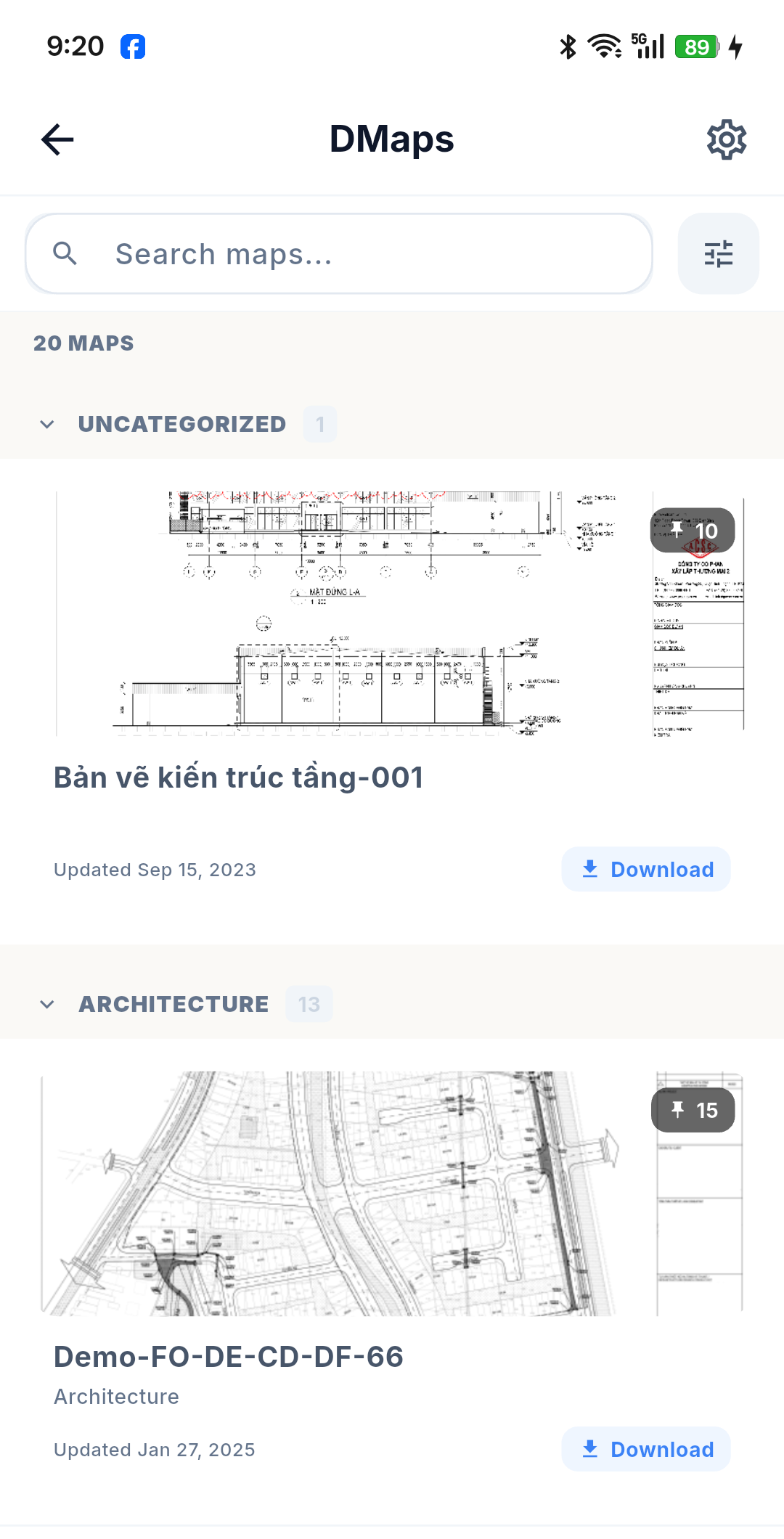
From Tools, open DMaps and pick the drawing you are working on. Drawings are grouped by category, with a pin count on each thumbnail.
-
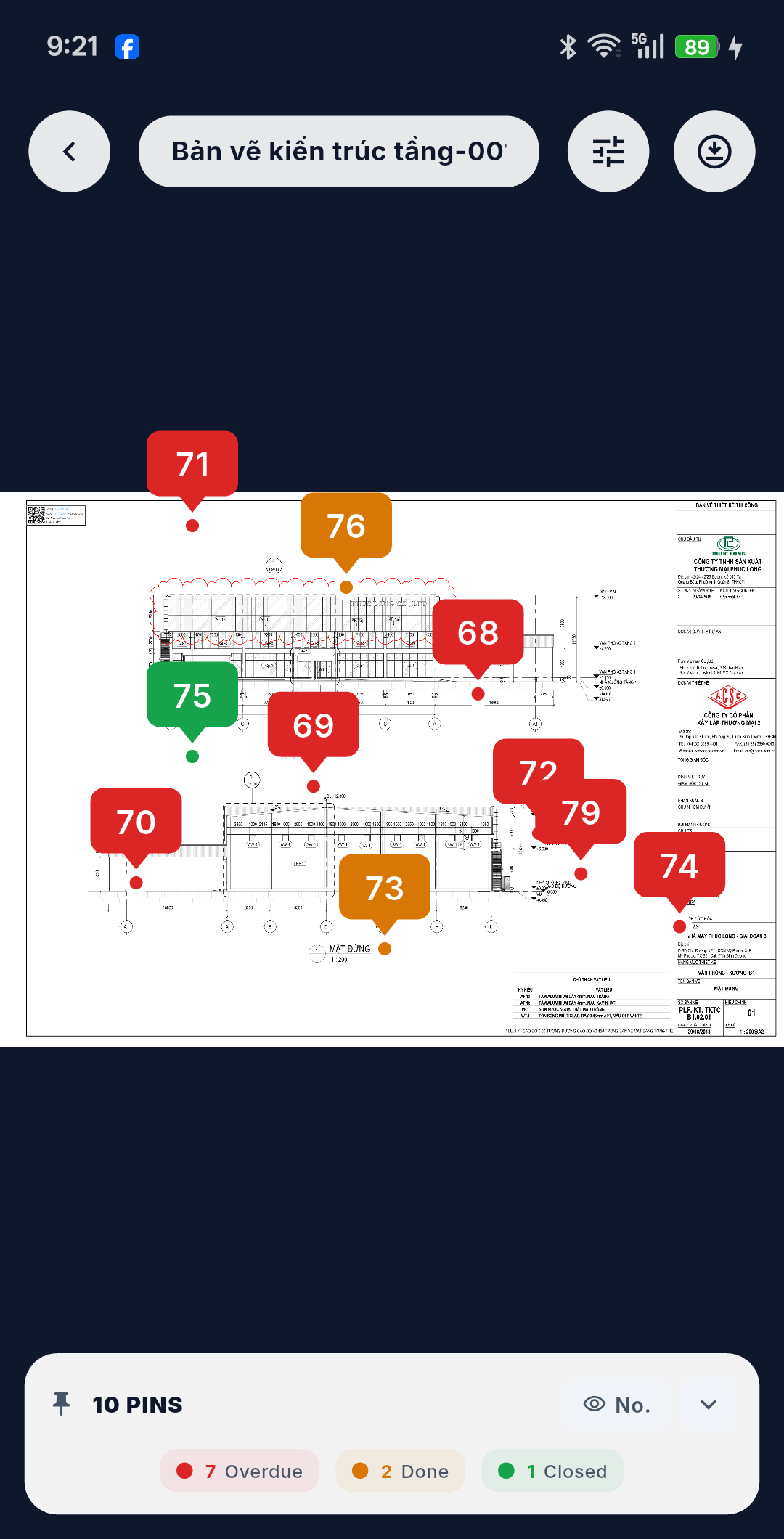
The drawing opens with its existing issues as numbered, color-coded pins. The bar at the bottom summarises them — for example 10 pins · 7 Overdue · 2 Done · 1 Closed.
-
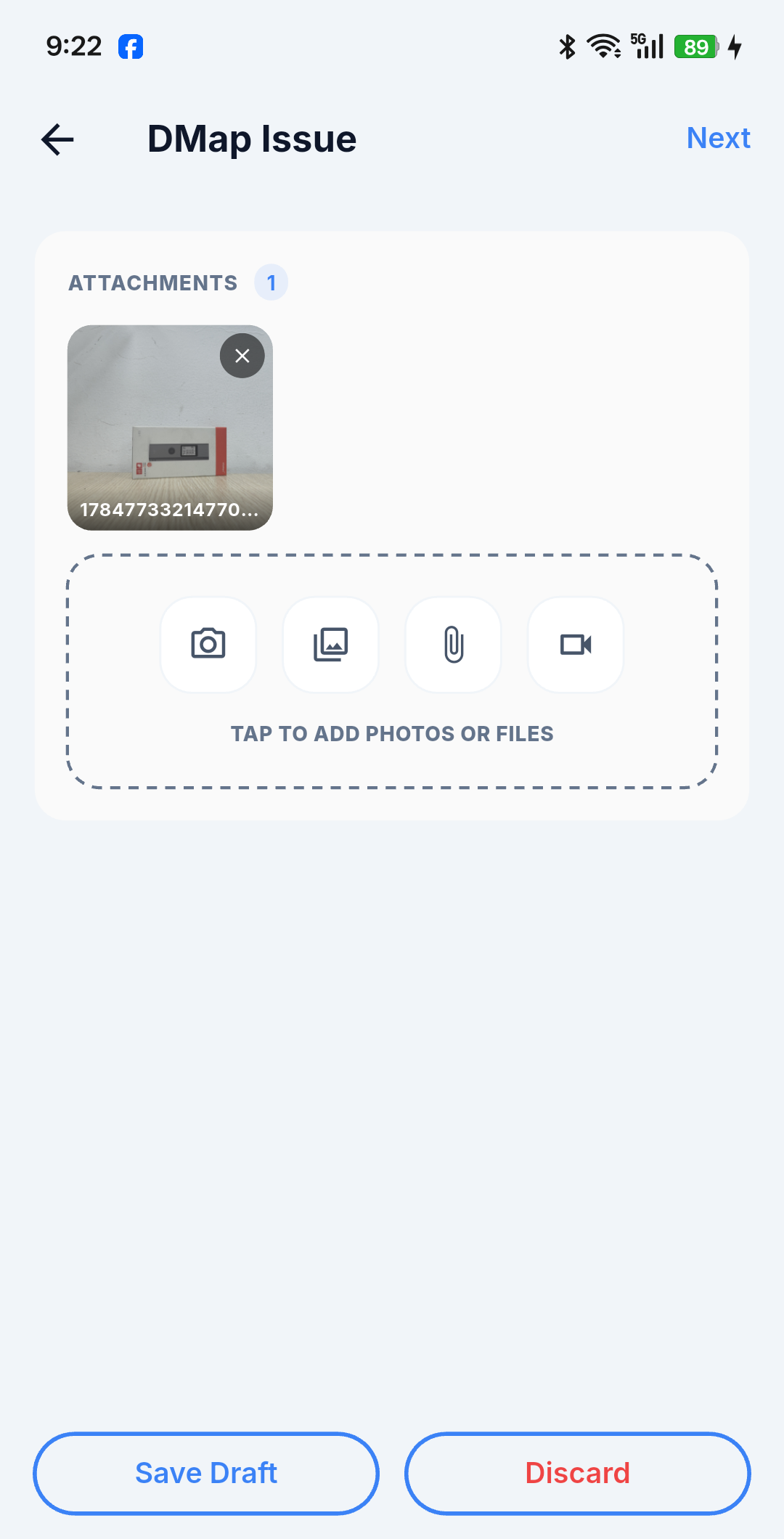
Tap the position where the problem is. The DMap Issue screen opens on the attachment step — take photos, pick from the gallery, attach files, or record a video. Save Draft and Discard are available here; tap Next to continue.
-
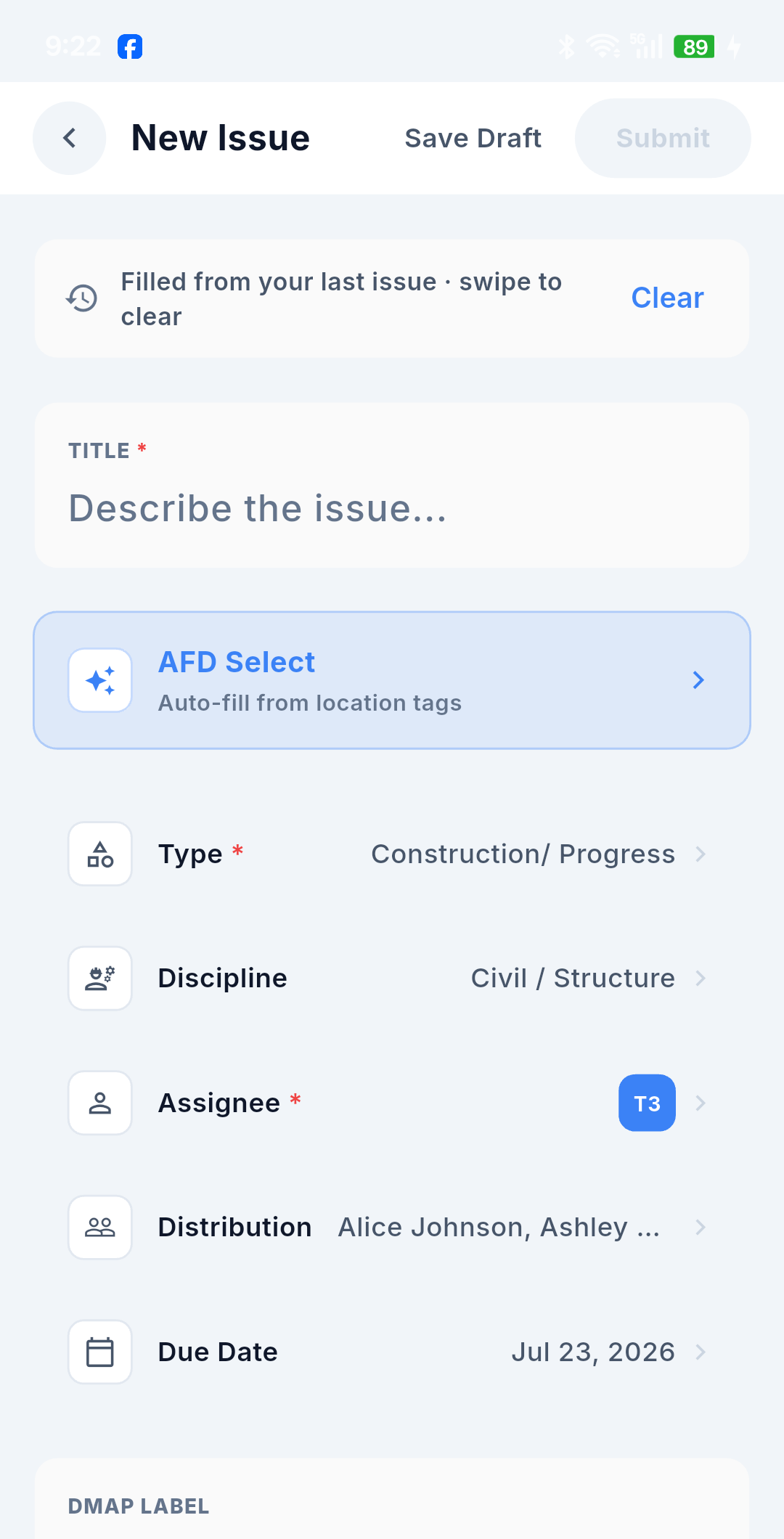
The New Issue form opens with the DMap Label already filled in from the pin. Fill in the required fields, marked with a red asterisk — Title, Description, Type and Assignee.
-
(Optional) Use AFD Select to auto-fill from location tags, adjust the distribution list, due date, package and DTags, and set the Private / COB options.
-
Tap Submit (or Save Draft to finish later).
:::info When the Submit button is disabled Submit stays greyed out until Title, Description, Type and Assignee are all filled in. It is also temporarily disabled while a photo picked from the gallery is still being processed — wait a moment, and it enables itself. :::
Fields
The Starts with column is the value the form already holds when it opens. "—" means the field starts with no value at all and you must choose or type one.
| Field | Required | Starts with | Notes |
|---|---|---|---|
| Title | Yes | — | Short description of the problem |
| Description | Yes | — | Formatted-text editor |
| Issue Type | Yes | — | Single-select from the active catalog; nothing is preselected |
| Assignee | Yes | — | Single-select from the user directory |
| Discipline | No | — | Single-select |
| Distribution | No | The project's default list, if configured | Multi-select; clearing every recipient is recorded and persists |
| Package | No | — | Under More Options |
| DTag | No | May be filled by Auto-Fill by DTag | Hierarchical tree, multi-select — under More Options |
| Due Date | No | Today | A past date cannot be chosen at creation |
| DMap Label | Auto | The label of the pin you opened from | Editable by hand |
| Private | No | Off | Makes the issue visible only to the creator, assignee and distribution list |
| COB — summarized email | No | Off | Batches the creation email into the end-of-day summary |
| Attachments | No | — | Camera / gallery / files / video — see Attachments & Media |
:::note Prefilled suggestions do not override the required fields Some fields arrive pre-filled from your last issue in this project (see below) — but Title and Description always start empty, and Issue Type and Assignee are only pre-filled if you used them last time. Check them before submitting. :::
Privacy and COB at creation
Two switches sit with the create form, matching the web create panel:
- 🔒 Private — restricts the issue to the creator, the assignee and the distribution list. Note that on mobile privacy is one-way: once the issue is private it cannot be made public again from the app. See Privacy.
- 📧 COB — Summarized Email Notification — instead of emailing each recipient the moment the issue is created, the system batches the day's issues into one end-of-day summary per recipient. See Email Notifications.
If you turn COB on while offline, the flag travels with the queued issue: when connectivity returns, the system still skips the immediate email and batches the issue into the end-of-day summary.
Mobile-only conveniences
Prefilled suggestions
A banner at the top of the form — "Filled from your last issue · swipe to clear" — tells you when values were carried over. The app pre-fills the Type, Discipline, Package, Assignee, DTag, Distribution and Due date you used last time in this project (each value validated against the current catalog first).
Swipe a single row to clear it, or tap Clear in the banner to empty them all at once.
Title, Description, attachments and the DMap Label are never pre-filled from a previous issue — they always come from this issue.
:::tip Creating several issues in a row Mobile has no Create Another button, but the prefilled suggestions achieve the same thing: create one issue, drop the next pin on the DMap, and your classification and assignment are already carried over. You only type the new title and description and take the new photos. :::
Save as Draft
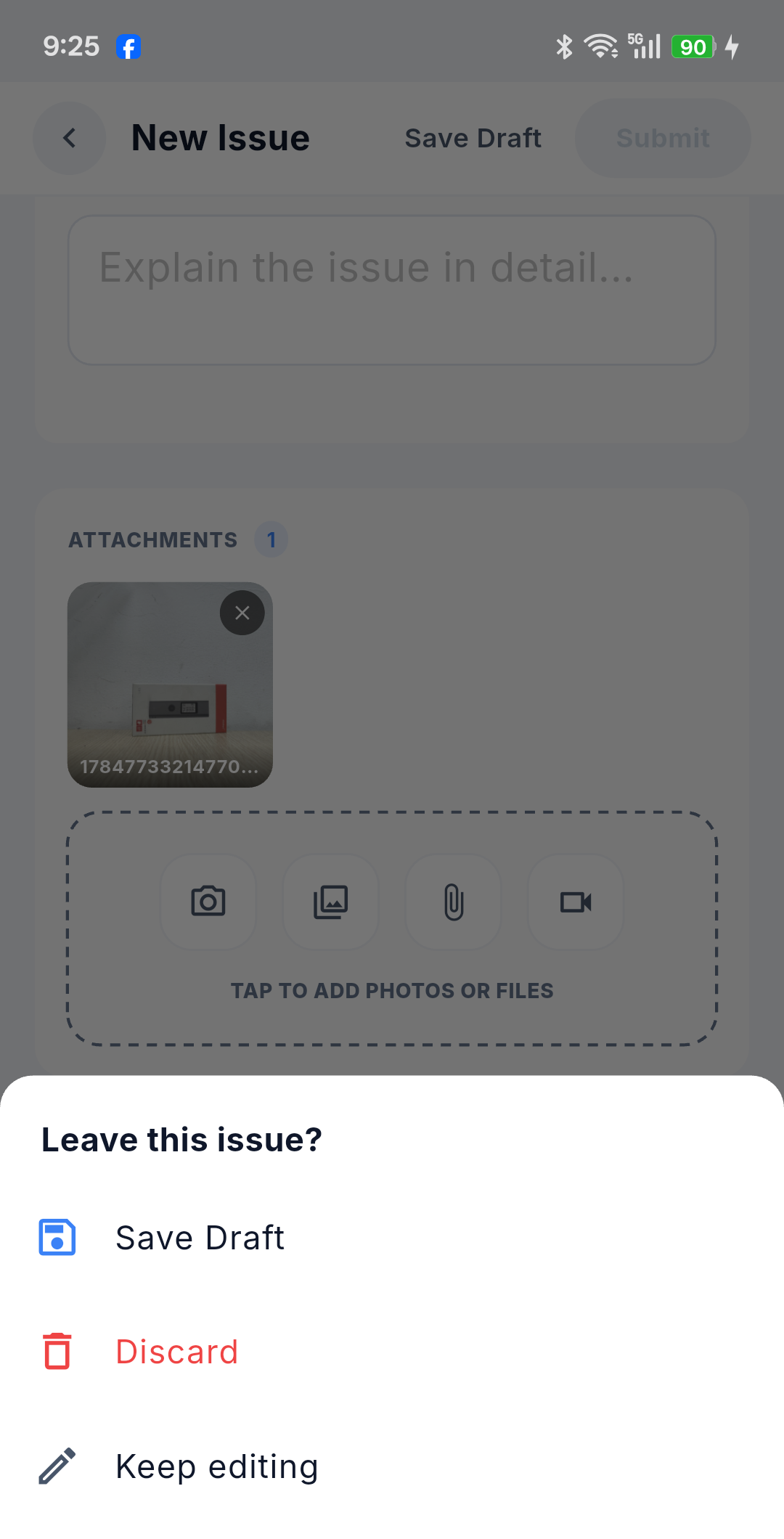
Save Draft sits in the header of both create steps, and leaving the form with unsaved content prompts you as well. A draft stores the whole form plus copies of the attachments, so you can restore it later exactly as you left it — useful when a call comes in mid-capture. Drafts are listed under Network & Sync → Drafts.
Auto-Fill by DTag (AFD)
AFD Select sits right under the Title, labelled Auto-fill from location tags. Tap it to open the tag picker.
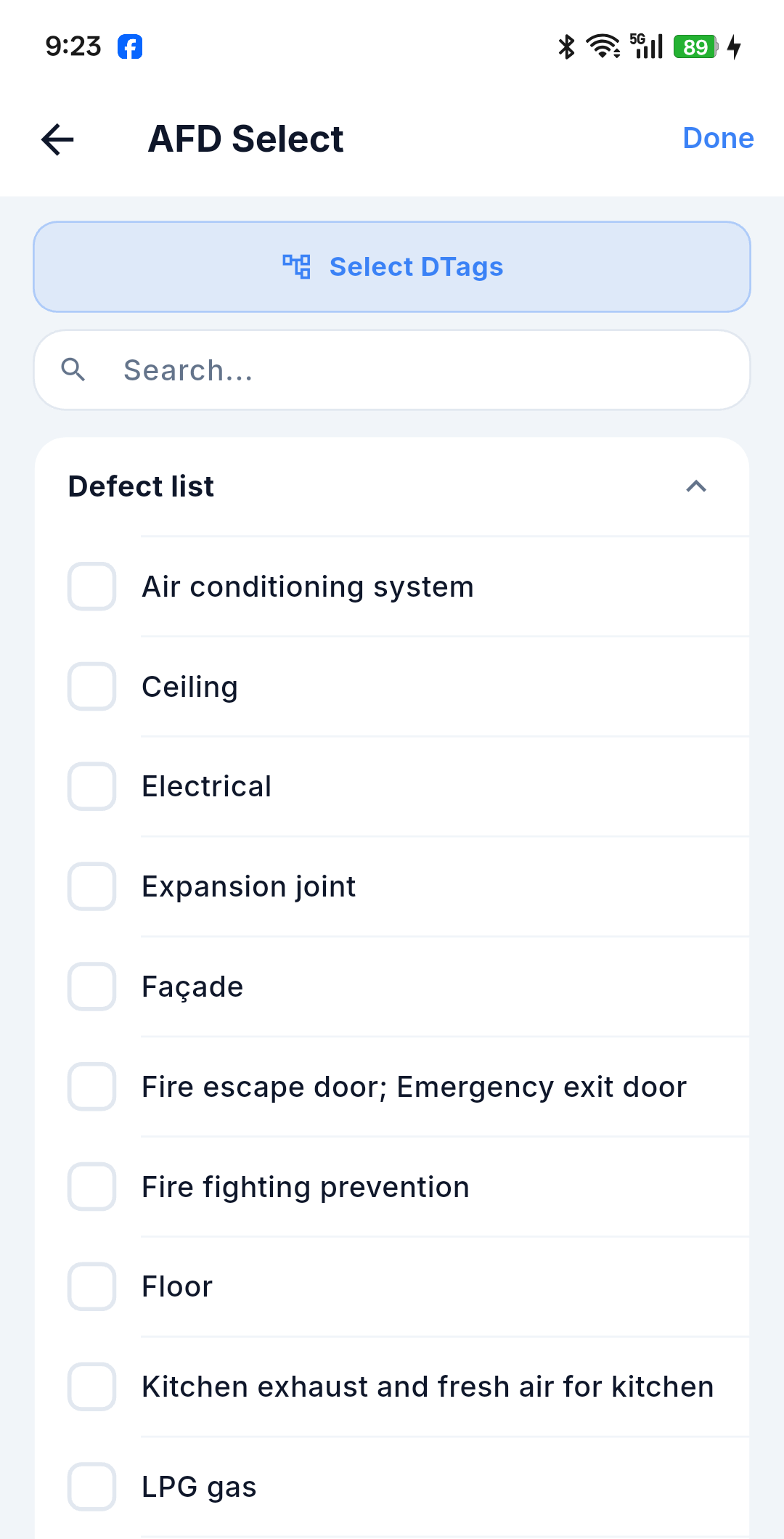
- Tap Select DTags to browse the tree, or search the whole catalog.
- Tags are grouped by branch (for example Defect list) — tick as many as apply.
- Tap Done: the chosen tags are added to the issue, and the Title and Description are filled in from them.
Everything AFD fills in stays editable — treat it as a head start, not a final answer.
The DMap Label
The DMap Label identifies the pin's position on the drawing. It is filled in automatically from the pin you opened from and you can rewrite it by hand to something more descriptive.
The pin itself is a position on the drawing, expressed in the drawing's own page space (stored normalized to a 0–1 range so it lands in the same spot at any zoom level or screen size).
:::note The pin is not a map location It is not a latitude/longitude pair, and the device's GPS is never used. "Where" an issue is means where it sits on the drawing — so the pin stays correct indoors, underground, and anywhere else a satellite fix would be useless. :::
The DTag picker
Package and DTag live under More Options, which shows a count badge when you have set something there.
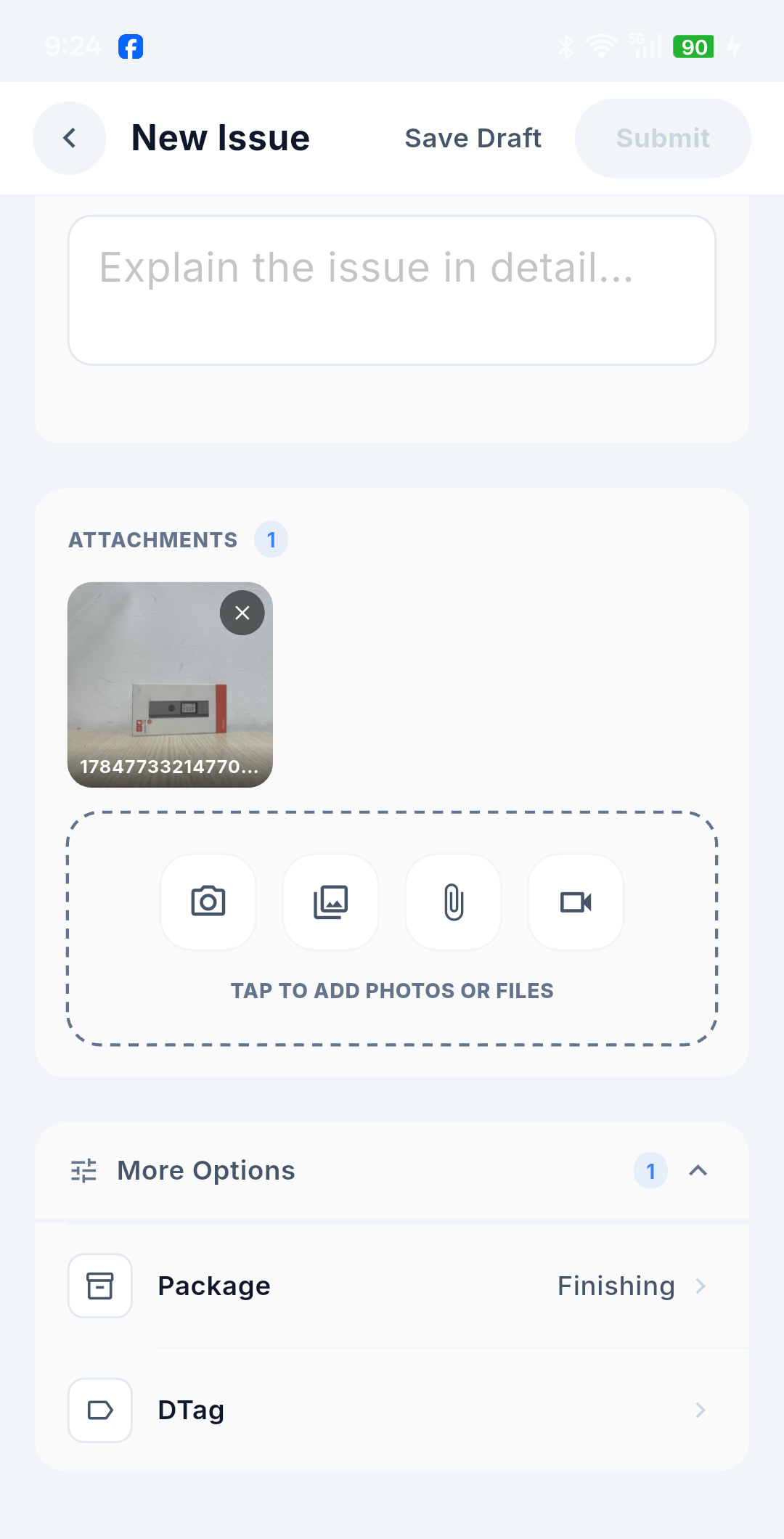
More Options → DTag opens the hierarchical tree picker:
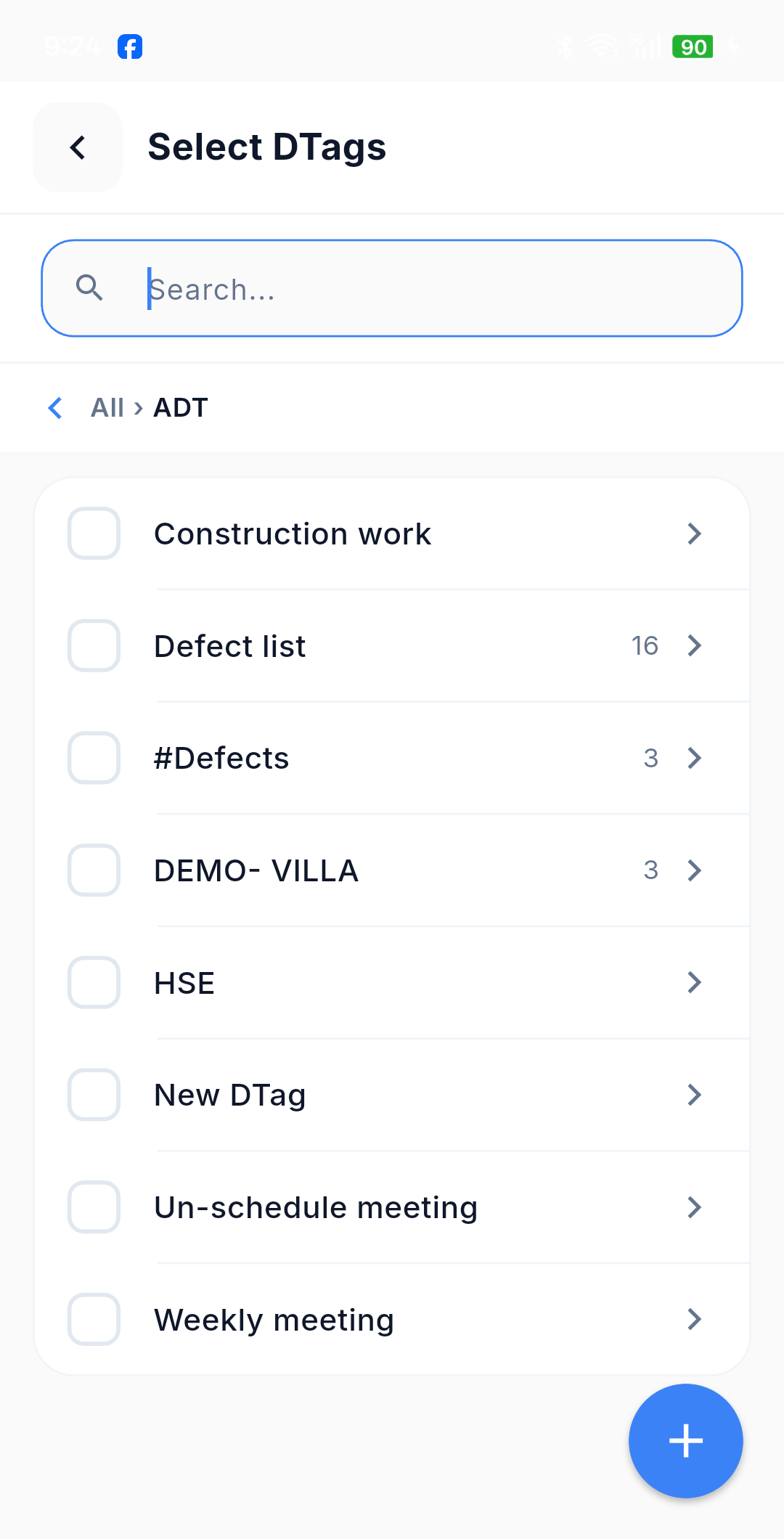
- Drill down branch by branch, with the full path shown as a breadcrumb at the top.
- Search the whole tree — each result shows its full path.
- Multi-select with checkboxes.
- Create a new tag — the name needs at least 2 characters, a code is optional; the tag is placed under the branch you are in and is auto-selected after creation.
- Delete a tag — leaf-level tags only, with a confirmation step.
:::note Renaming is web-only The web DTag tree lets you rename nodes. On mobile you can only create and delete tags. :::
Options that are web-only at creation
- A separate send email notification switch — you can still set the distribution list, and COB is available.
- Create Another.
- The Assign to Me button (on mobile it exists only on the Reopen action form).
What happens next
- The issue is created with status Opened and receives the next number in the project (
#178, for example). - The assignee and distribution list receive the notification email — unless COB was enabled, in which case it goes into the end-of-day summary.
- If you are offline, the issue goes into the send queue instead: it is stored on the device with a temporary identifier and sent automatically — attachments and COB flag included — when connectivity returns. See Working Offline & Sync.