Viewing a DMap
Tapping a card opens the DMap full screen, with its issues as pins.
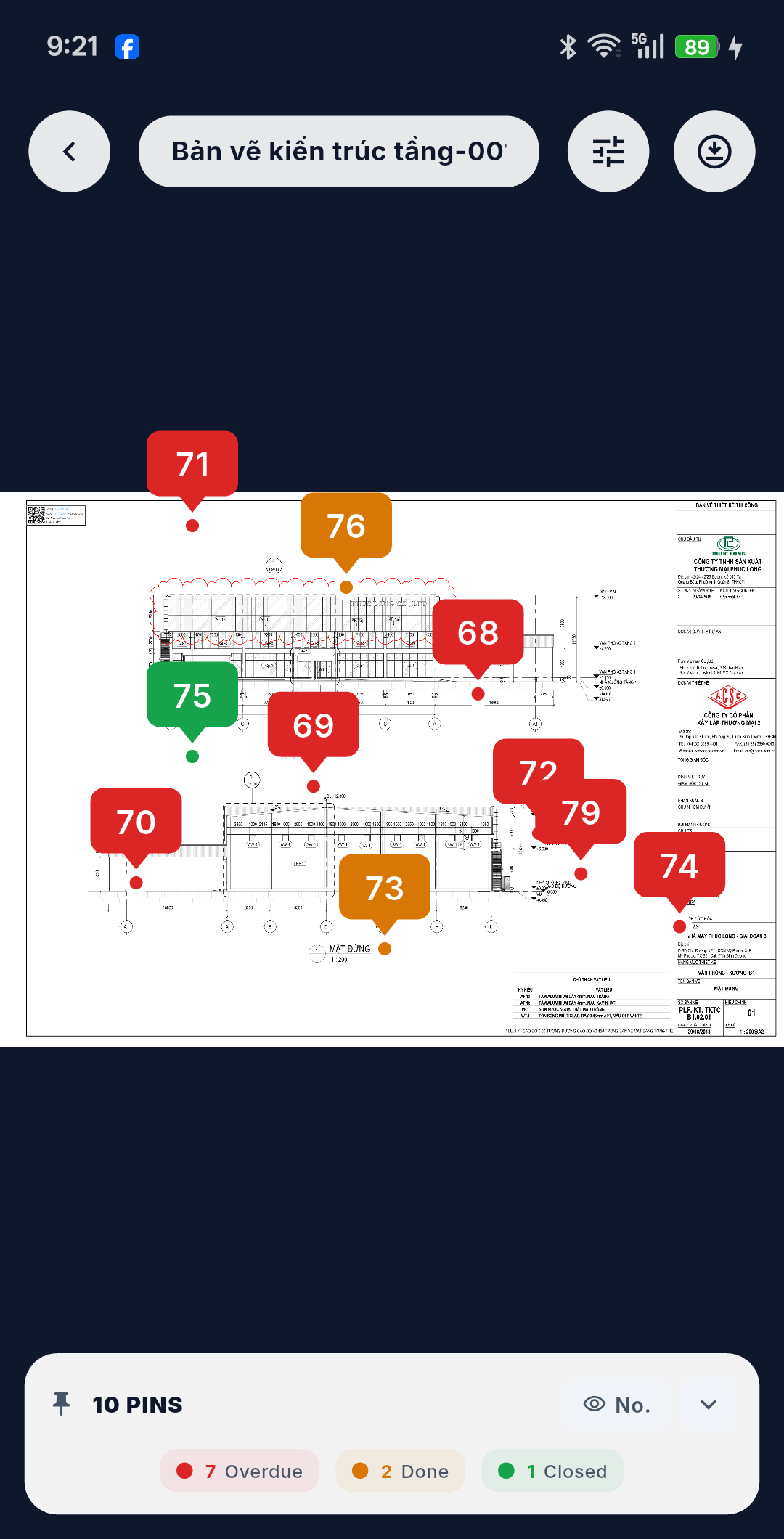
The canvas
- Pan and zoom freely, from 0.5× to 5×.
- The canvas is laid out at the DMap's exact aspect ratio and rotation (0° / 90° / 180° / 270°), so every pin sits over the right detail no matter how the sheet was set up.
- A Reset view button appears once you have zoomed in — one tap to get the whole sheet back.
The floating header
| Control | What it does |
|---|---|
| Back | Returns to the DMap list |
| DMap name + discipline | Tells you which sheet you are on |
| Filter pins | Opens the pin filter; a dot marks that filters are active — see Filtering Pins |
| Offline download | Takes a Review bundle of this DMap. Only when you have read permission; the icon and its progress ring change with the download state — see Offline Downloads |
| Reset view | Zooms back out |
The legend
The legend floats at the bottom of the screen and is collapsible, so it never has to sit in the way of the DMap.
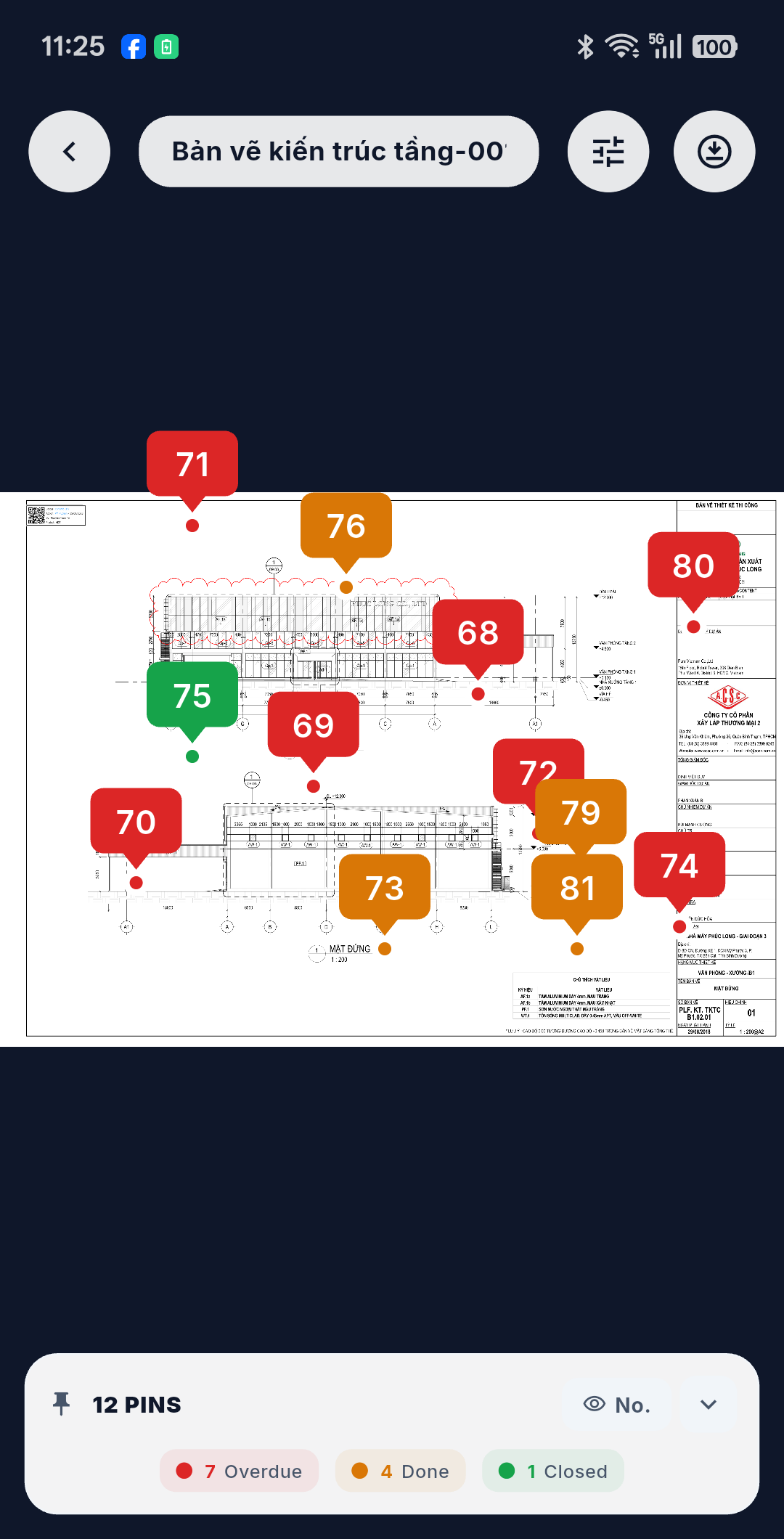
It shows the status colors and the pin count for each — for example 10 pins · 7 Overdue · 2 Done · 1 Closed — which makes it a quick read of the sheet's health before you zoom in on anything.
It also holds the button that switches how pins are labelled:
| Mode | Pins show |
|---|---|
| By number | The issue number — good for cross-referencing a list or a report |
| By label | The DMap Label — good when your team labels positions by zone or room |
Working offline
If the DMap has been downloaded, all of this works with no signal. What you get behind each pin depends on the bundle you took: Create gives you the DMap and its pins, Review also gives you the issue content, its latest activity and documents. See Offline Downloads and Working Offline & Sync.