Pins on the DMap
Every pin on a DMap stands for one issue, placed at the position where the problem is.
How a pin behaves
Pins are drawn at normalized positions (0–1) over the DMap, and they keep a stable size as you zoom — they do not balloon at 5× or vanish at 0.5×, so a dense area stays readable.
Every pin is drawn individually; there is no clustering when you zoom out.
What a pin looks like
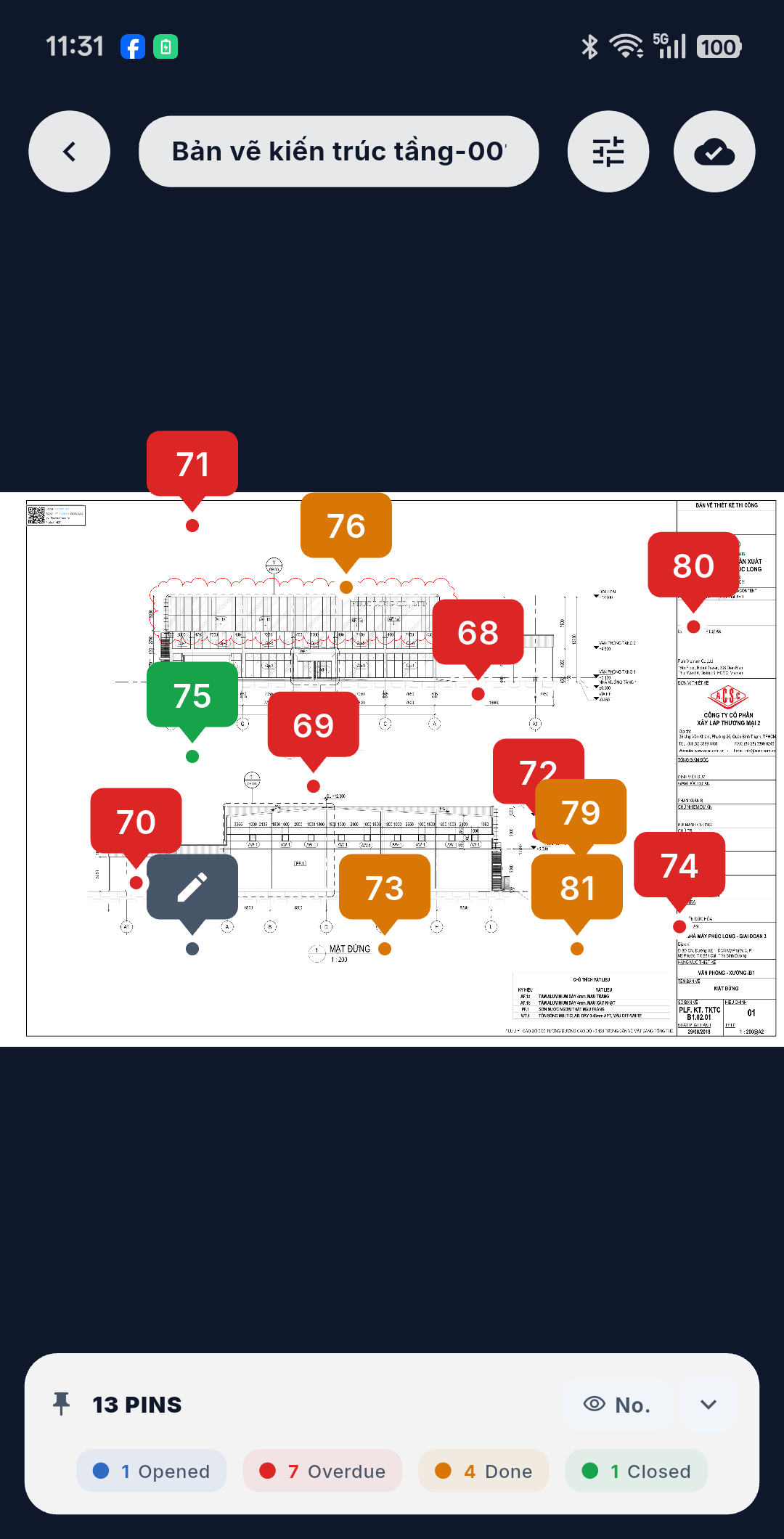
A pin is a colored label box, a small arrow, and an anchor dot marking the exact point.
| The pin shows | Meaning |
|---|---|
| A number or label | The issue number, or the DMap Label — whichever mode the legend is set to |
| A pencil icon | A local draft pin — captured but not yet sent |
| A spinner | Currently syncing |
| A red border | The pin hit an error while syncing |
| Slightly larger, with a shadow | It is the pin you have selected |
A draft pin is easy to spot: a slate box with a pencil instead of a number.
Colors
Color comes purely from the issue's status:
| Status | Color |
|---|---|
| Opened / Reopened | 🔵 Blue |
| Done | 🟠 Amber |
| Closed | 🟢 Green |
| Cancelled | ⬛ Slate |
| Overdue | 🔴 Red |
Overdue is worked out automatically — an Opened or Reopened issue whose due date has passed shows red, without anyone having to set anything.
Tapping a pin
| Pin | What happens |
|---|---|
| An existing pin | A preview card slides up from the bottom: cover image, status, number and title, due date, assignee, and a View Details button that opens the issue |
| A draft pin | The draft reopens so you can carry on filling it in |
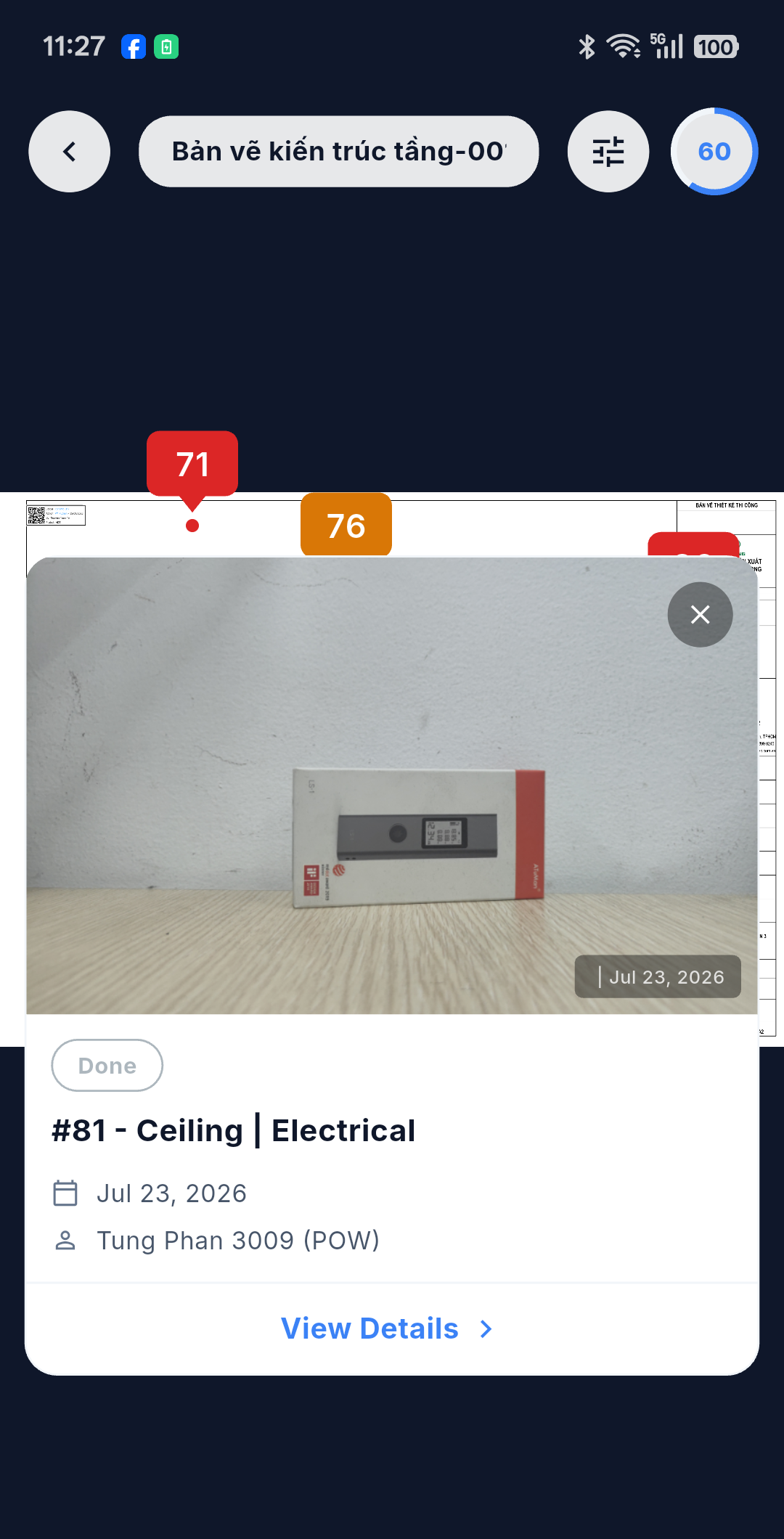
From the preview, View Details takes you to the full issue detail screen — the same screen you would reach from the issue list, with the timeline, the properties and the workflow actions.
Tapping an empty spot
Tapping anywhere with no pin starts a new defect capture — see Capturing a Defect.
Only issues for now
A pin can in principle point at any object, but today only Issue is supported. Submittals and DMaps as pin targets are not on the map yet.