DMap Module (Mobile) — Overview
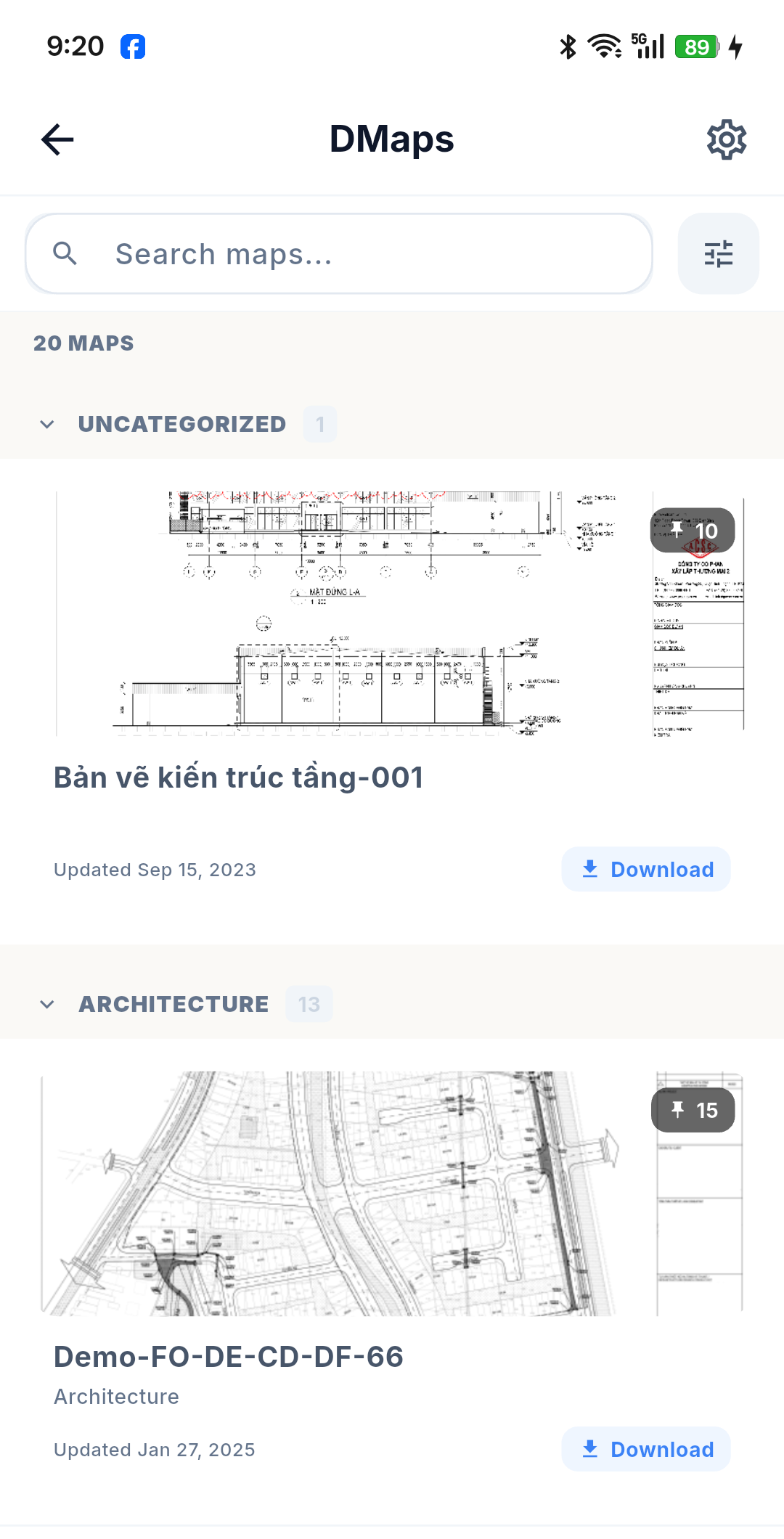
DMap — "digital map" — is where the project's drawings live on your phone. It is the module you open to look up a DMap on site, take it with you offline, see every defect as a pin at its exact position, and record a new defect by tapping the spot on the DMap.
Each item in the DMap menu is one DMap (a layout), with its own size and rotation.
DMap and Issue are two halves of one job
Every pin on a DMap is an Issue. Tapping an empty spot on a DMap is exactly how issues are created on mobile — see Create an Issue.
So the two modules split like this:
| You want to… | Go to |
|---|---|
| See where the problems are | DMap — a DMap with its pins |
| See what the problems are, as a list you can filter and action | Issue |
| Record a new defect | DMap — tap the position on the DMap |
Key concepts
| Term | Meaning |
|---|---|
| DMap | A project drawing / floor plan shown in the app. Each entry in the DMap menu is one DMap |
| Layout | A single DMap with its own size and rotation, which can hold many pins |
| Pin | A marked point on the DMap standing for an object — currently always an Issue / defect — colored by status |
| Draft pin | A pin you just created offline or that has not been sent yet: it appears instantly with a pencil or spinner icon while it waits to sync (mobile-only) |
| Linked object | What the pin points to. Only Issue is supported today |
| DMap Label | A short label on a pin — up to 3 alphanumeric characters, uppercase |
| Legend | The floating panel at the bottom of a DMap: status colors and the pin count for each |
| Download mode | Create (a light bundle for capturing defects offline) or Review (a full bundle for reviewing and actioning offline) |
| Read / write permission | Granted per DMap by the system: read lets you view and take a Review download; write lets you take a Create download and capture defects |
What you can do
- Browse and search the project's DMaps, grouped by discipline, drawing set or drawing type.
- Download DMaps to the device so they open with no signal — in two modes, see Offline Downloads.
- View a DMap full screen with pan and zoom, at its correct aspect ratio and rotation.
- See the pins — every defect at its exact position, colored by status, with a legend and counts.
- Filter the pins by status, sync state, assignee and creator.
- Capture a defect — tap the DMap, take a photo, and the issue is created at that position.
- Do all of the above offline, with everything syncing automatically when connectivity returns.
Pin colors
Pin color comes purely from the issue's status — not from any colour set on the object itself:
| Status | Color |
|---|---|
| Opened / Reopened | 🔵 Blue |
| Done | 🟠 Amber |
| Closed | 🟢 Green |
| Cancelled | ⬛ Slate |
| Overdue | 🔴 Red |
Overdue is computed automatically: an Opened or Reopened issue whose due date has passed turns red.
:::note Overdue on the DMap, but not in the issue list The DMap legend does show overdue counts, because a pin knows its issue's due date. The mobile issue list deliberately carries no due date, so it has no overdue flag — see Issue Overview. :::
Where the pin sits
Pin positions are stored in the DMap's own page space, normalized to a 0–1 range for display, and rotation-aware for all four angles (0° / 90° / 180° / 270°). That is why a pin stays on the same crack at any zoom level, on any screen.
The device's GPS is never used — "where" always means where it is on the DMap.