The DMap List
Open Tools → DMaps to get the project's DMaps as a single-column card list, arranged in collapsible groups with a title and a count on each.
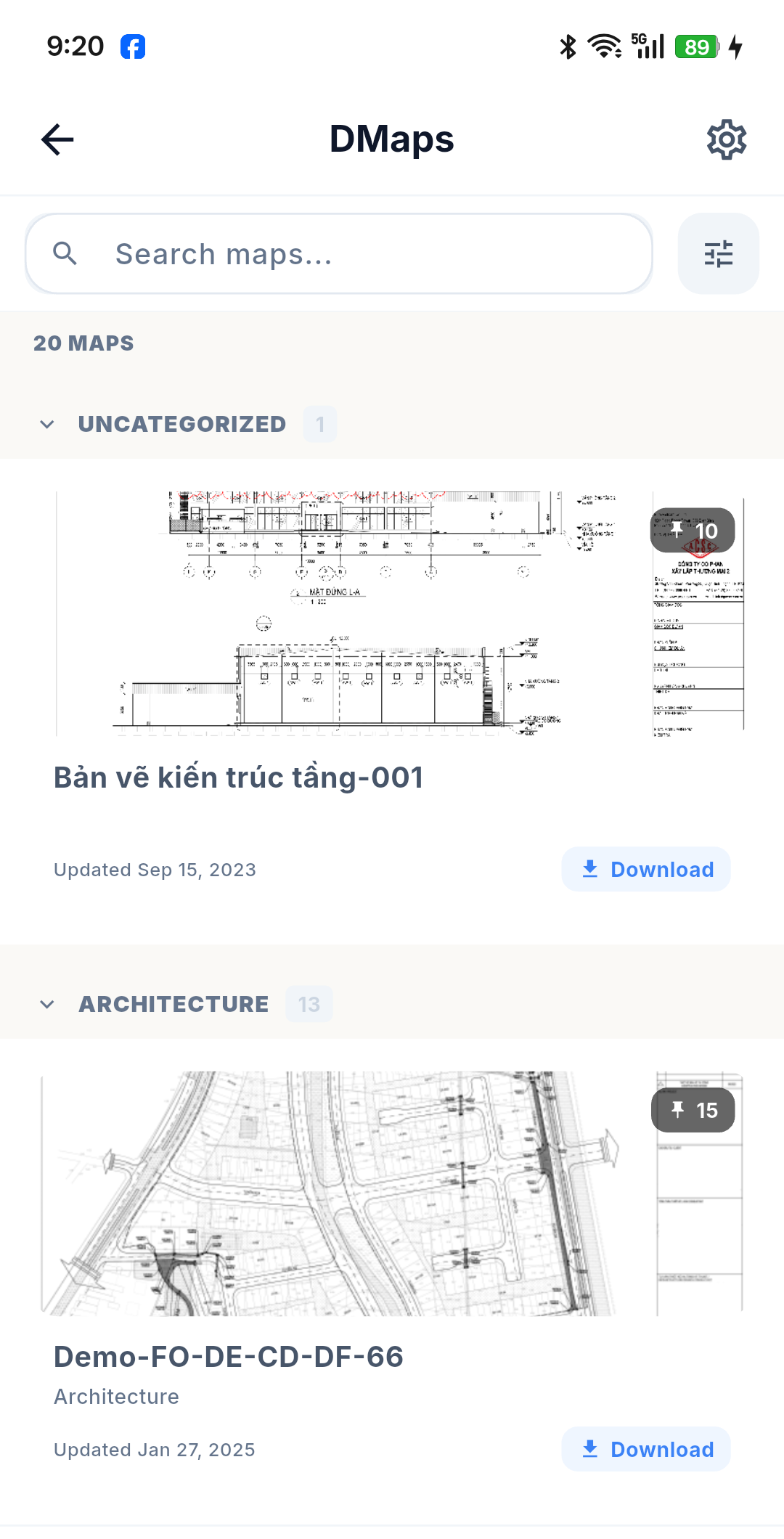
At the top you get the total number of matching DMaps and, when a filter is on, a link to clear it.
What a card shows
- A thumbnail of the DMap.
- A pin count badge in the top-right corner — how many issues sit on this DMap.
- An "Offline downloaded" badge when the DMap is on the device.
- The DMap name, with discipline • drawing type underneath.
- The updated date.
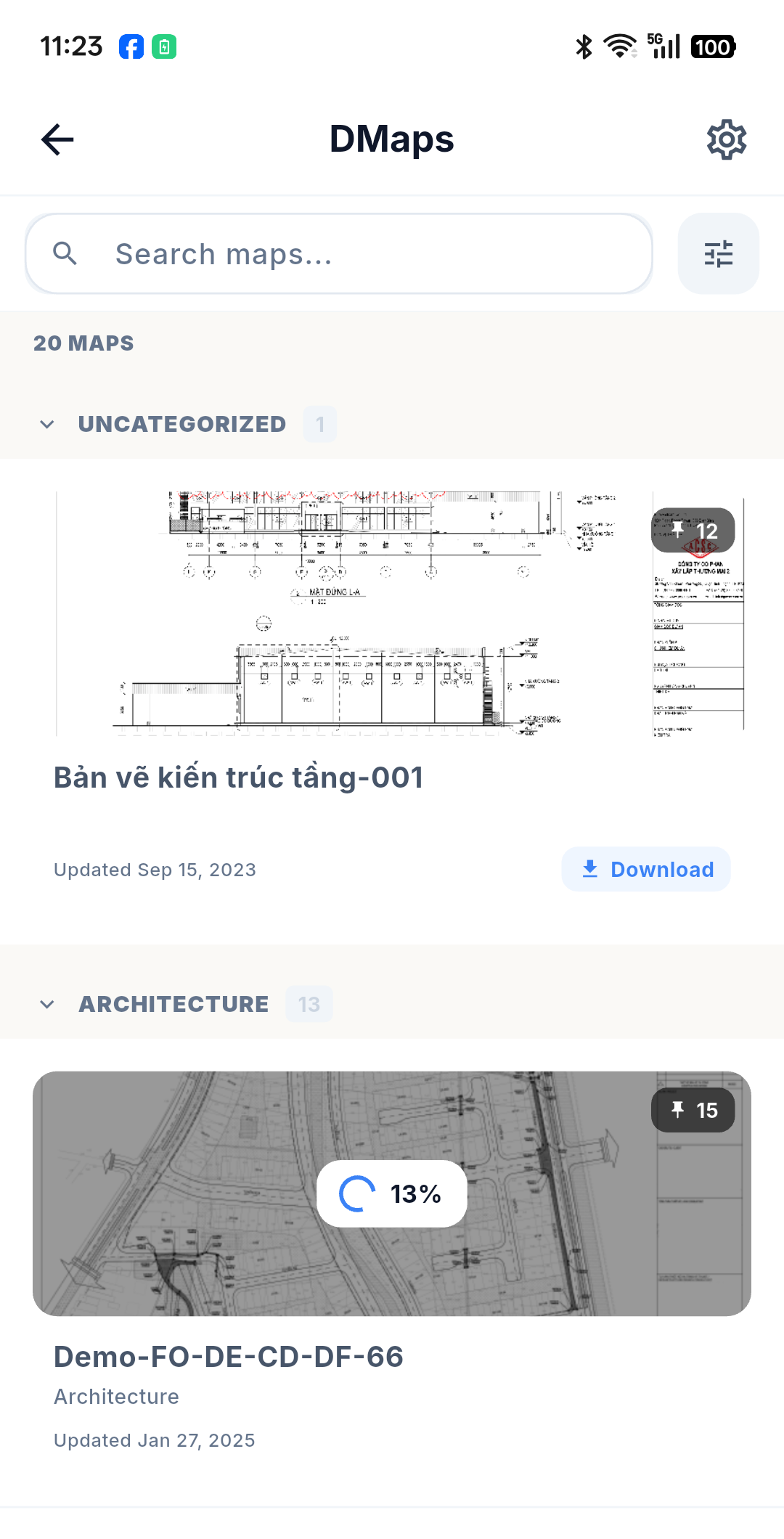
- A download status indicator — in progress with a percentage, success, or failed.
Tap the card to open the DMap. See Viewing a DMap.
The download button
Each card can carry a Download button (or Retry, if a previous attempt failed).
:::note It only appears if you can write The button is shown only on DMaps you have write permission for. Downloading from the list always uses Create mode — the light bundle that lets you capture defects offline. See Offline Downloads. :::
The list has no button to cancel a download or delete a downloaded DMap; cancelling is available while a download is running from the detail screen.
A DMap being downloaded shows its progress on the card.
Searching, refreshing, loading more
- Search box at the top, with a short typing delay so it does not fire on every keystroke.
- Pull down to refresh.
- Scroll to the bottom to load the next page.
Filtering the list
The filter button opens a bottom sheet with exactly two conditions, both evaluated on your device — they are never sent to the system:
| Filter | Shows |
|---|---|
| Only offline-downloaded DMaps | Just the DMaps currently on the device |
| DMaps pending sync | Just the DMaps holding local changes — draft pins that have not been sent yet |
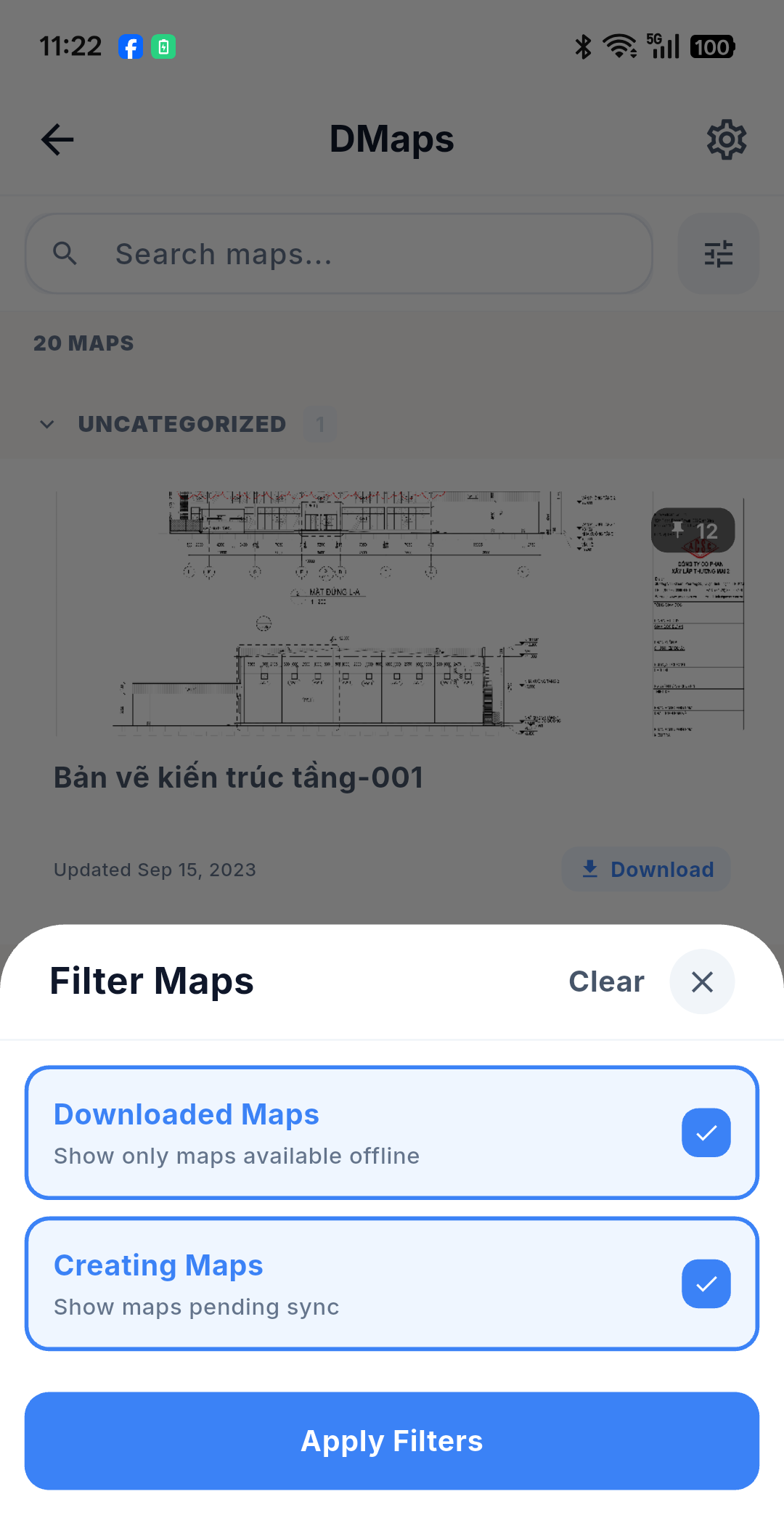
Tick both and they combine with AND. The sheet has Clear, Close and Apply; the filter button carries a badge while any condition is active.
:::note No discipline or type filter Narrowing by discipline, drawing type or package is not part of this filter — use grouping instead, below. :::
Grouping and sorting
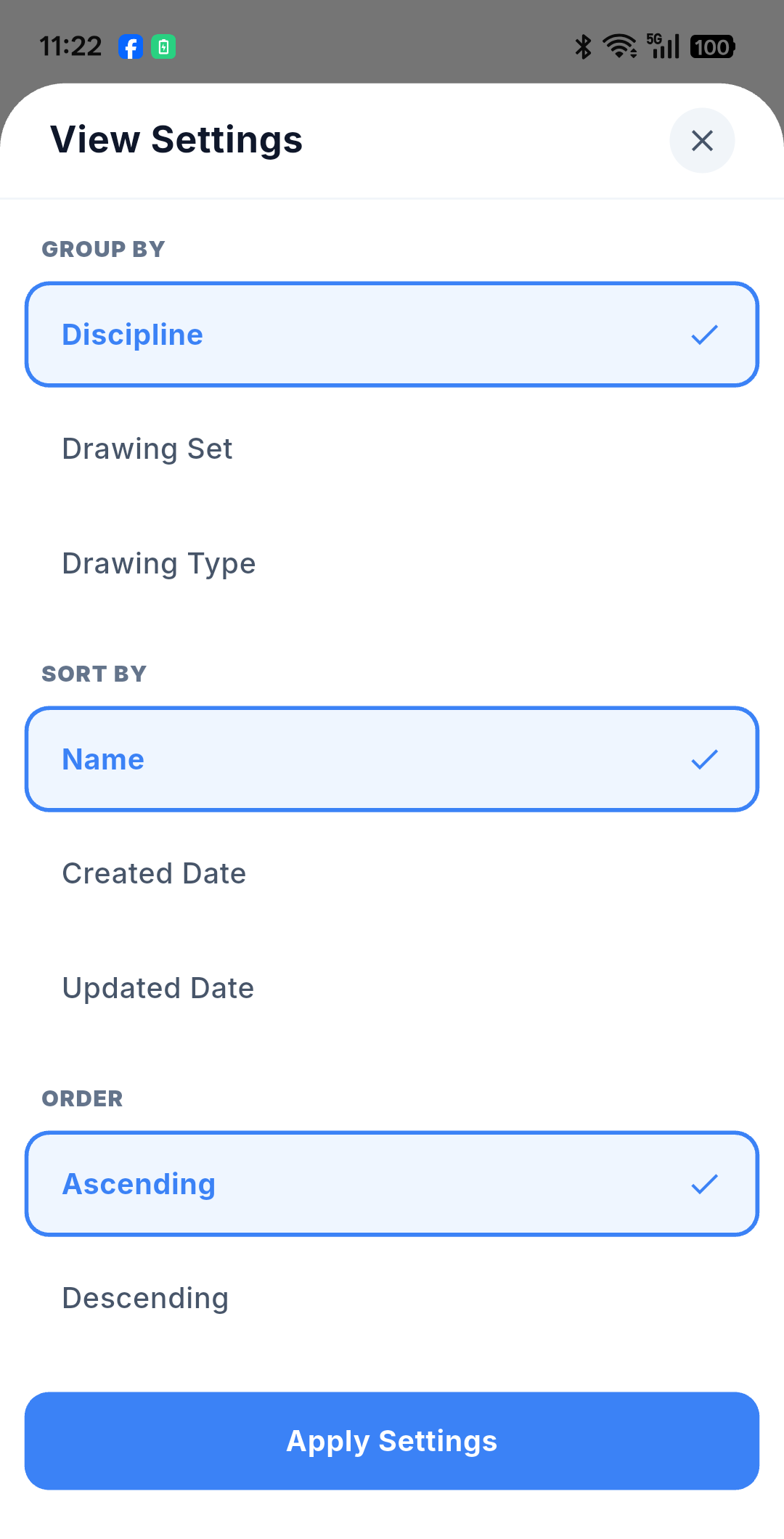
The view-config button opens a sheet with three single-select groups:
| Setting | Options | Default |
|---|---|---|
| Group By | Discipline / Drawing Set / Drawing Type | Discipline |
| Sort By | Name / Created Date / Updated Date | Name |
| Order | Ascending / Descending | Ascending |
The list offline
With no connection you still get the list: an offline banner appears and the cards are served from the local cache, with search and sorting replayed on the device.