Add & Edit Milestones
Prerequisites: milestone write access; deleting also requires delete access. In a completed project the module is read-only and these actions are hidden.
Add a milestone
-
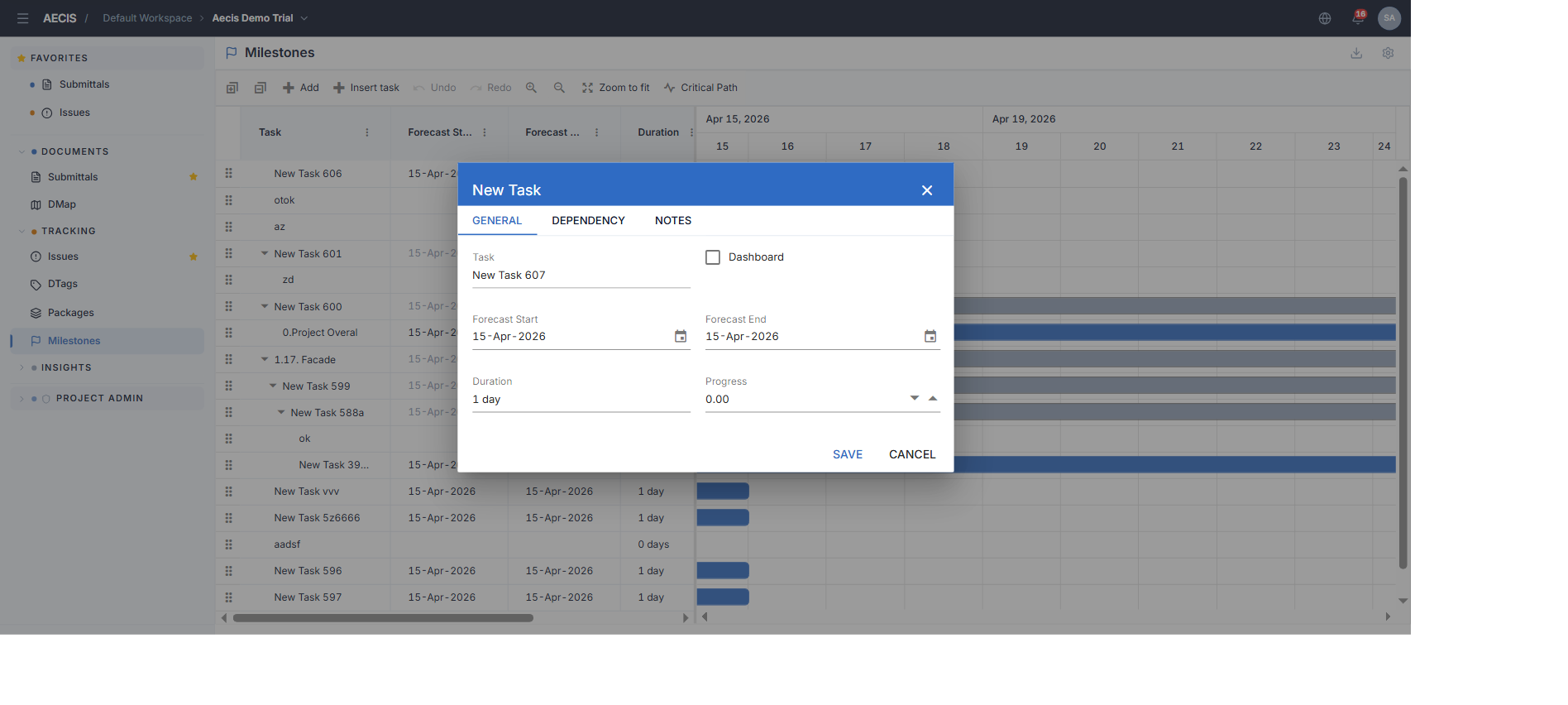
Click Add on the toolbar. The task dialog opens:
-
Fill the General tab: Task name, the Dashboard checkbox (show on the dashboard), Forecast Start, Forecast End, Duration, Progress.
-
(Optional) Add predecessors on the Dependency tab, and free-text notes on the Notes tab.
-
Click Save (or Cancel to discard).
Insert task
Insert task inserts the new row as a sibling directly below the selected row (or at the top of the grid when no row is selected). To create a child, right-click a row and choose Add → Child from the context menu (which also offers Above / Below / Milestone).
Edit a milestone
Two ways:
The Edit dialog
Select a row and click Edit (or use right-click → Task Information). The dialog adds a Date Tracking tab:
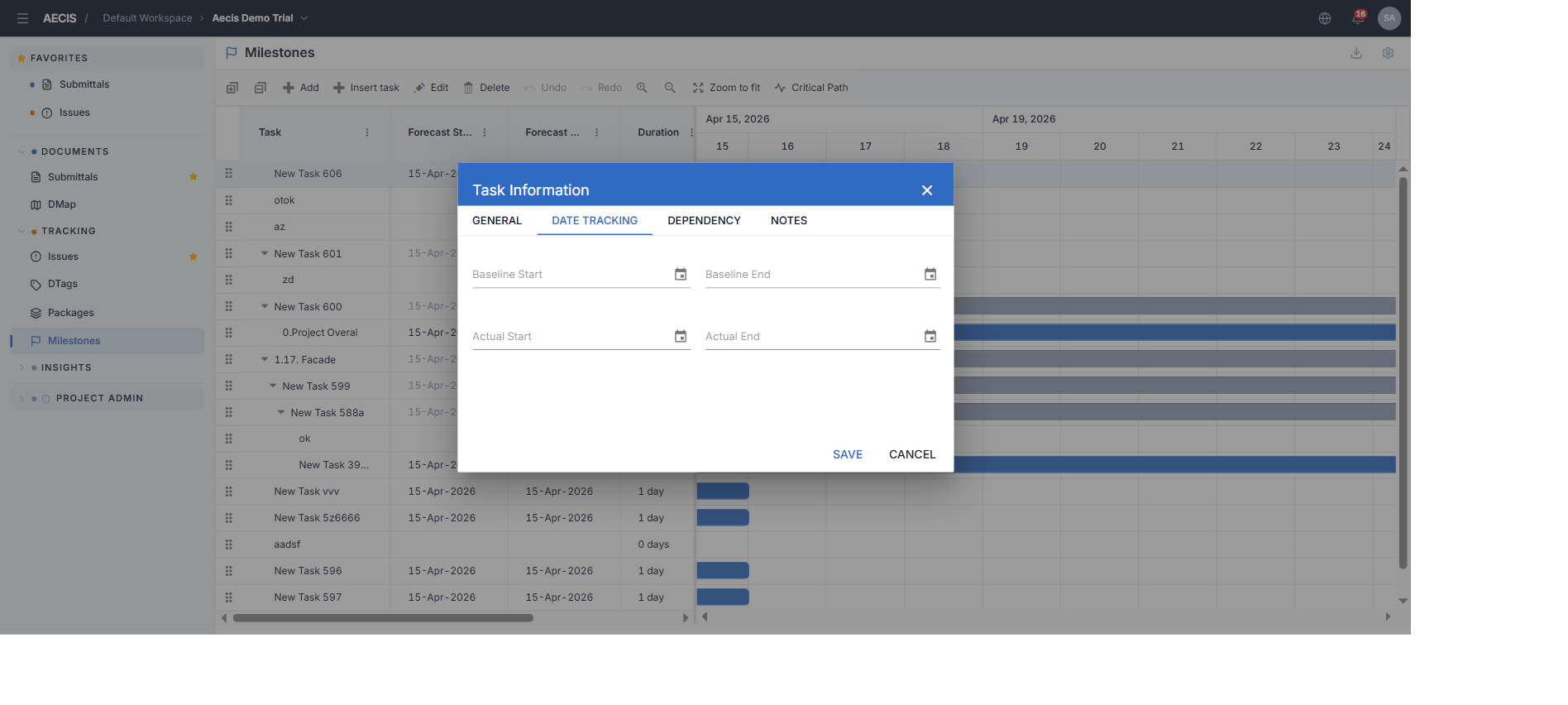
- Baseline Start / Baseline End — the original schedule. On parent (summary) rows these fields are disabled: the parent baseline is derived from its children.
- Actual Start / Actual End — record reality as work completes.
Inline editing
Double-click a cell to edit it directly in the grid. The toolbar switches to Update / Cancel — commit or discard the pending edit:
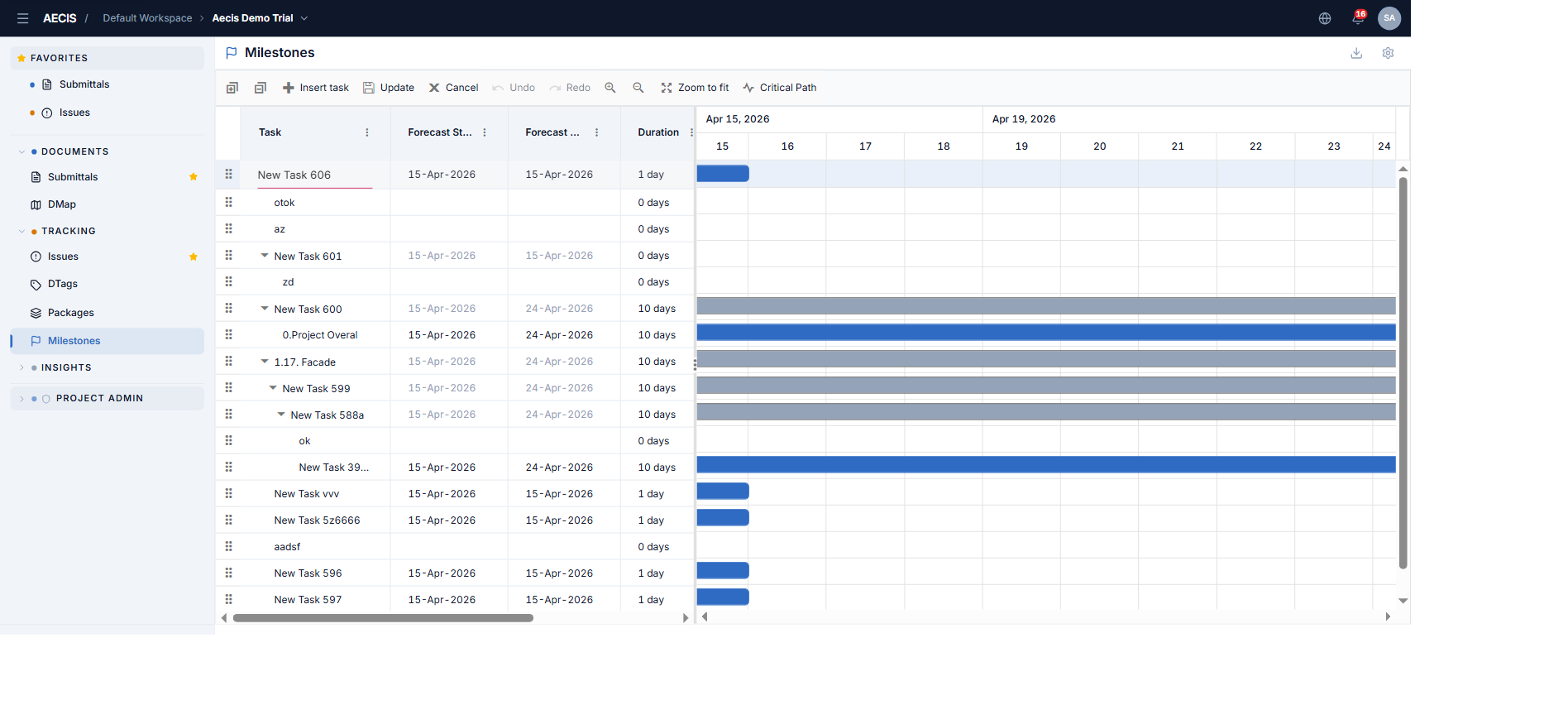
:::note Baseline cells on parent rows are locked Editing Baseline Start / Baseline End on a parent row is cancelled — the cell shows muted text with a not-allowed cursor and a toast explains that the field is locked on parent rows. The value shown is the rolled-up span of the children. :::
Delete a milestone
Select the row and click Delete on the toolbar (or right-click → Delete Task). Deleting requires the delete permission.
Undo / Redo
Undo and Redo on the toolbar revert or replay: Add, Delete, Edit, Indent, Outdent, timeline navigation, and row drag-and-drop. Each operation — including each drag-and-drop drop — is one undo step.