The Detail Panel
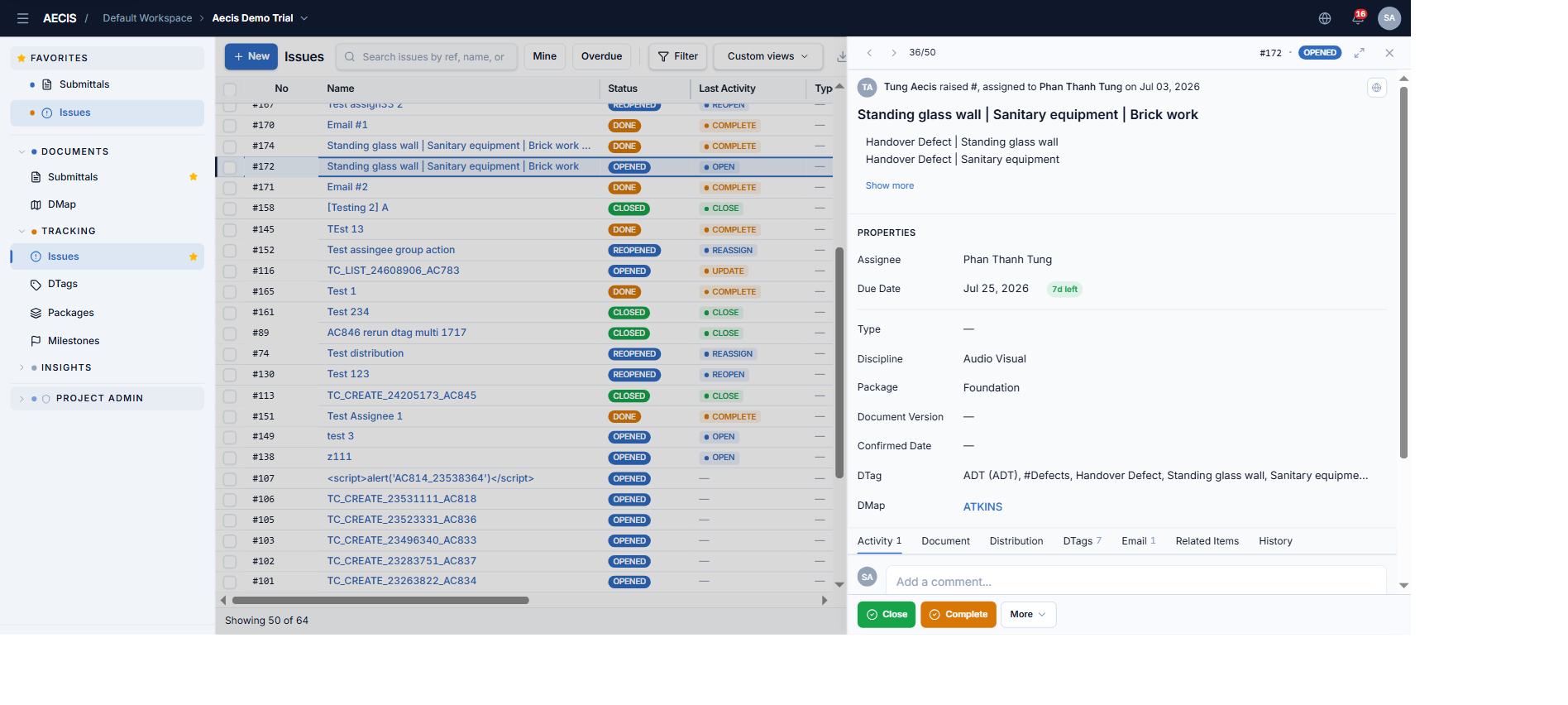
Click any row in the issue list to open the detail panel in the right column. It occupies about a quarter of the screen and can be expanded to full screen.
Layout
- Top navigation bar — previous / next buttons to move between issues in the current filtered list, your position (e.g.
36/50), the issue number, the status badge, an expand button, and a close button. - Social card — who raised the issue, of which type, assigned to whom, on what date. Includes the privacy icon.
- Title & Description — editable inline if you have permission (see Edit an Issue). Long descriptions collapse with a Show more link.
- Attachment strip — quick view of attached documents; click to open the viewer.
- Properties grid — Assignee, Due Date, Type, Discipline, Package, Confirmed Date, DTag and more; some fields are editable inline depending on permissions.
- Content tabs — Activity, Document, Distribution, DTags, Email, Related Items, History; each tab shows its item count on the label.
- Bottom action bar — the actions available to you by role and status (see Workflow Actions).
Tabs
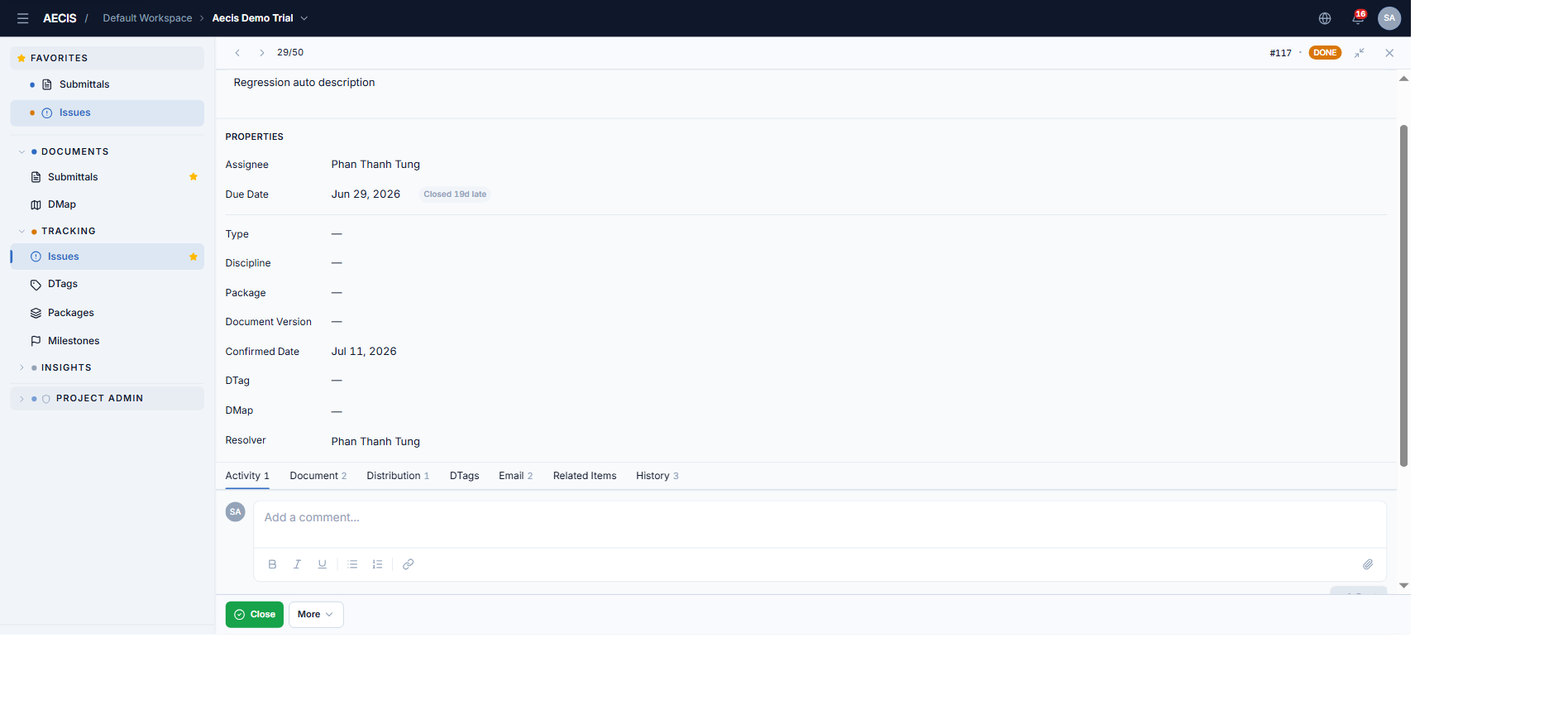
Activity
The full timeline of the issue: user comments, workflow action records, and notification emails.
- Post a comment — rich-text editor with
@mentions (suggested from the user directory) and file attachments. New comments appear at the top. - Reply to any comment to create a nested thread.
- Edit / Delete your own comments; deleted comments show a withdrawn state.
- Email entries open the email viewer when clicked.
- Clicking the Last Activity column in the list opens this tab, scrolls to, and highlights the corresponding entry.
Document
Documents attached to the issue as a flat list — each document is independent (no version chain). Each row shows a file-type icon (PDF, image, Word, Excel, CAD, other), name, size, and upload date.
- Click a row to open the full-screen viewer — navigate files with arrow keys, zoom, rotate, markup, and annotate.
- Download a single file with the row's download button, or download all from full-screen mode.
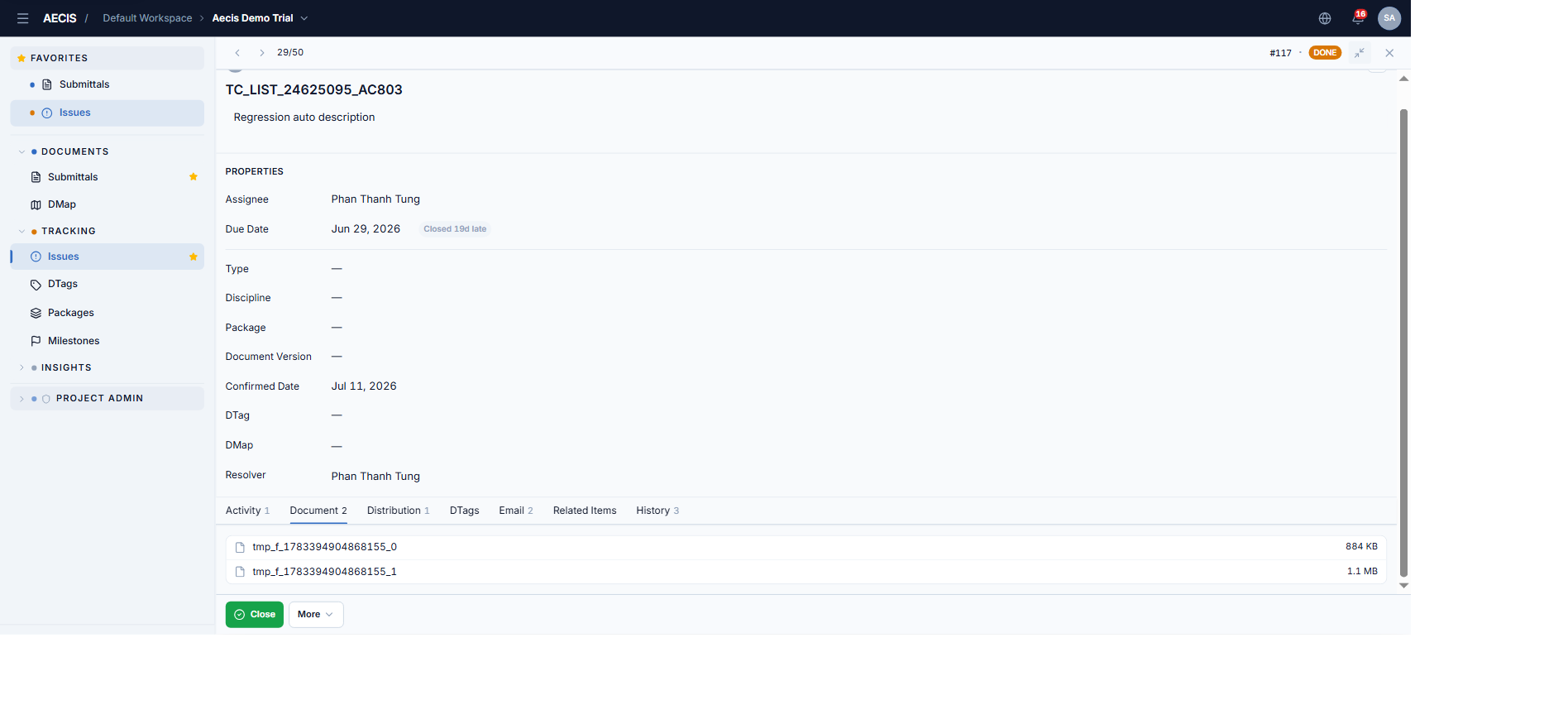
Documents are added through the attachment section of the action dialogs, not directly in this tab.
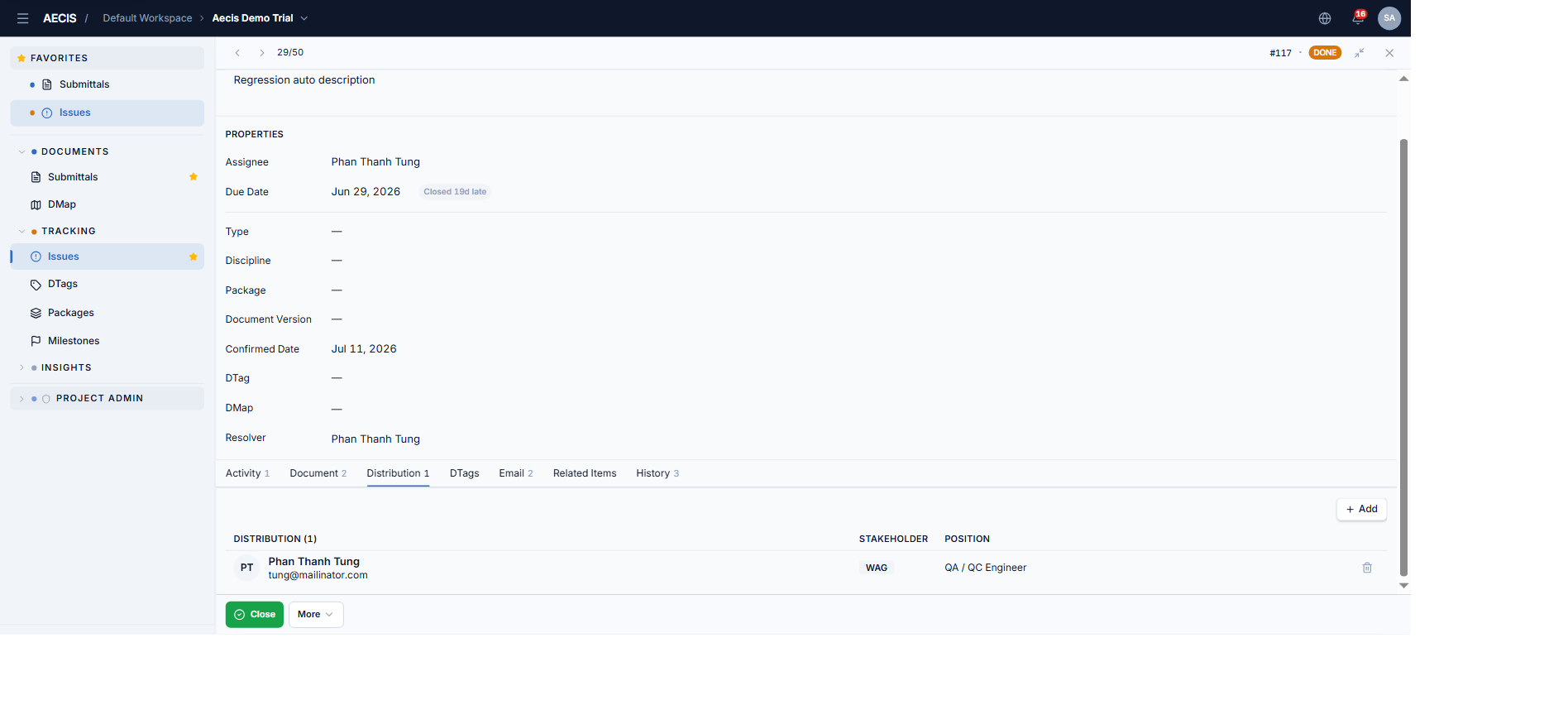
Distribution
The notification recipients, grouped by stakeholder. Each row shows avatar, name, email, stakeholder, and position.
- Add — opens a sub-panel to search by name / email / position and select multiple people at once.
- Remove — each row has a delete button.
DTags
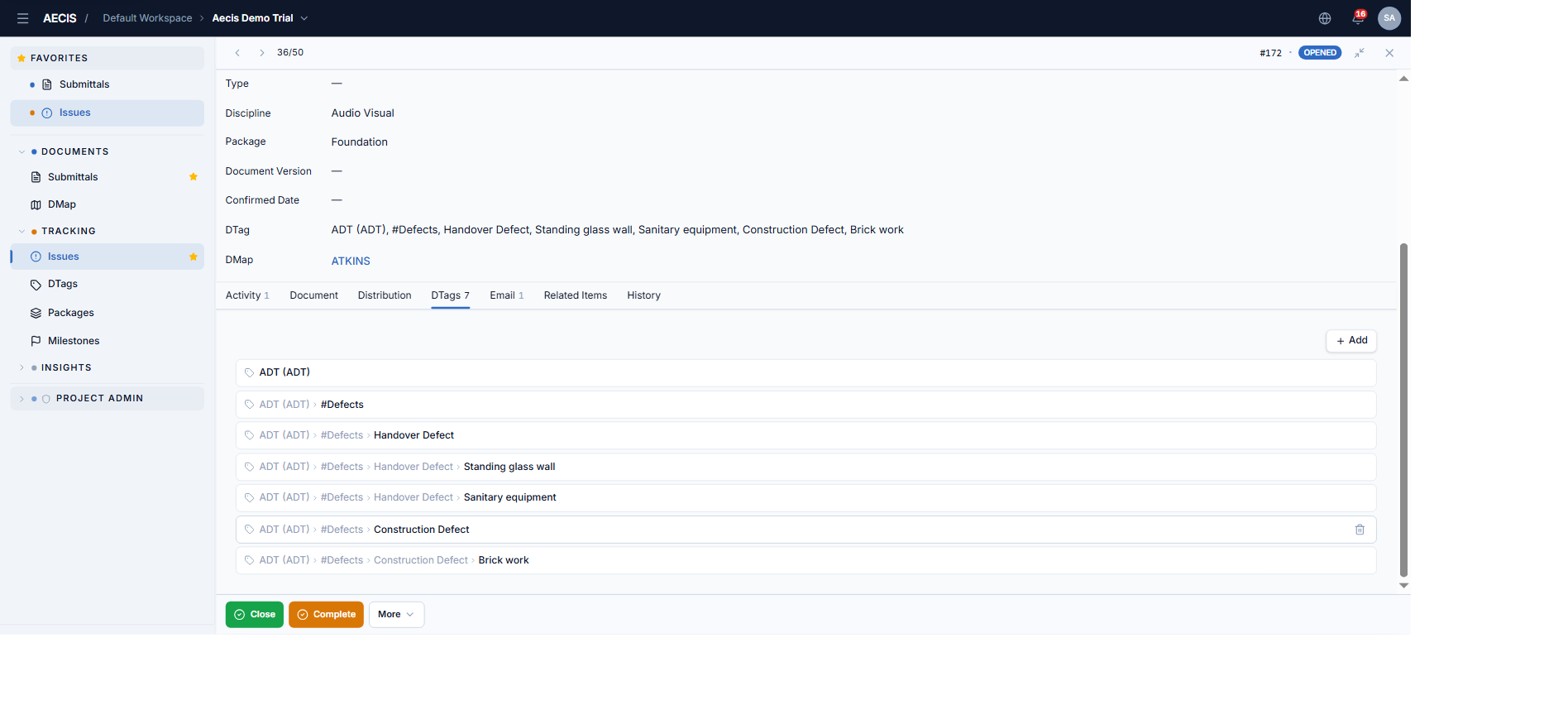
The DTags attached to the issue, shown as hierarchical paths (e.g. Building A › Level 3 › Plant Room).
- Add DTag — opens the tree picker; check/uncheck to add or remove. Users with management rights can create, rename, or delete nodes directly in the tree.
- Remove — per-row delete button, or right-click for a context menu.
Email
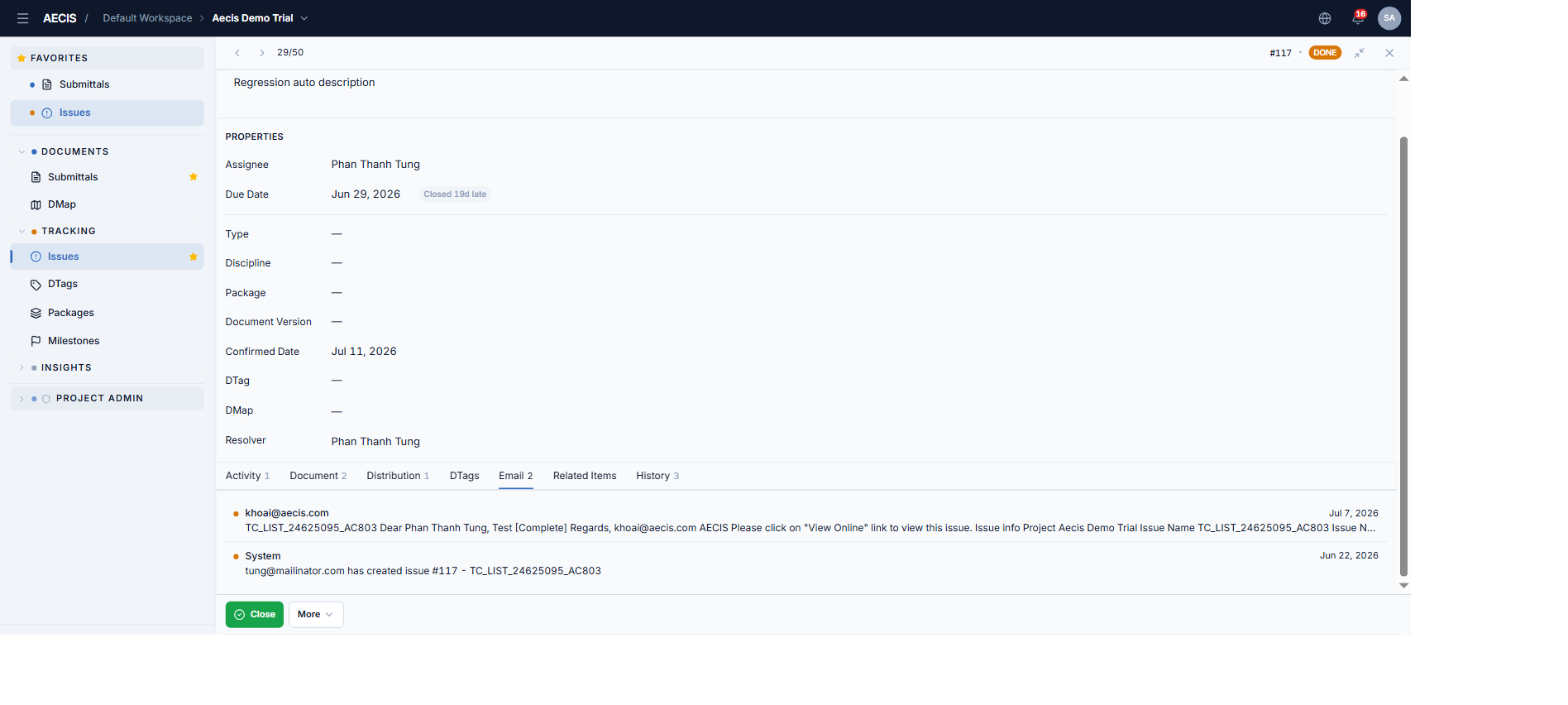
The notification emails generated from the issue.
- Click a row to open the email viewer with full sender, recipients, and content.
- Reply All — compose a reply (with attachments); it is written back to the activity timeline as a new email entry.
Related Items
Link the issue to other objects in the project — Submittals, Issues, RFIs, Drawings, Milestones. Each row shows the number, title, color-coded status badge, and last-modified date.
- Link — opens a sub-panel to search, select multiple objects and a relationship type.
- Open — click a row to navigate to the target object.
- Unlink — per-row delete button.
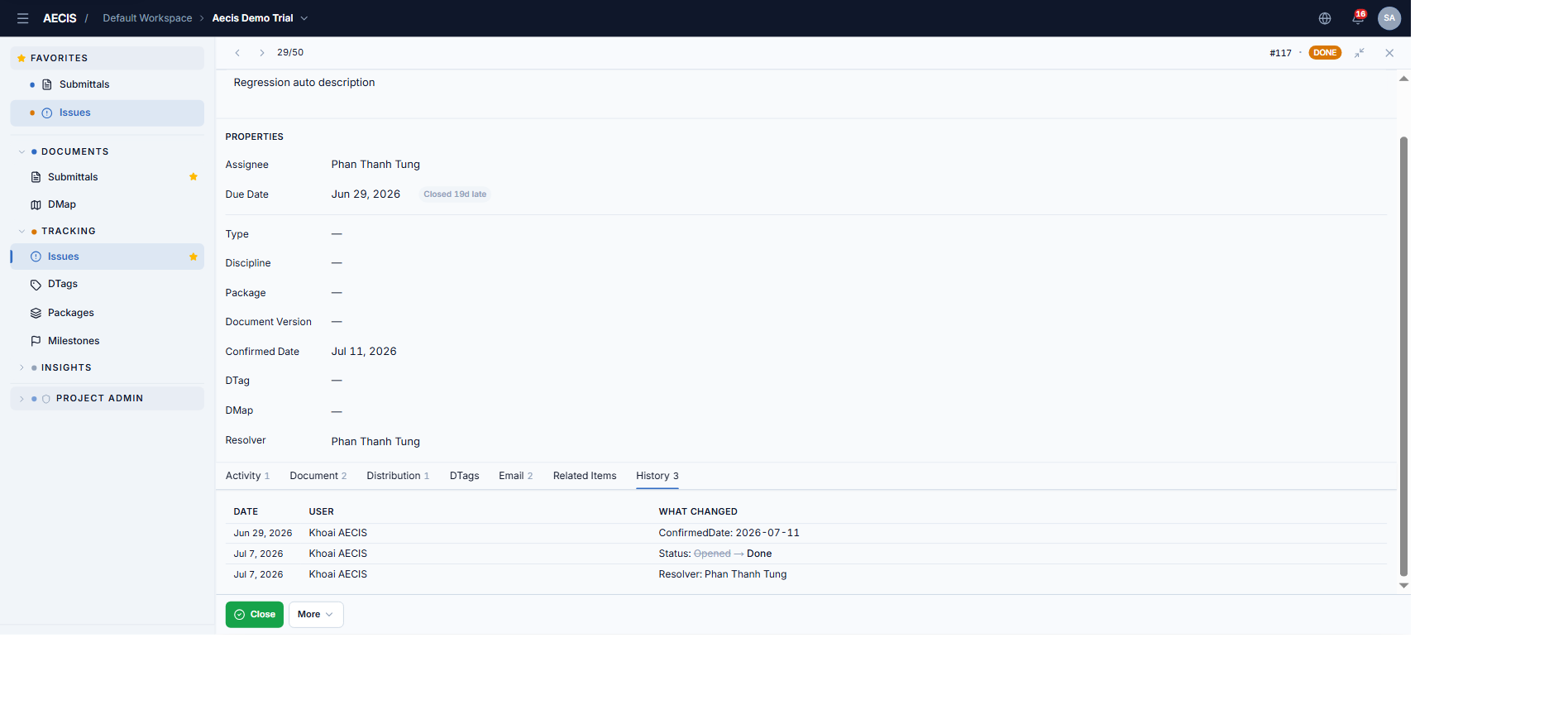
History
A read-only, field-level audit trail: the changed field, old value, new value, who changed it, and when. Separate from the activity timeline.