Filter & Search
Prerequisites: none — all project members can filter and search the issues they are allowed to see.
Quick search
Type in the search box at the top of the list to filter by:
- Issue number
- Issue name
- Note / comment content
The "Mine" toggle
Click Mine to narrow the list to issues where you are directly the Creator, Assignee, or Resolver.
The "Overdue" toggle
Click Overdue to show only overdue issues. The table switches to status-based sorting with overdue-day awareness.
Detailed filter
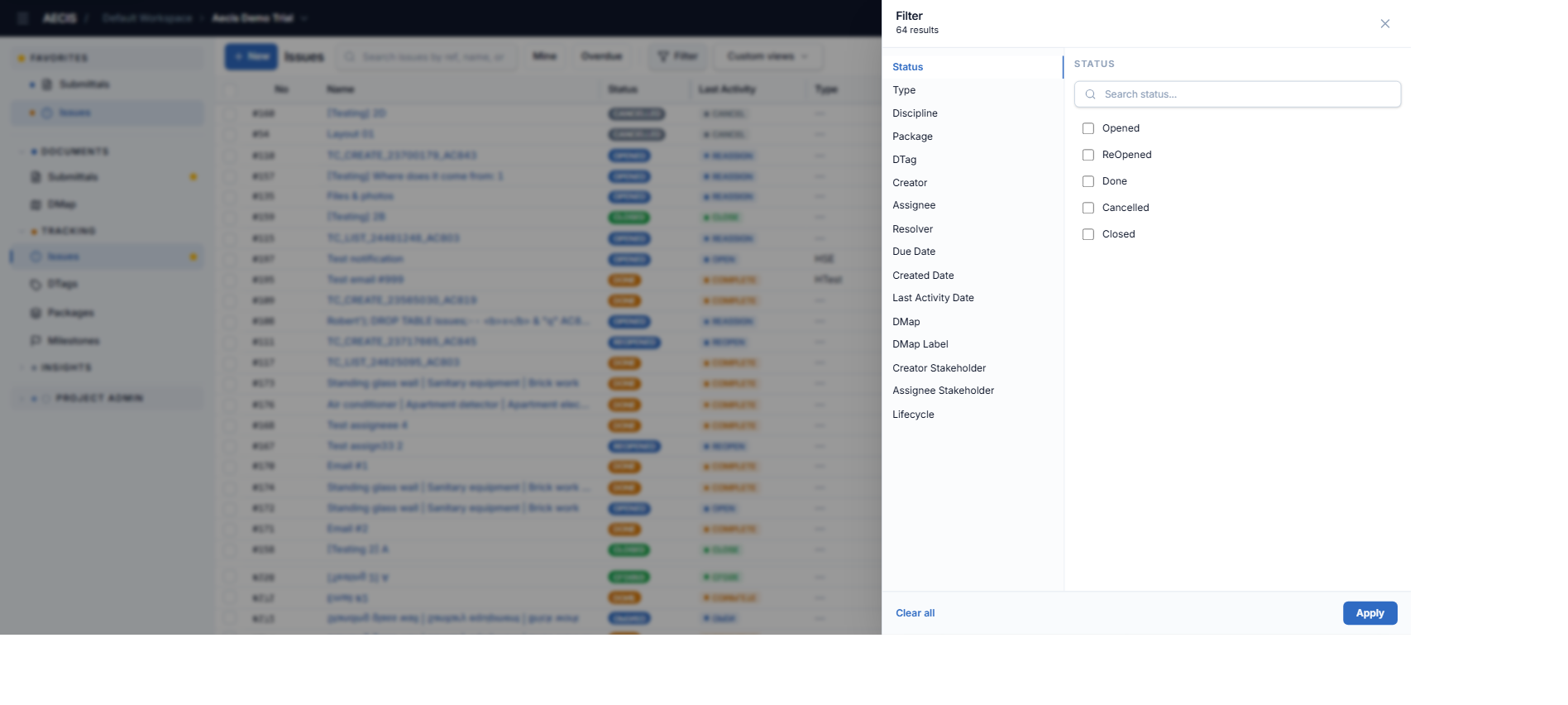
- Click the Filter button. A filter panel slides in from the right.
- Combine any of these conditions (they apply together — AND logic):
- Status
- Type
- Discipline
- Package
- DTag
- Creator
- Assignee
- Resolver
- Due-date range
- Created-date range
- Last-activity-date range
- DMap
- DMap Label
- Creator Stakeholder
- Assignee Stakeholder
- Lifecycle (Inactive / Active / Closed)
- The matching result count updates instantly.
- The Filter button shows a badge with the number of active conditions. Use Clear all filters to reset.
Saved custom filters
Create and name a filter made of multiple conditions combined with AND or OR, and save it for quick reuse:
- Open Custom views in the toolbar.
- Build your conditions and give the filter a name.
- Select it from the Custom views dropdown any time.