Email Notifications & COB
How notifications work
When an action occurs on an issue, AECIS emails the people in the issue's distribution list. Each action dialog has its own Notify Recipients via Email checkbox, so you decide per action whether an email goes out.
By default, every action that notifies recipients sends its email immediately — one email per action.
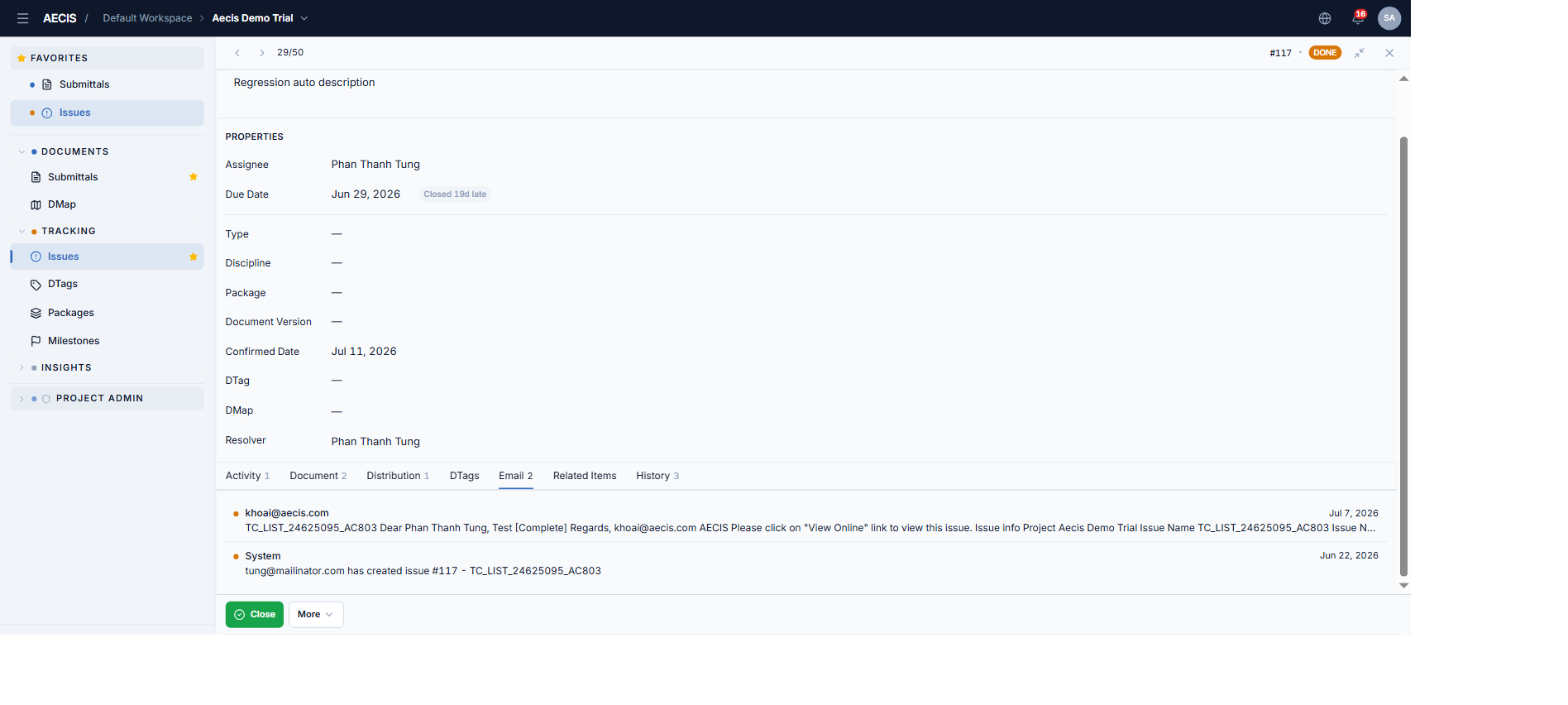
Emails generated from the issue are listed in the Email tab — open one to read it or Reply All (the reply is recorded back into the Activity timeline).
In-app / web notifications (bell icon)
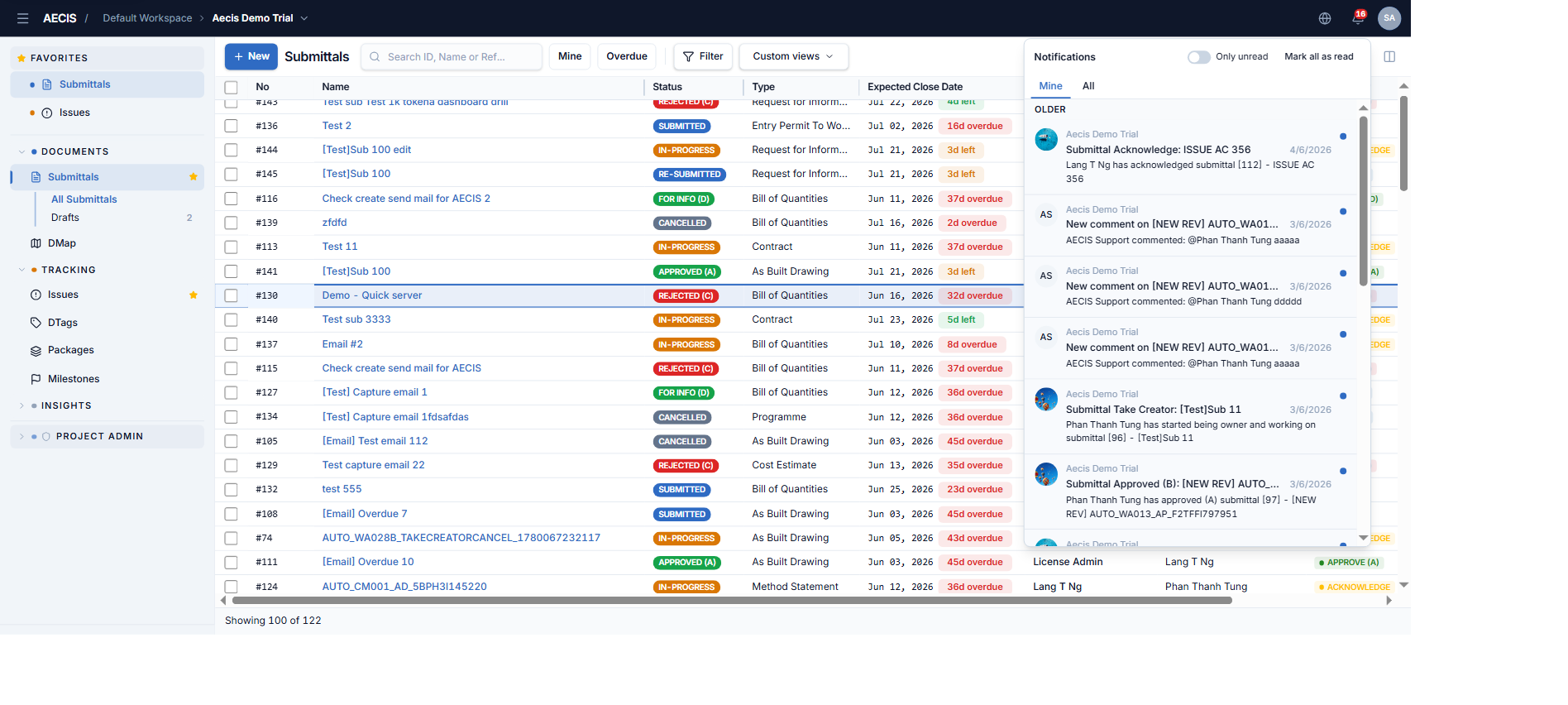
Besides email, every notification also appears in the application via the bell icon in the top bar. Notifications distinguish:
- Direct — you are addressed personally (To: or @-mentioned). Shown in the "Mine" notification view.
- Indirect — you received it via CC or the distribution list. Excluded from "Mine".
Managing the distribution list
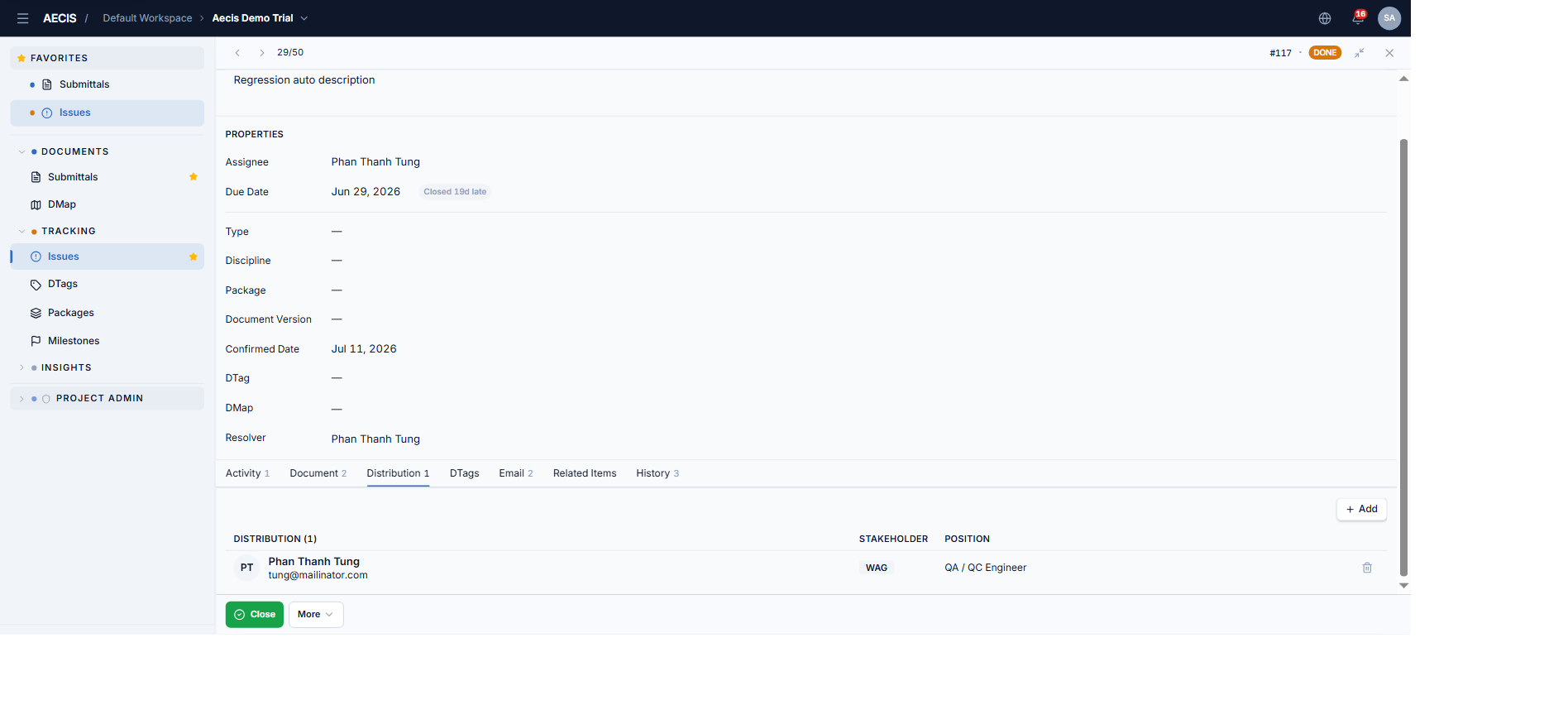
- When creating an issue, the distribution list is pre-loaded from the project's default list (if configured); you can add or remove people.
- Later, manage recipients in the Distribution tab of the detail panel — see The Detail Panel.
- When an issue is reassigned, the previous assignee is automatically kept in the distribution list.
COB — Summarized Email Notification
COB (Close of Business) prevents inbox flooding when many issues are created in one day for the same people. It batches a day's worth of creation emails into a single summary per recipient.
Scope — creation emails only
:::info Important COB affects only the email sent when an issue is created. It has no effect on Complete, Close, Cancel, Reassign, Update, Reopen, comments, or mentions — those always notify according to their own per-action email toggle. :::
How it behaves
- COB off (default): creating an issue sends the creation email immediately to the assignee and distribution list — one email per issue.
- COB on: the creation email is held until the end of the day. At the project's configured COB time (default 21:00, project time), the system sends one summarized email per recipient listing all the issues created that day which were held for them.
Where to find the toggle
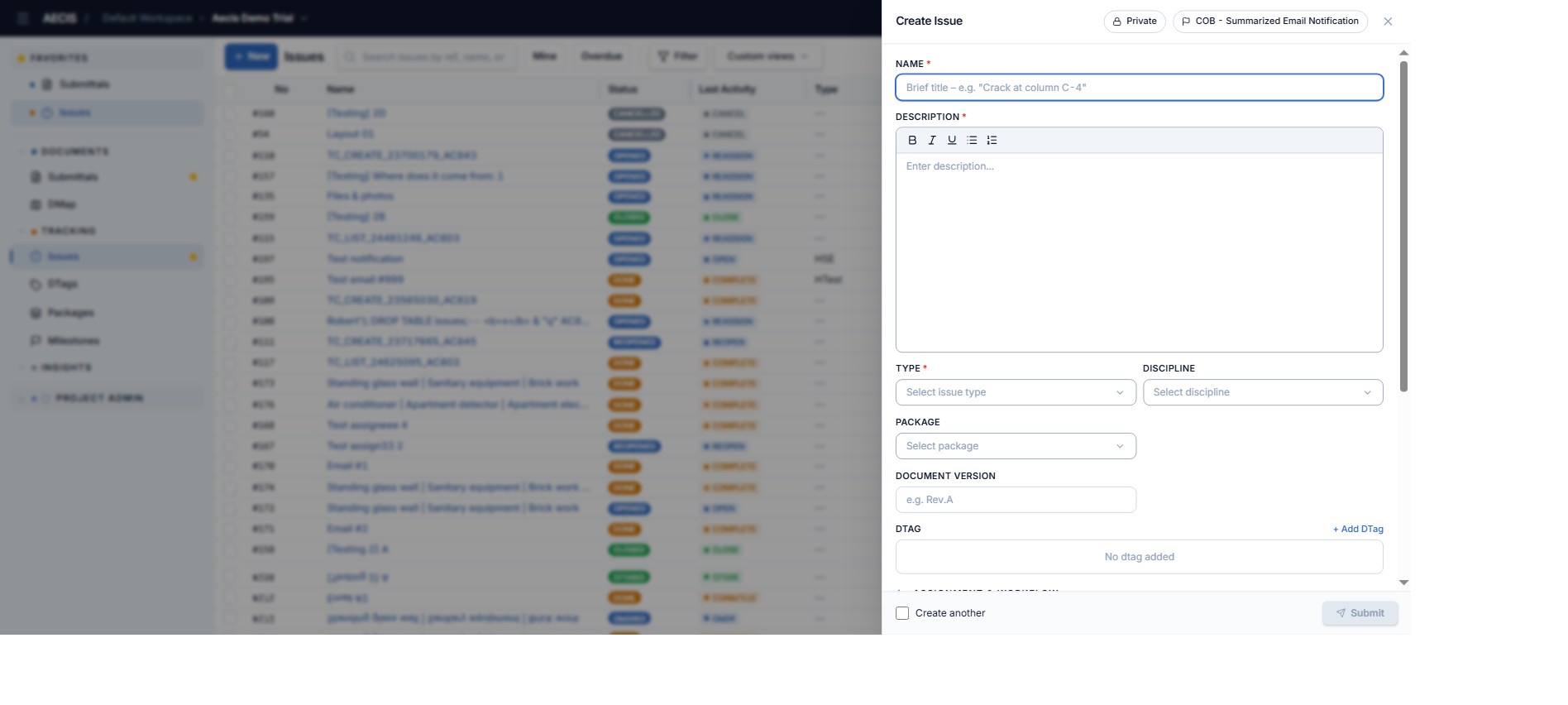
The COB – Summarized Email Notification toggle appears only on the Create Issue screen, in the panel header next to the Private toggle:
Configure the COB time
The COB time is configured per project in the project settings and defaults to 21:00 daily (project time).
Example
You create 12 issues today, all assigned to the same site engineer, with COB on. Instead of 12 separate emails, the engineer receives one summary email at 21:00 listing all 12 issues.