Edit an Issue (Inline Editing)
Correct or update an issue's content directly in the detail panel — without going through a workflow action dialog.
Who can edit, and when
| Role | Opened / Reopened | Done | Closed / Cancelled |
|---|---|---|---|
| Creator group | ✅ Title, description, all properties | ❌ | ❌ |
| Administrator | ✅ | ✅ | ✅ |
| All other users | Read-only | Read-only | Read-only |
The creator group includes the person who created the issue and any user in the same stakeholder organization as the creator. Users without permission see the content read-only, with no pencil icons or editors.
Edit the title
- Hover over the title — a pencil icon appears.
- Click the title to switch to an input field.
- Press Enter to save or Esc to cancel.
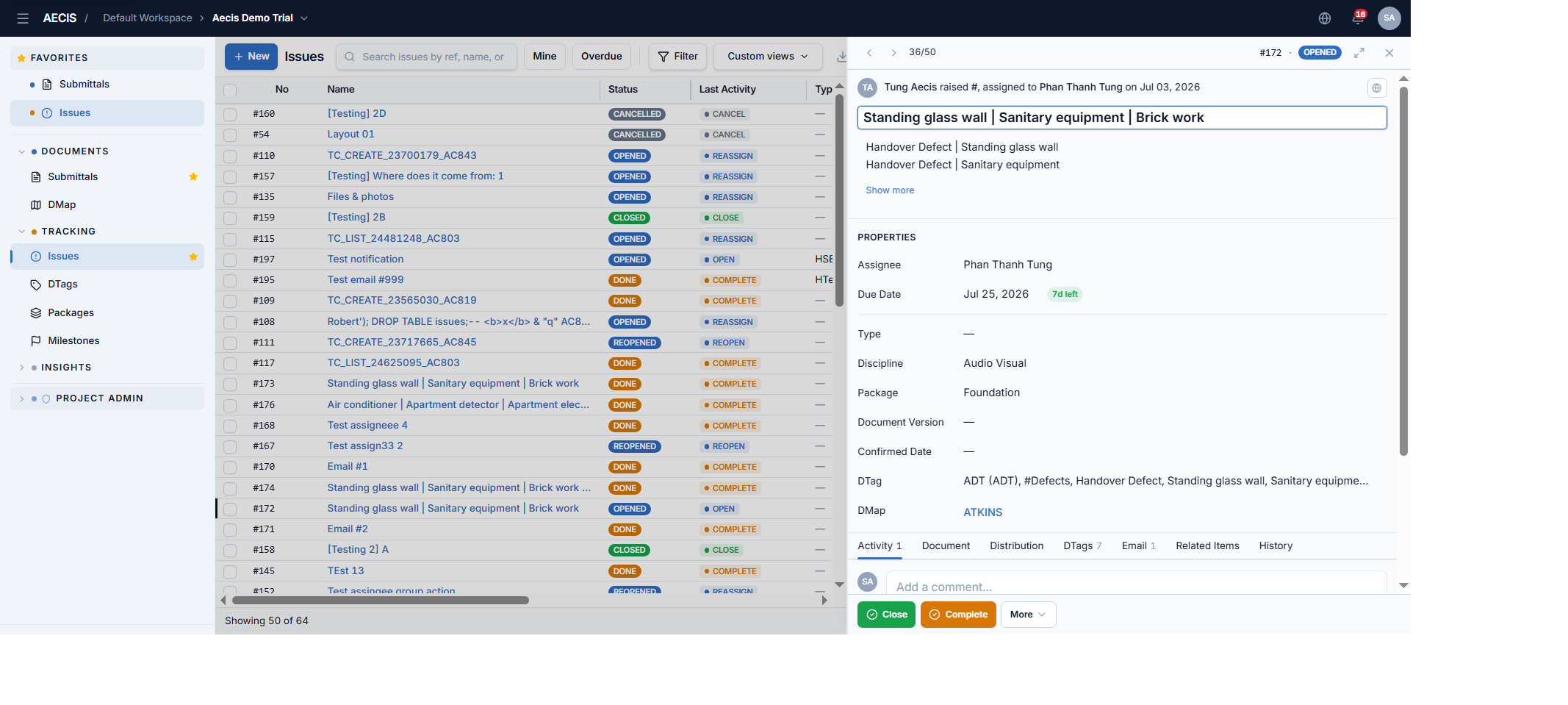
Edit the description
- Click the description area — the rich-text editor opens.
- Make your changes.
- Click Save (or Cancel) below the editor.
Long descriptions collapse to 2 lines with a Show more / Show less button.
Edit properties
In the properties grid, these fields are editable inline: Assignee, Due Date, Confirmed Date, Issue Type, Discipline, Package, DTag. Each opens an appropriate control — dropdown, date picker, or tree picker.
Not editable inline: issue number, creator, status, created date, closed date, and resolver (these are set automatically by workflow actions).
:::note Due date rule When creating an issue the due date cannot be in the past — but when editing (or reopening), a past date is allowed. :::
Audit trail
Every saved inline change is recorded in the History tab with the field name, old value, new value, editor name, and exact timestamp.
Concurrent edits
If another user saved a change to the issue after you last loaded the detail panel, the system shows a "Data is outdated — please refresh" warning when you try to save, and prevents your save until the panel is refreshed. This protects against overwriting someone else's changes.