Bulk Actions
Apply the same action to many issues at once.
Steps
-
In the issue list, tick the checkboxes of the issues you want to act on.
-
A bulk-action bar floats up at the bottom-center of the screen, showing the selected count and the applicable actions.
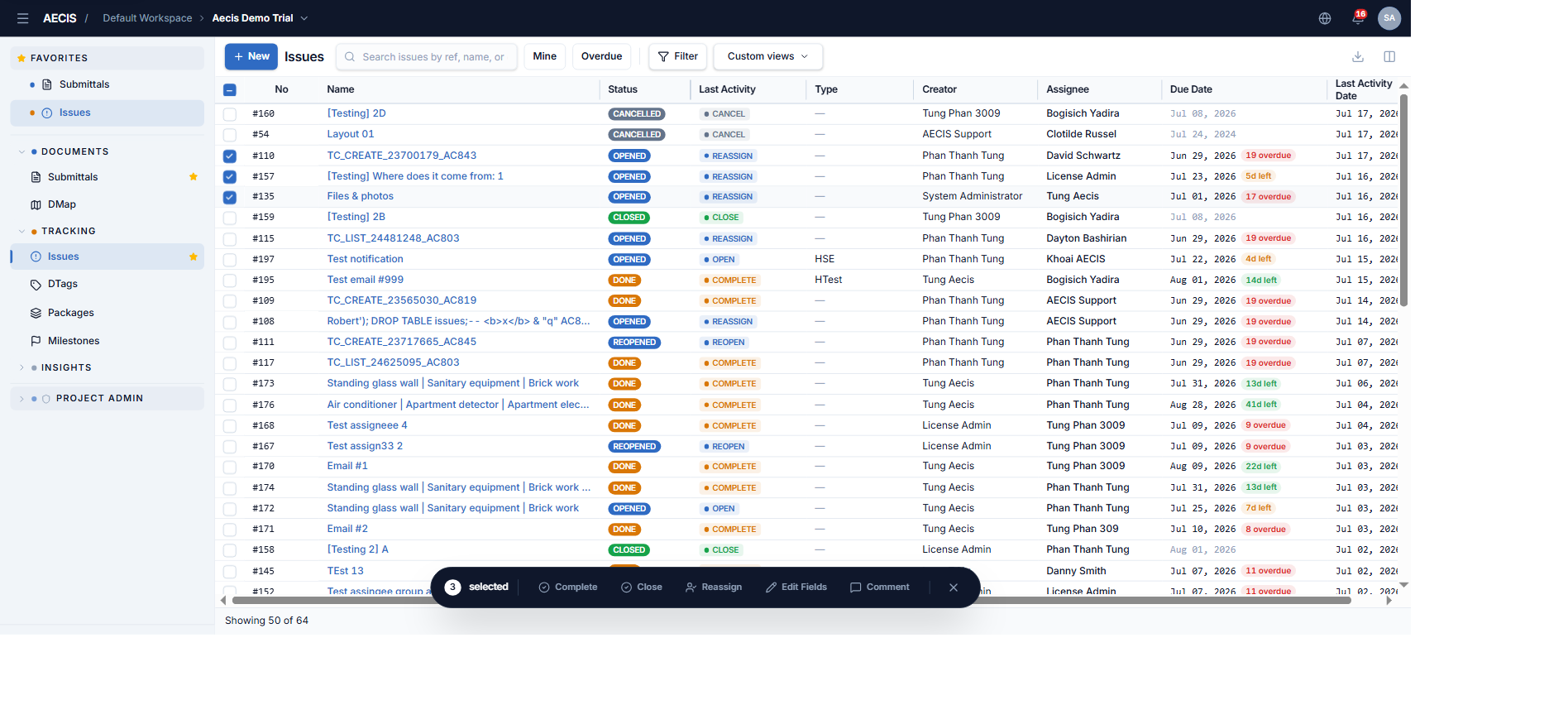
-
Choose an action — a panel slides in from the right, similar to the single-issue dialog, with the header stating the number of issues (e.g. "12 Selected").
-
Fill the required fields and confirm. The system reports how many issues were updated successfully out of the total selected.
Which actions are available
An action appears on the bar only when every selected issue is eligible — if even one row is ineligible, the action is hidden (with a reason such as "x of y cannot …").
| Action | Every selected issue must be… |
|---|---|
| Complete | Opened or Reopened |
| Close | Opened, Reopened, or Done |
| Reassign | Opened or Reopened |
| Edit Fields | Opened or Reopened |
| Comment | (always allowed) |
Bulk Cancel is not supported. To cancel issues, open each one and use the Cancel action individually.
Bulk Complete / Bulk Close
Enter the Note (required), optionally attach files, choose whether to notify recipients by email, and confirm. Every eligible issue moves to Done (Complete) or Closed (Close).
Bulk Reassign
Select the new assignee (required, with an Assign to Me button), enter the Note (required), and confirm. Every selected issue moves to the new assignee — and as with single reassign, the previous assignees are kept in the distribution lists.
Bulk Edit Fields
Update one or more attributes across all selected issues in one go:
-
Choose Edit Fields on the bulk bar.
-
The panel shows 7 toggleable rows: Assignee, Due Date, Confirmed Date, Issue Type, Discipline, Package, DTag — each with an apply checkbox and a value input.
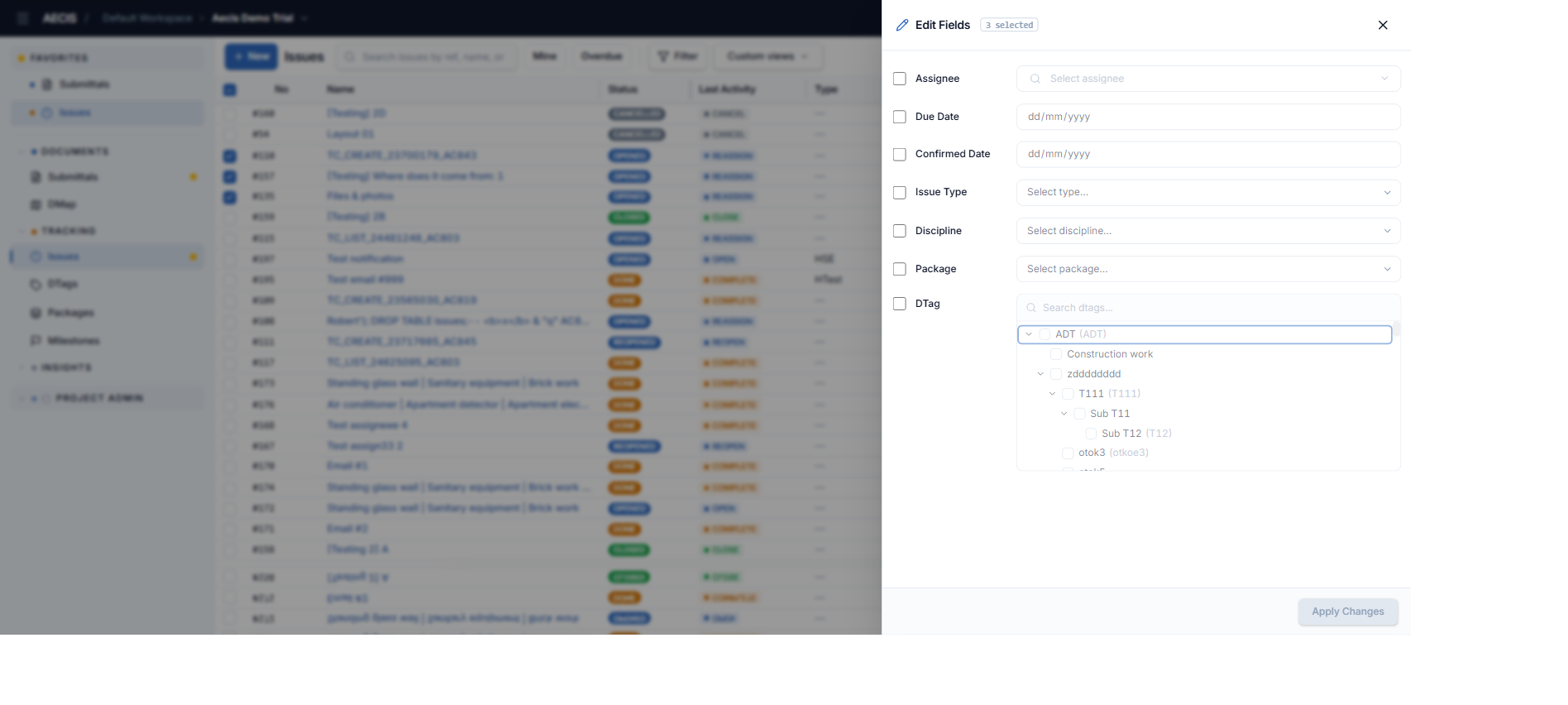
-
Tick the rows you want to change and fill their values. Only checked rows with a value are applied.
-
Confirm (enabled when at least one row is checked and filled).
This screen has no Note field, attachments, or email checkbox — the field changes themselves are the content of the action. Clearing a value via bulk edit is not allowed; clear values per issue instead.
Bulk Comment
Adds the same comment to all selected issues. Enter the Note (required), optionally attach files, and confirm. Always available regardless of status — this is an internal note, so there is no email checkbox.