Upload a DMap
Register one DMap (a single PDF drawing) at a time through the Upload panel.
Steps
-
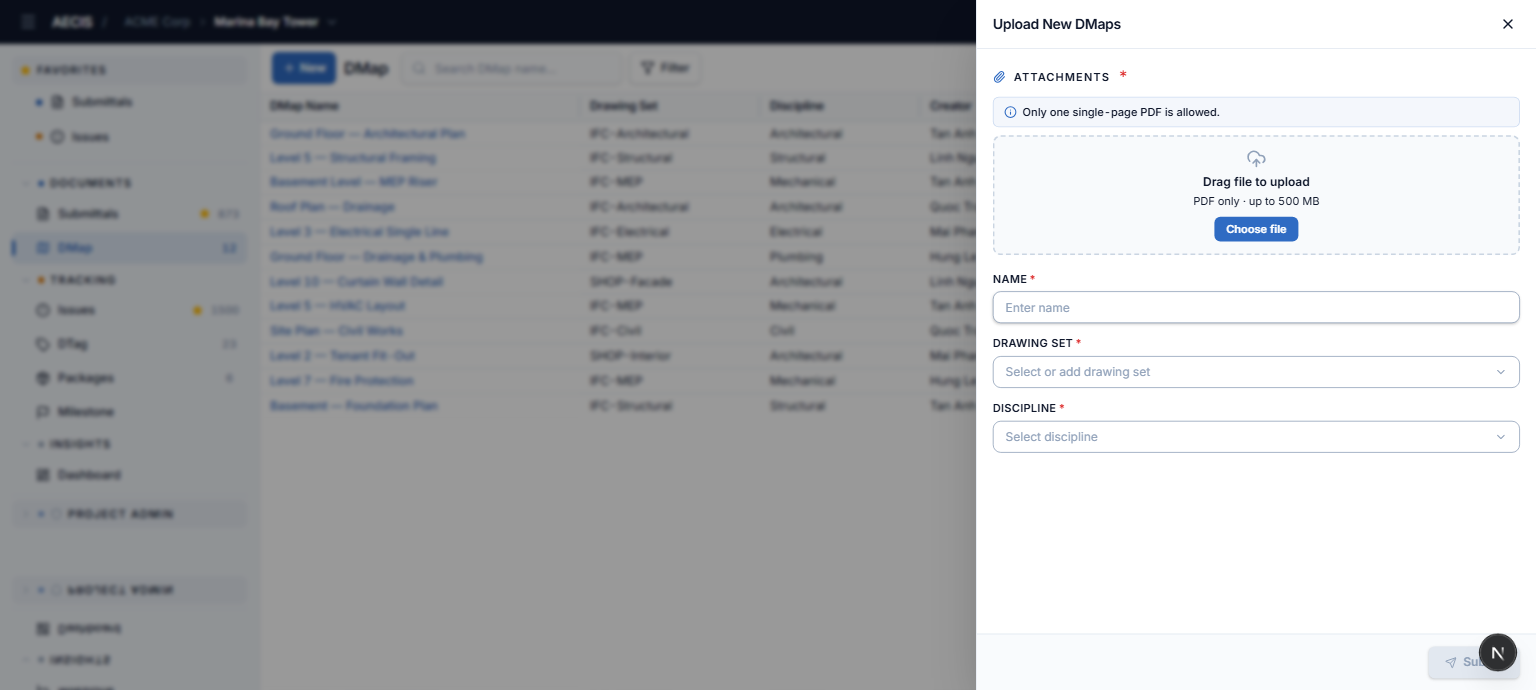
Click + New in the DMap toolbar (or Create first DMap on an empty register).
-
Attach the PDF — drag it into the drop zone or click Choose file.
- PDF only, up to 500 MB; other file types are ignored.
- Exactly one page — a multi-page PDF shows an inline warning and blocks the Upload button until replaced.
- Attaching a new file replaces the previous one; click the file name to preview page 1 full-screen; the trash button removes it.
-
Name (required) — auto-filled from the file name (without
.pdf), editable. -
Drawing Set (required) — pick an existing set, or type a new name and choose + Create to make one on the spot. A drawing set belongs only to the project it is created in.
-
Discipline (required) — choose from the project's disciplines.
-
Click Upload (enabled only when everything above is satisfied).
What happens next
- The DMap is saved and its PDF is converted to an image that the viewer uses.
- The list refreshes to include the new DMap, showing a processing indicator on the row until conversion finishes.