The Issue Panel
The left panel of the viewer holds every control for filtering and browsing the pinned issues. The visible pins on the canvas always match the cards in the list — filtering one filters the other.
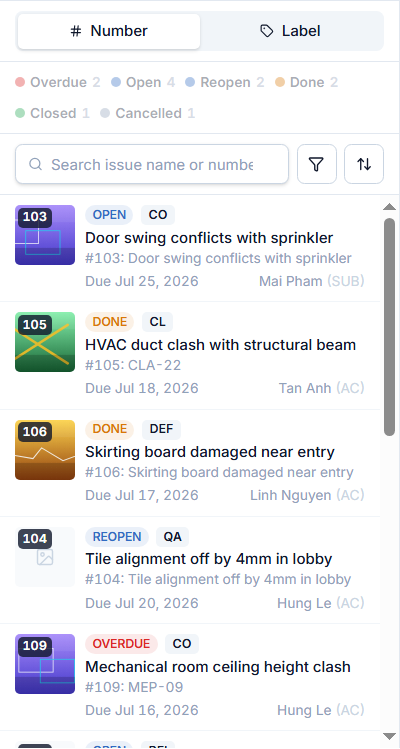
Status summary bar
One pill per status present on the drawing, each with a colored dot and count. Click a pill to toggle that status filter (multi-select); inactive pills dim. With nothing selected, all issues show.
Search, filter & sort
- Search — filters cards and pins in real time by issue name, number, and custom label.
- Filter toggle — expands the inline filter panel; an amber badge counts active conditions.
- Sort toggle — switches the card list between ascending/descending by Updated Date.
The filter panel
- Status chips — one per status, synced both ways with the summary pills.
- Due Date range — optional From / To dates.
- Clear resets the panel's conditions (not the search); Done closes without resetting.
All conditions combine with AND.
Issue cards
Each card shows a thumbnail with the issue number, a status chip and type abbreviation (DEF, SS, CO, QA, CL, RFI), the issue name, #number: label, the due date, and the creator ("Name (ORG)").
- Hover a card to highlight its pin on the canvas and show the preview popup.
- Click a card (or press Enter/Space) to open the issue detail.