Dashboard Settings
Administrators arrange the project dashboard on the Dashboard Settings page under Project Admin in the sidebar. The configuration applies to the whole project.
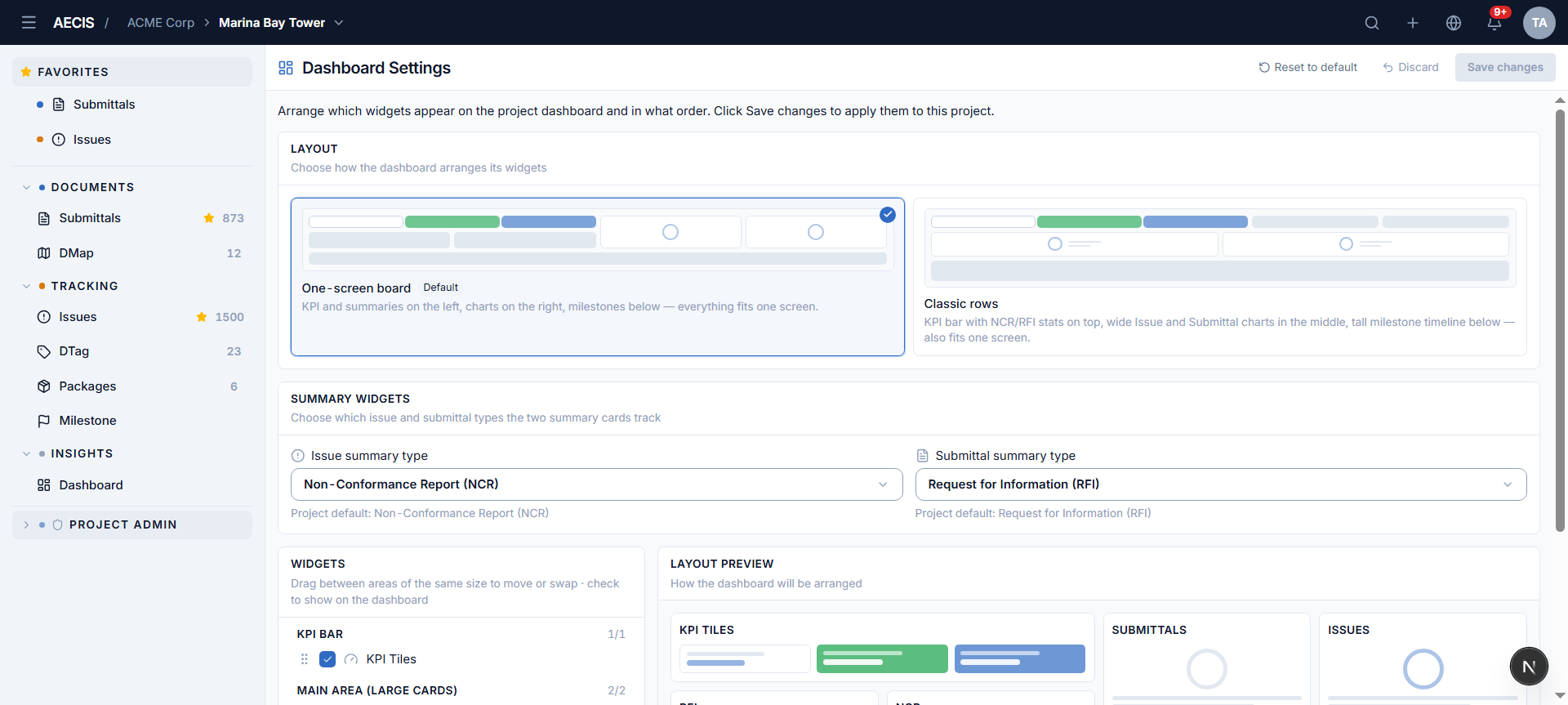
Layout
Choose how the board arranges its widgets:
- One-screen board (default) — KPIs and summaries on the left, charts on the right, milestones below.
- Classic rows — the KPI bar with the NCR/RFI stats on top, wide Issue and Submittal charts in the middle, a tall milestone timeline below.
Summary widgets
Choose which types the two summary cards track — the Issue summary type (e.g. Non-Conformance Report) and the Submittal summary type (e.g. Request for Information).
Widgets
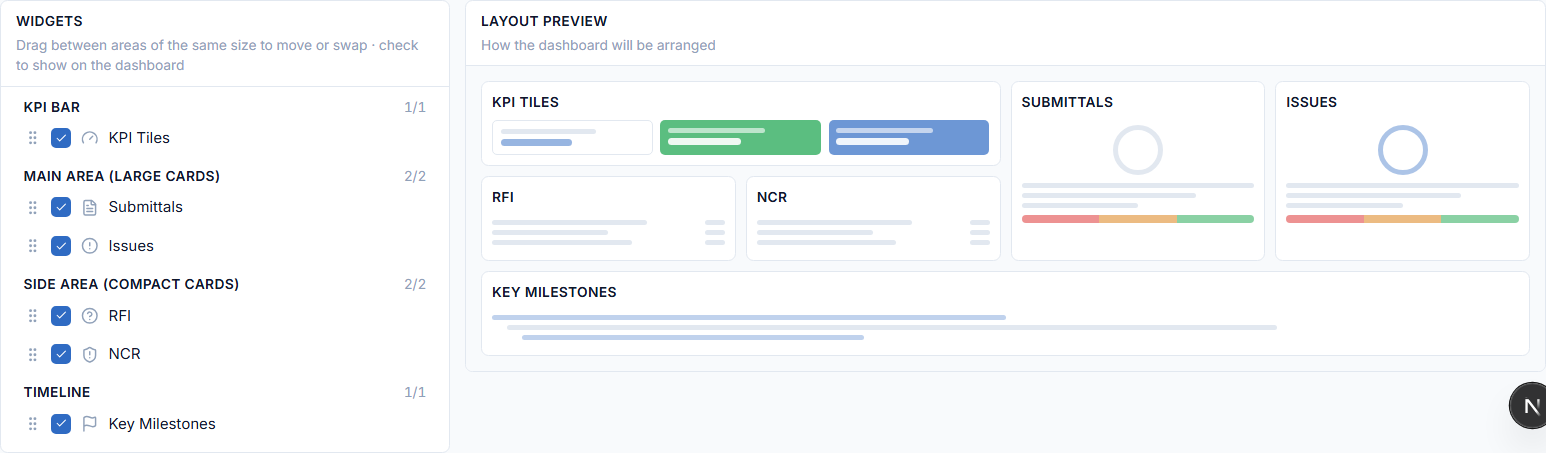
The widget list shows every dashboard widget in its configured order, grouped by board zone (KPI bar, main area, side area, timeline):
- Reorder — drag a widget between areas of the same size, or use the arrow buttons.
- Show/hide — the checkbox controls whether the widget renders on the dashboard. The last visible widget cannot be hidden.
- The Layout Preview on the right mirrors exactly what the dashboard will render, updating live.
Applying changes
- Save changes applies the configuration to the project; Discard drops the edits.
- Reset to default restores the factory order with everything visible.
note
The settings define the project layout; each viewer's widget permissions still apply on top — a hidden-by-permission widget simply doesn't render for that viewer.